

What Juwazi is#
Juwazi is a computer-based testing (CBT) platform. An organization uses it to build a question bank, set exams, deliver them to students on a computer, and see the results, all in one place.
Each organization gets its own private workspace (Juwazi calls this multi-tenant). Your subjects, questions, students, staff and results are visible only to people in your organization.
Juwazi is built for any organization that tests people, including:
- Schools and universities running tests, continuous assessments (CATs) and end-of-term exams
- Exam bodies and certification providers
- Companies and recruiters screening or training staff
- Government agencies
As a Super Admin, you run the workspace. You set up subjects, classes and people, decide which exams go live, and have the final say on every exam’s status.
This guide is for anyone in your organization who has a Super Admin account. The demo screenshots use a sample school called Juwazi Demo.
The building blocks#
Everything in Juwazi is built from six things. Each has its own page in the left-hand menu, and the Dashboard counts the main ones.
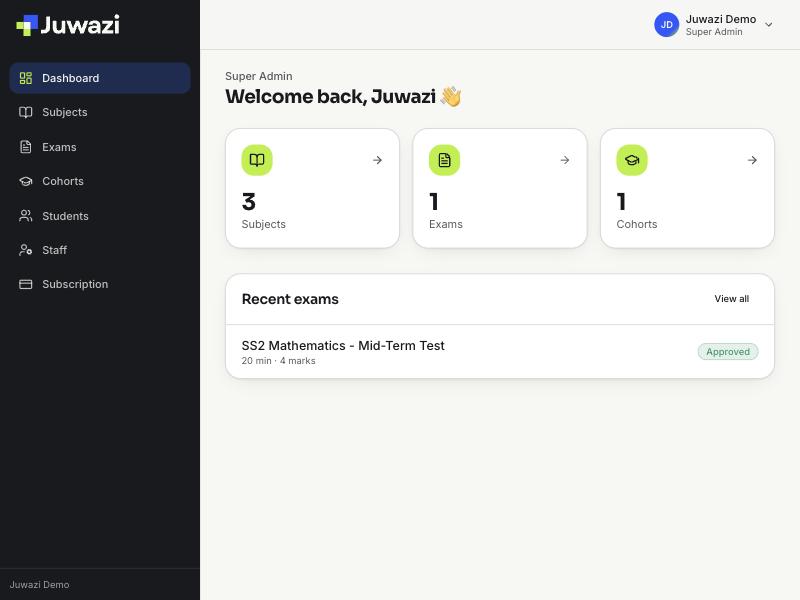
| Building block | What it is | Where to find it |
|---|---|---|
| Subject | A topic such as Mathematics or Biology. Each subject holds its own item bank of questions. | Subjects |
| Question (item) | One question in a subject’s item bank. There are 5 types: multiple choice (one answer), multiple choice (several answers), true/false, short answer and numeric. | Subjects → open a subject |
| Exam | A timed test built from item-bank questions, with a duration, pass mark and number of attempts. | Exams |
| Cohort | A group of students, such as a class or batch. Exams are assigned to whole cohorts. | Cohorts |
| Student | A person who sits exams. Each student belongs to a cohort and signs in with an access code. | Students |
| Staff | People who run the workspace with you: Administrators, Teachers, Supervisors and Staff. | Staff |
Subjects and the item bank#
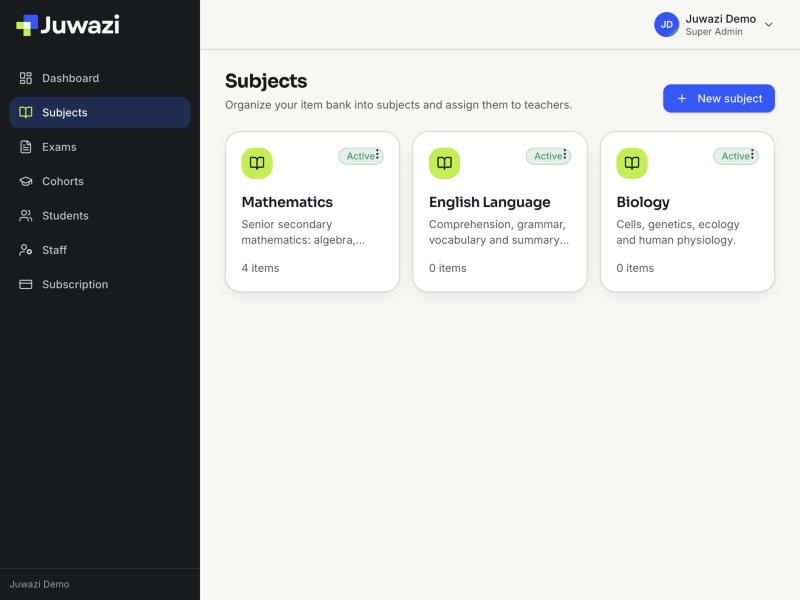
Subjects are where questions live. You write a question once in its subject’s item bank, then reuse it in as many exams as you like.
Exams#
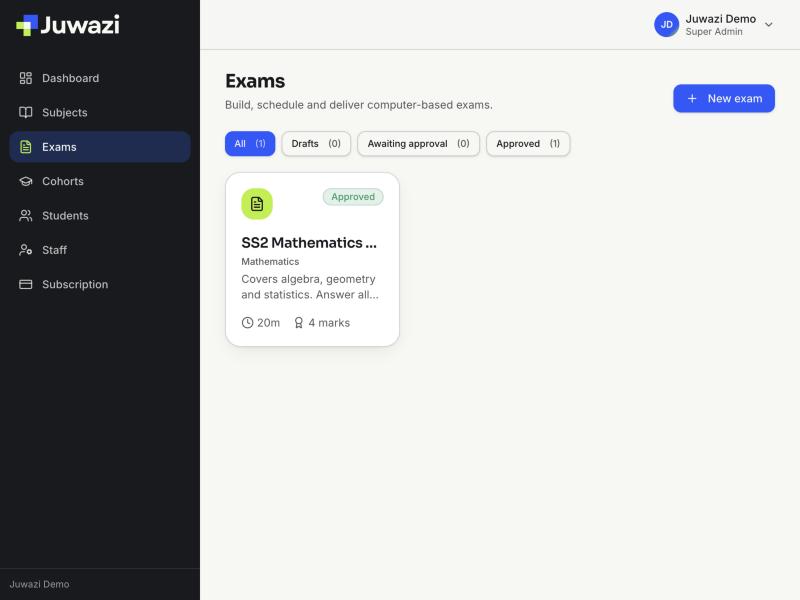
An exam pulls questions from one subject’s item bank, grouped into sections. The Exams page filters exams by status: Drafts, Awaiting approval and Approved.
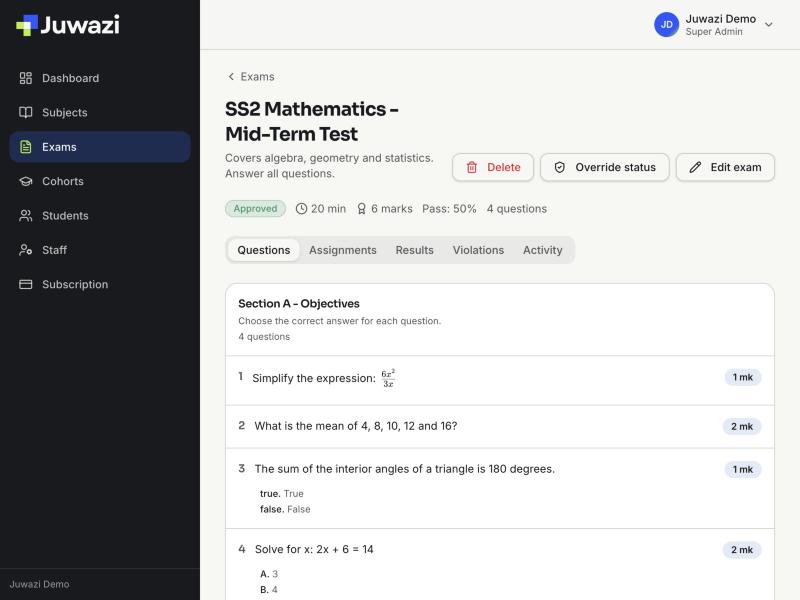
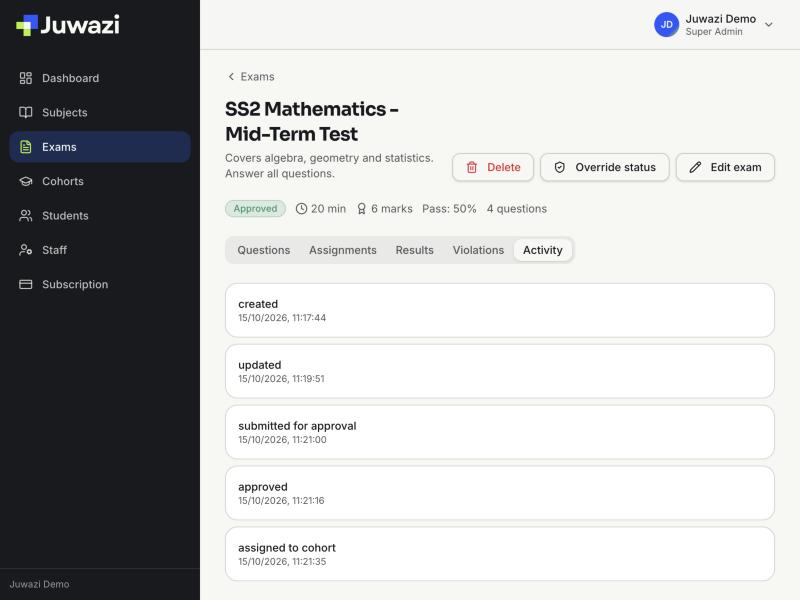
Open an exam to see its questions, with tabs for Assignments, Results, Violations and Activity.
Cohorts and students#
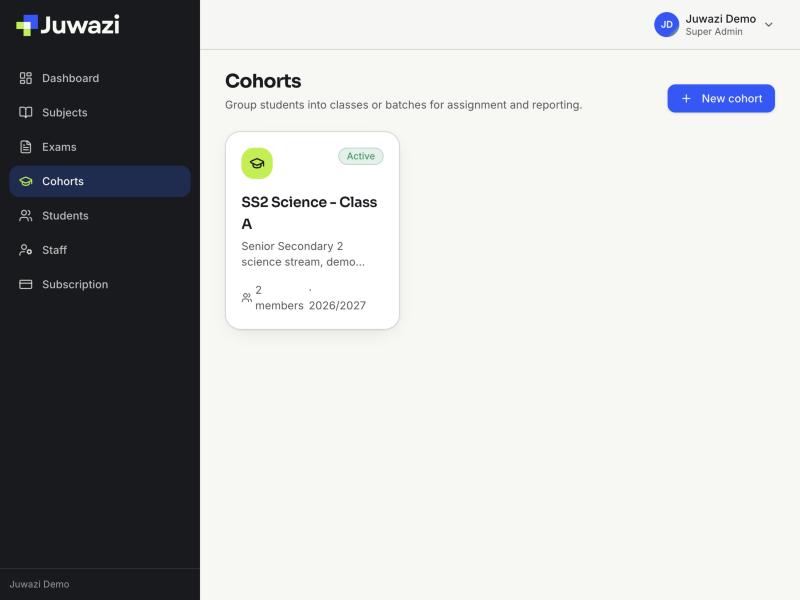
A cohort is a class or batch of students, such as “SS2 Science – Class A” for the 2026/2027 year. Students are always enrolled into a cohort, and exams are assigned to whole cohorts, never to one student at a time.
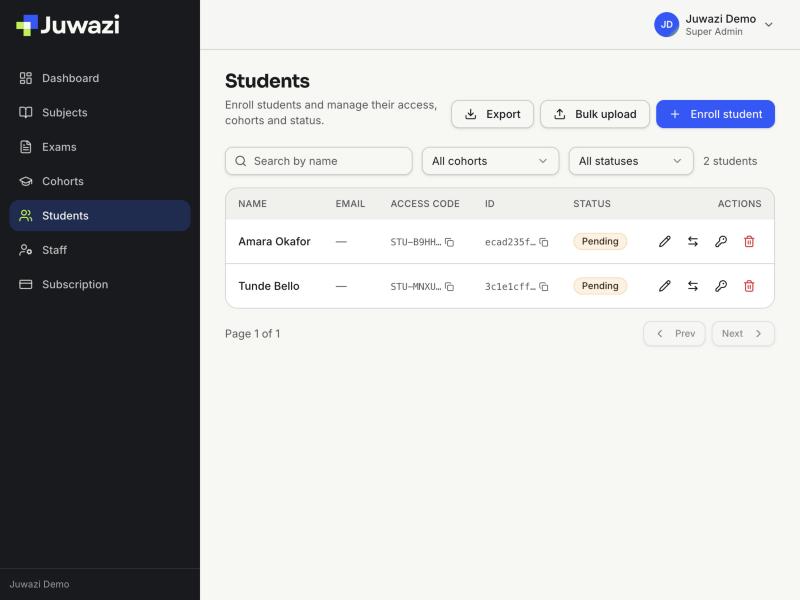
When you enrol a student, Juwazi creates a personal access code for them (for example STU-B9HHRNW). The student uses it to sign in, so students never need a password.
Staff#
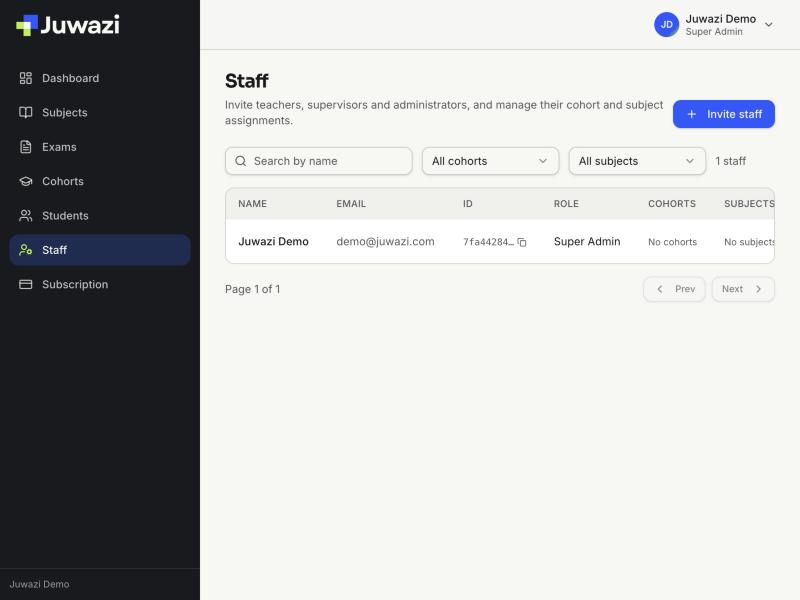
Staff are the adults who help run your workspace. You invite them by email and give each one a role. The next section explains the roles.
The roles#
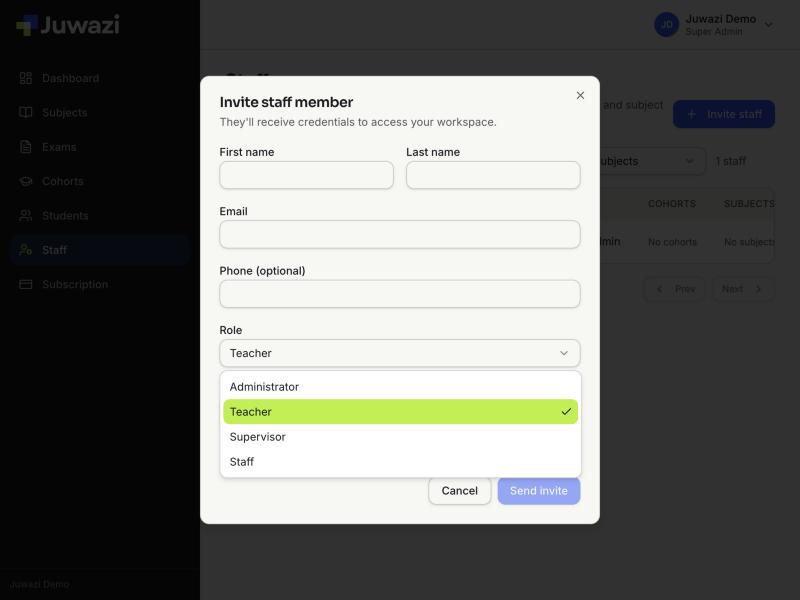
Juwazi has five staff roles plus students. The Super Admin sits at the top and can do everything. You choose a staff member’s role when you invite them.
| Role | What they are for | How they get in |
|---|---|---|
| Super Admin | Owns the workspace. Creates subjects, cohorts and exams, enrols students, invites staff, approves exams, and can force any exam into any status. | Created with the organization. Signs in with email and password. |
| Administrator | Helps run the workspace. Reviews and approves exams that are submitted for approval. | Invited by email. Signs in with email and password. |
| Teacher | Assigned to subjects and cohorts. Writes questions and builds exams for their subjects. | Invited by email. Signs in with email and password. |
| Supervisor | Oversees exams for the cohorts they’re assigned to. | Invited by email. Signs in with email and password. |
| Staff | Other team members who can be attached to a cohort. | Invited by email. Signs in with email and password. |
| Student | Sits the exams assigned to their cohort and sees their results. | Enrolled by staff. Signs in with an access code and a security question. |
Draft note: we’ve confirmed the Super Admin’s abilities. The Administrator, Teacher, Supervisor and Staff descriptions are based on the app’s own wording and will be confirmed in their own guides.
How staff sign in#
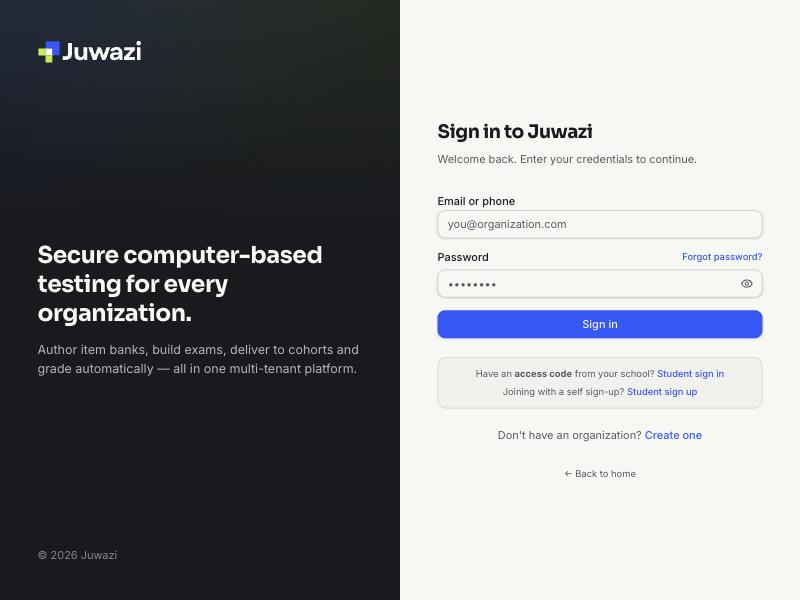
Everyone except students uses the main sign-in page with their email (or phone) and password. Invited staff get their sign-in details by email.
How students sign in#
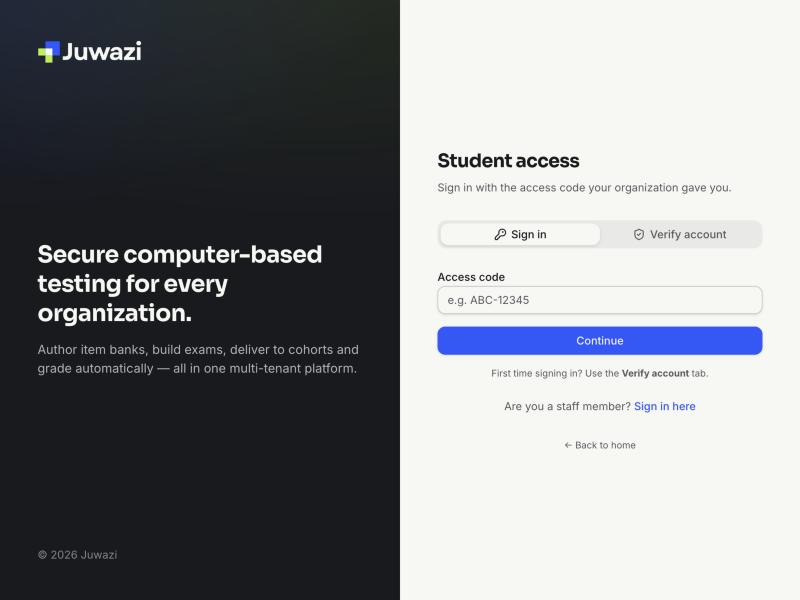
Students use the Student sign in page, linked from the main sign-in page.
- First time: open the Verify account tab, enter the access code, then choose a security question and answer.
- Every time after: enter the access code on the Sign in tab, then answer the security question.
If a student forgets their security answer, staff can reset it from the Students page.
How the roles fit together#
Every exam follows the same path, from the item bank to the results. Students can only be given an exam after it has been approved.
| Step | What happens | Who usually does it |
|---|---|---|
| 1 | Create a subject | Super Admin, Administrator |
| 2 | Add questions to the subject’s item bank | Teacher, Super Admin, Administrator |
| 3 | Create a cohort (class or group) | Super Admin, Administrator |
| 4 | Enrol students and share their access codes | Super Admin, Administrator |
| 5 | Create the exam and add questions | Teacher, Super Admin, Administrator |
| 6 | Submit the exam for approval | Teacher |
| 7 | Review and approve the exam | Administrator, Super Admin |
| 8 | Assign it to a cohort; students sit it and results come in | Teacher, Administrator, Super Admin |
The Super Admin can do every step; other roles take on the parts shown in the last column.
Exam statuses#
Every exam carries a status, shown as a badge on its card and page. The status decides what can happen to the exam next.
| Status | What it means | How an exam gets there |
|---|---|---|
| Draft | Being built. Questions and settings can change. Students can’t be assigned. | Every new exam starts here. |
| Pending | Waiting for approval (shown as Awaiting approval on the Exams page). | Submit for approval on the exam page. |
| Approved | Ready to use. It can now be assigned to cohorts. | A Super Admin or Administrator clicks Approve. |
| Rejected | Sent back to its author to fix. | The approver clicks Reject. |
| Active | Live for students. | To be confirmed once a student sits an exam. |
| Closed | Finished. No more attempts. | To be confirmed. |
| Archived | Retired and kept for the record. | To be confirmed. |
As Super Admin you can also use Override status on any exam to force it into any of these statuses, skipping the normal steps. Use it to fix mistakes; you can add a reason for the record. Every change appears in the exam’s Activity tab.
What’s next#
The rest of the Super Admin series follows the order you’ll work in. Each guide has a matching captioned video.
Level 1: Getting started
- What Juwazi is and how the roles fit together (this guide)
- Signing in and a tour of the dashboard
Level 2: Setting up your organization
- Creating and managing subjects
- Building the question bank: the 5 question types
- Maths, formulas, tables and images in questions
- Bulk-uploading questions from Excel
- Creating cohorts
- Enrolling students and sharing access codes
- Bulk-enrolling and exporting students
- Inviting staff and assigning subjects and cohorts
Level 3: Running an exam
- Creating an exam and its settings
- Building the paper: sections and questions
- Delivery options: shuffling, results and review
- Submitting, approving and rejecting exams
- Assigning an exam to a cohort
- What students see when they sit an exam
Level 4: Monitoring and results
- Results and exporting to Excel
- Security violations
- The activity log
Level 5: Super Admin controls
- Overriding an exam’s status
- Managing students: edit, change cohort, reset security answer, remove
- Graduating and archiving cohorts
- Question status: draft, active, archive and delete
- Managing staff assignments
- Subscription