

Before you start#
This guide is for students taking exams on Juwazi. You need:
- Your access code, for example STU-B9HHRNW. Your school gives you this, by email or on a printed slip. Keep it private, like a password.
- A computer with an up-to-date web browser such as Chrome, Edge, Firefox or Safari, and a steady internet connection.
- A quiet place where you can stay on the exam screen for the whole exam.
More screenshots coming soon. This version shows the screens up to the start of an exam. Screenshots of answering, submitting and results will be added once our demo exam has been recorded.
First sign-in: verify your account#
The first time you use Juwazi, you verify your account and choose a security question. You only do this once.
- Go to app.juwazi.com/student-login. The page is called Student access.
- Click the Verify account tab.
- Type your access code.
- Choose a security question from the list, or pick Write my own… and type your own question.
- Type your answer. Pick something you’ll remember exactly, because you’ll need it again.
- Confirm. You’re taken to your student dashboard.
After verifying, your status in the school’s records changes from Pending to active.
Forgot your security answer? Ask your school. An administrator can reset it for you.
Signing in after that#
- Go to app.juwazi.com/student-login.
- Stay on the Sign in tab.
- Type your access code and click Continue.
- Answer your security question if you’re asked.
Students don’t use passwords. Your access code and security answer are your sign-in, so never share them.
If you see the staff sign-in page (email and password) instead, use the Student access link, or go to the address in step 1.
Your student dashboard#
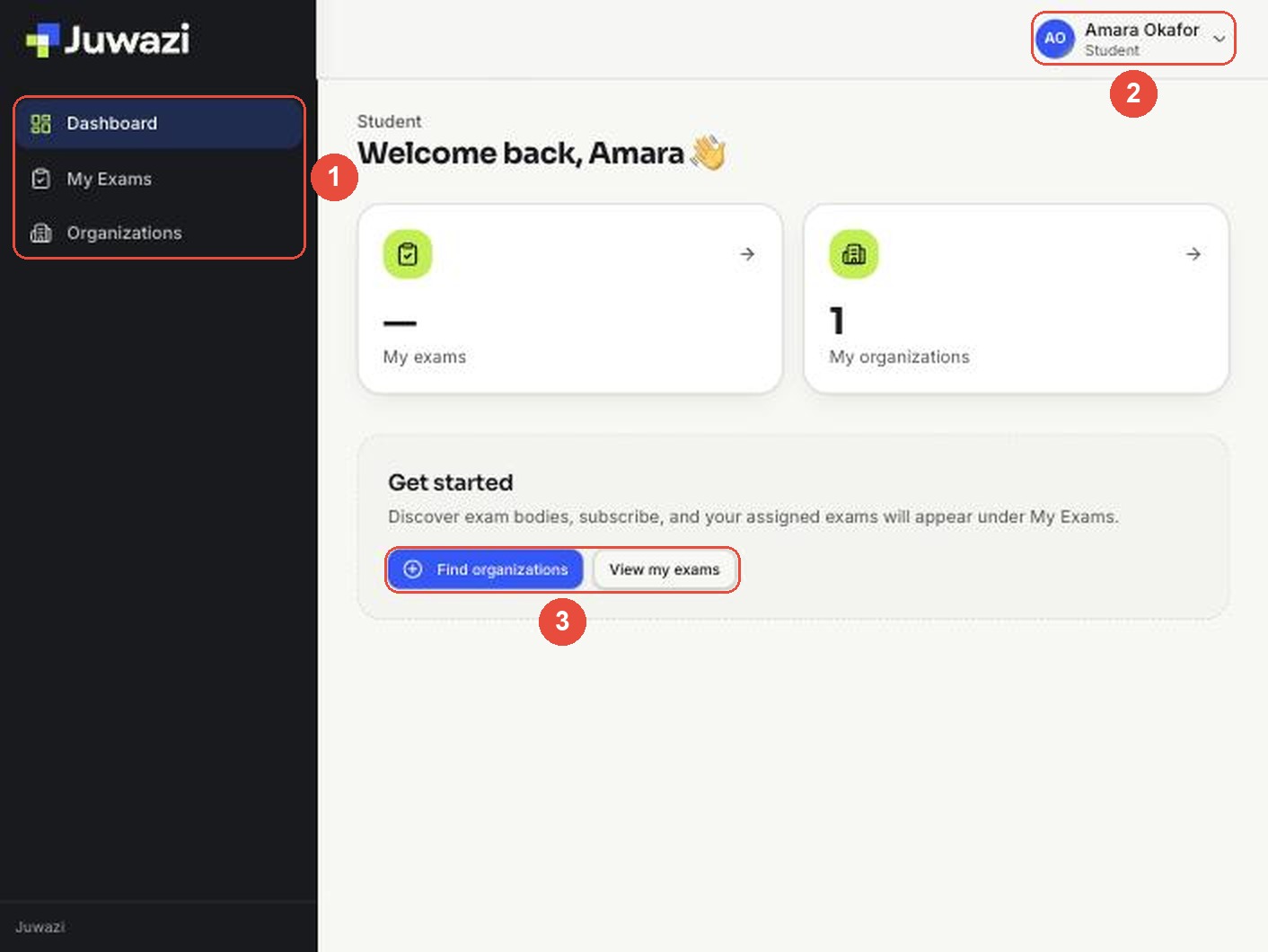
After signing in you’ll see three items in the menu on the left:
| Menu item | What it shows |
|---|---|
| Dashboard | “Welcome back” with your name, a count of your exams and organisations, and shortcuts to Find organizations and View my exams |
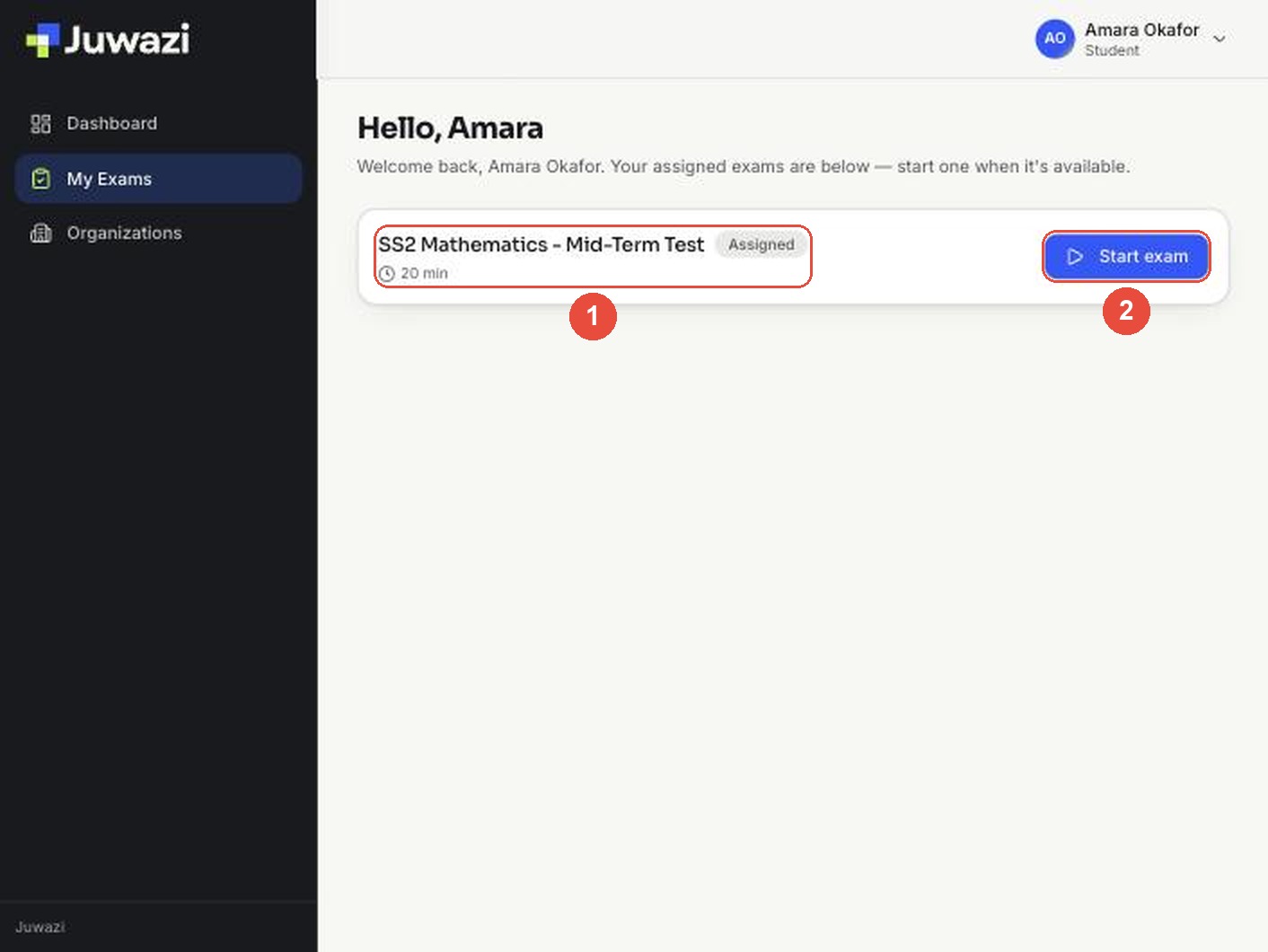
| My Exams | Every exam assigned to you. Each card shows the exam name, its status (for example Assigned), its length, and a Start exam button |
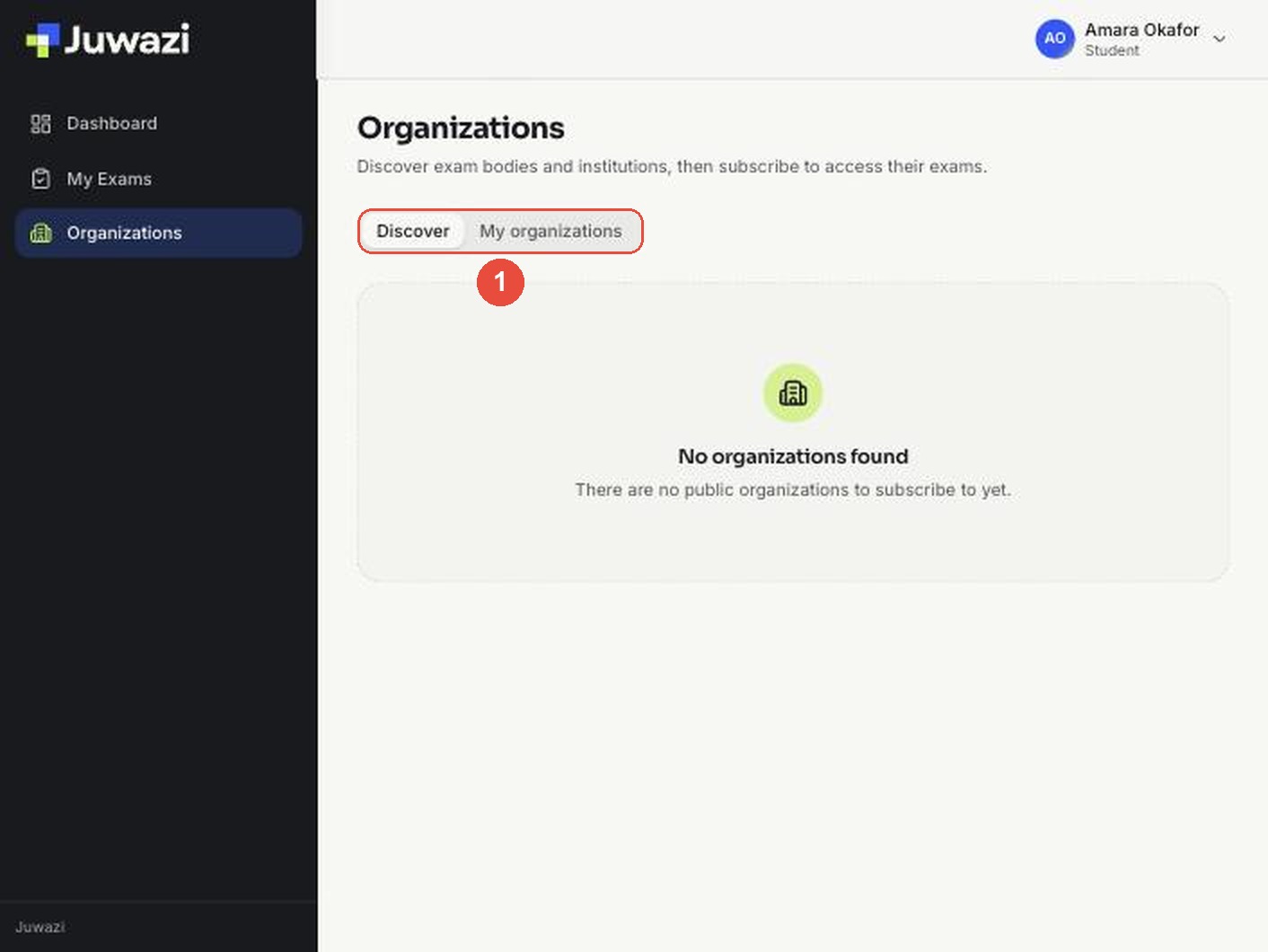
| Organizations | Discover lists exam bodies and institutions you can subscribe to. My organizations shows the schools you belong to |
Your name and the label Student appear at the top right.
The Dashboard shows the menu (1), your name (2), and shortcuts such as View my exams (3):
My Exams lists each exam with its status and length (1), and a Start exam button (2):
Organizations has two tabs (1): Discover and My organizations:
If an exam you expect isn’t in My Exams, check with your teacher. They may not have assigned it to your class yet, or it may not be open yet.
Starting an exam#
- Go to My Exams.
- Find the exam and click Start exam.
- The Exam instructions page opens. It shows: – the exam name, its duration, total marks and pass mark – About this exam: the description your teacher wrote – Instructions, for example: “You have 20 minutes. Do not leave full screen or switch tabs – violations are recorded.” – a reminder: Your timer starts as soon as you press “Begin exam”.
- Read everything, then click Begin exam. Click Back to my exams if you’re not ready yet.
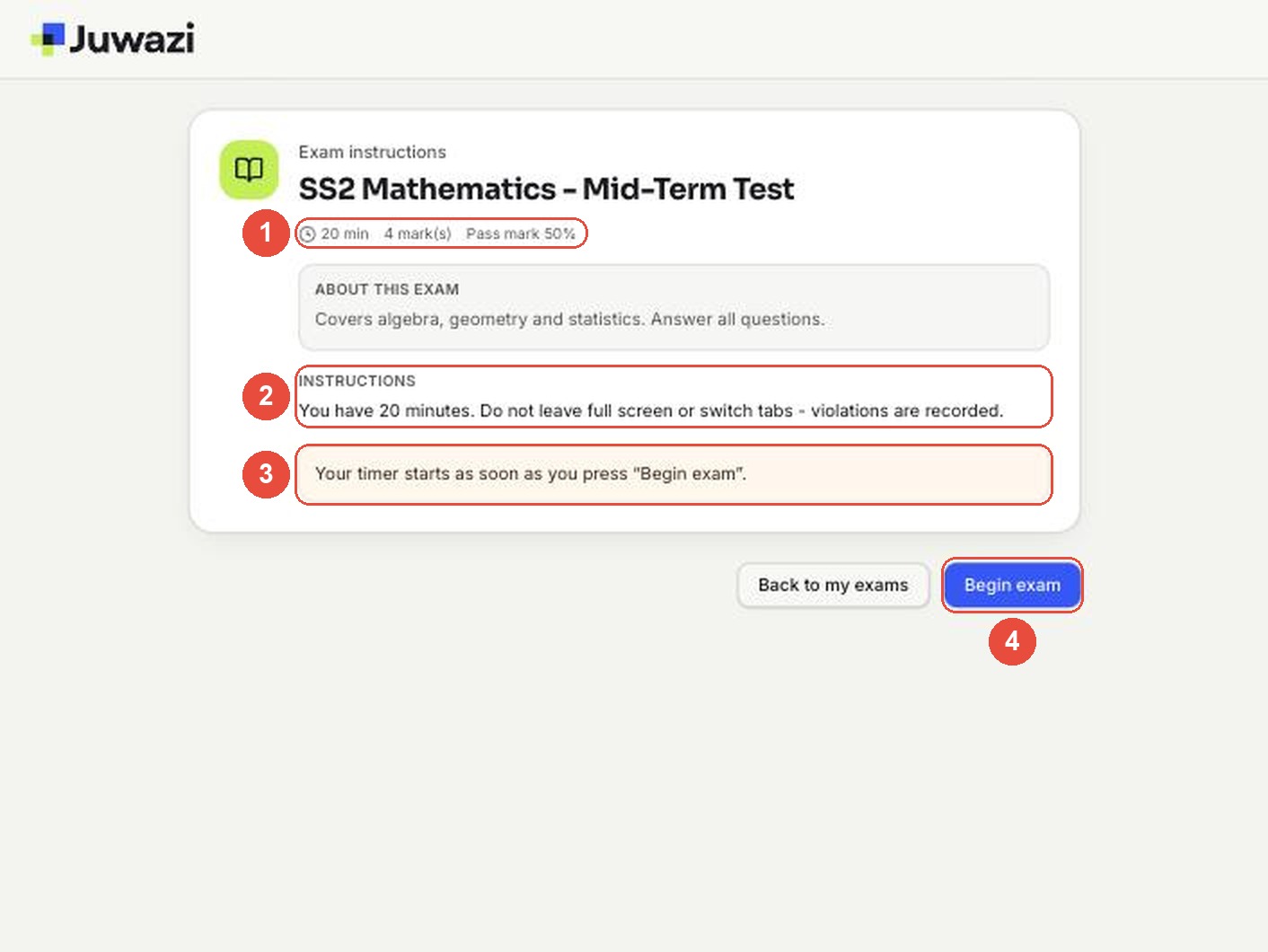
On the page: the exam details (1), your teacher’s instructions (2), the timer reminder (3) and Begin exam (4).
The timer starts immediately and keeps running even if you leave the exam, so only press Begin exam when you’re ready.
During the exam#
Full screen#
The exam runs in full screen. If you press Escape, leave full screen or switch to another tab or app, Juwazi shows a Return to full screen message:
This exam must be taken in full screen. Pressing Escape or switching tabs is recorded as a violation and may flag your attempt for review. Your timer keeps running.
Click Resume in full screen to carry on. Each time you leave counts as a violation, which your teacher can see. Your school may set a limit: reaching it can end your exam automatically.
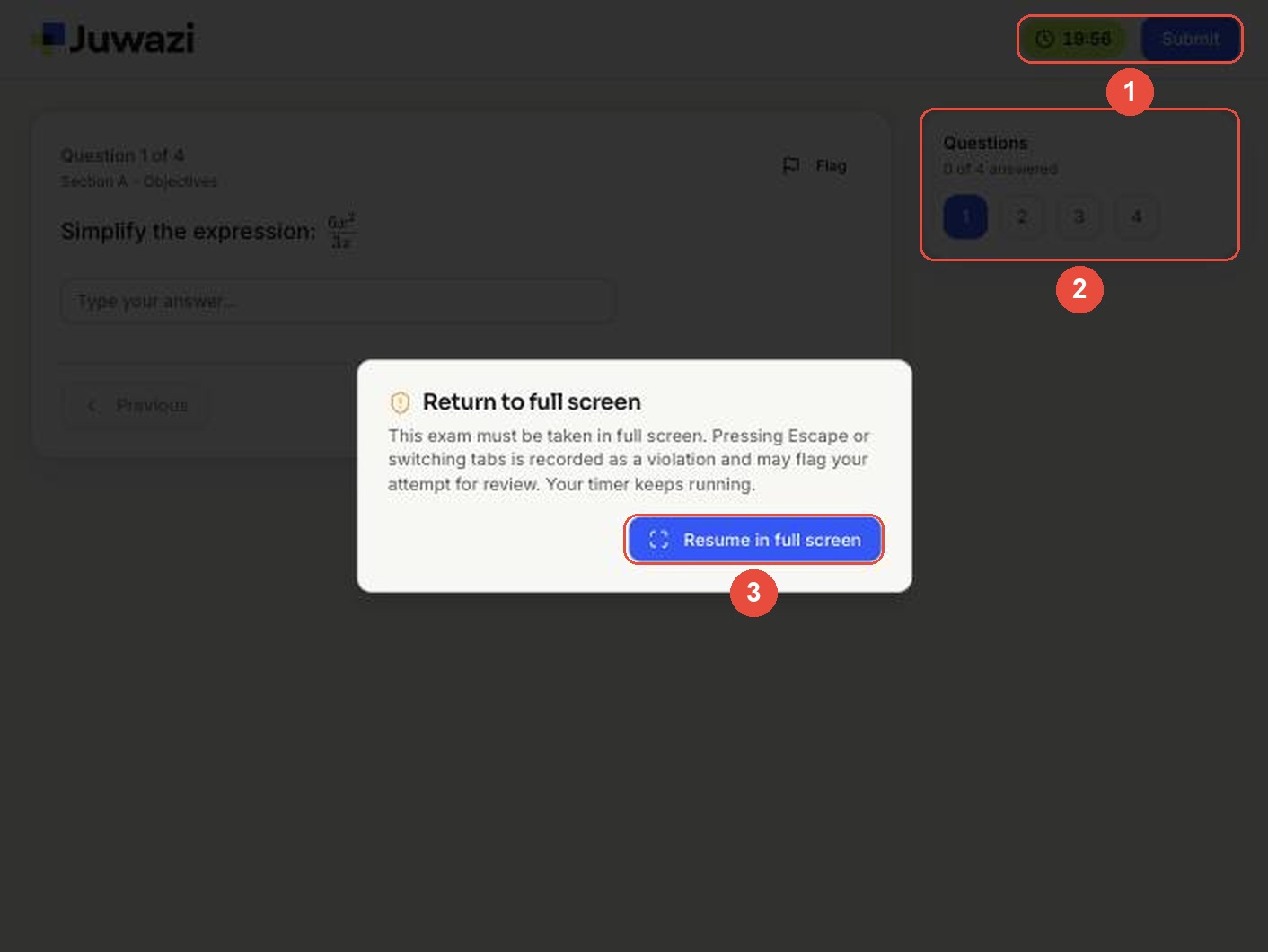
In the picture: the timer and Submit (1), the Questions panel (2), and Resume in full screen (3) on the full-screen message.
The exam screen#
| Part of the screen | What it does |
|---|---|
| Timer (top right) | Time left, counting down, for example 19:56 |
| Submit (top right) | Hands in your exam |
| Question card | “Question 1 of 4”, the section name, the question and where you answer |
| Flag | Marks a question to come back to |
| Previous / Next | Moves between questions |
| Questions panel (right) | Numbered buttons for every question and a count such as “0 of 4 answered”. Click a number to jump to that question |
Answering#
How you answer depends on the question type:
- Multiple choice: click one option. Some questions let you pick more than one.
- True / False: click True or False.
- Short answer or number: type in the Type your answer… box.
Use Flag on any question you’re unsure about, then use the Questions panel to go back to it before you submit.
Submitting and after the exam#
- Check the Questions panel. It shows how many you’ve answered.
- Go back to any flagged or unanswered questions.
- Click Submit at the top right and confirm.
If the timer reaches zero before you submit, the exam ends. Answer as you go, so your work counts.
What you see after submitting depends on your school’s settings:
- Show result immediately: you see your score and whether you passed.
- Allow review after submit: you can look back over the questions.
- If neither is turned on, your teacher shares results later.
Your exam then appears as completed in My Exams. Some exams allow more than one attempt. If yours does, you’ll be able to start it again.
Screenshots of the result and review screens will be added after our demo exam is recorded.
Tips and troubleshooting#
Tips
- Close other apps and tabs before you start, and turn off notifications.
- Use a laptop or desktop computer if you can.
- Keep an eye on the timer, and answer the questions you know first.
- Don’t press Escape or switch tabs. Every exit is recorded.
Troubleshooting
| Problem | What to do |
|---|---|
| “Invalid code” or can’t sign in | Check the access code letter by letter (for example 0 and O). Still stuck? Ask your school |
| Forgot your security answer | Ask your school to reset it |
| Exam not in My Exams | Ask your teacher whether it’s been assigned to your class and when it opens |
| Start exam doesn’t work | The exam may not be open yet. Check the start time with your teacher |
| The Return to full screen message keeps appearing | Click Resume in full screen. If full screen still won’t start, try another browser |
| Internet drops during the exam | Reconnect and sign in again quickly. The timer keeps running |