

The question bank#
Each subject has its own question bank (Juwazi also calls it the item bank, and each question an item). You write questions once, then pick from them whenever you build an exam. A bigger bank means you can set fresh papers every term without rewriting questions.
Juwazi supports five question types. All of them are marked automatically.
| Question type | The student… | Good for | Example |
|---|---|---|---|
| Multiple choice (single) | picks one correct option from A–D | Facts, definitions, calculations with one answer | Which gas is released when zinc reacts with dilute hydrochloric acid? |
| Multiple choice (multiple) | ticks every correct option | Checking full understanding, “select all that apply” | Which of these are noble gases? |
| True / False | chooses True or False | Quick checks of a single statement | Water is a compound. |
| Short answer | types a word or short phrase | Names, terms, symbols | What is the chemical symbol for sodium? |
| Numeric | types a number | Calculations with one numeric answer | What is the atomic number of carbon? |
This guide uses the Chemistry subject from Guide 3 and adds one question of each type.
The Add question form#
Every question starts the same way.
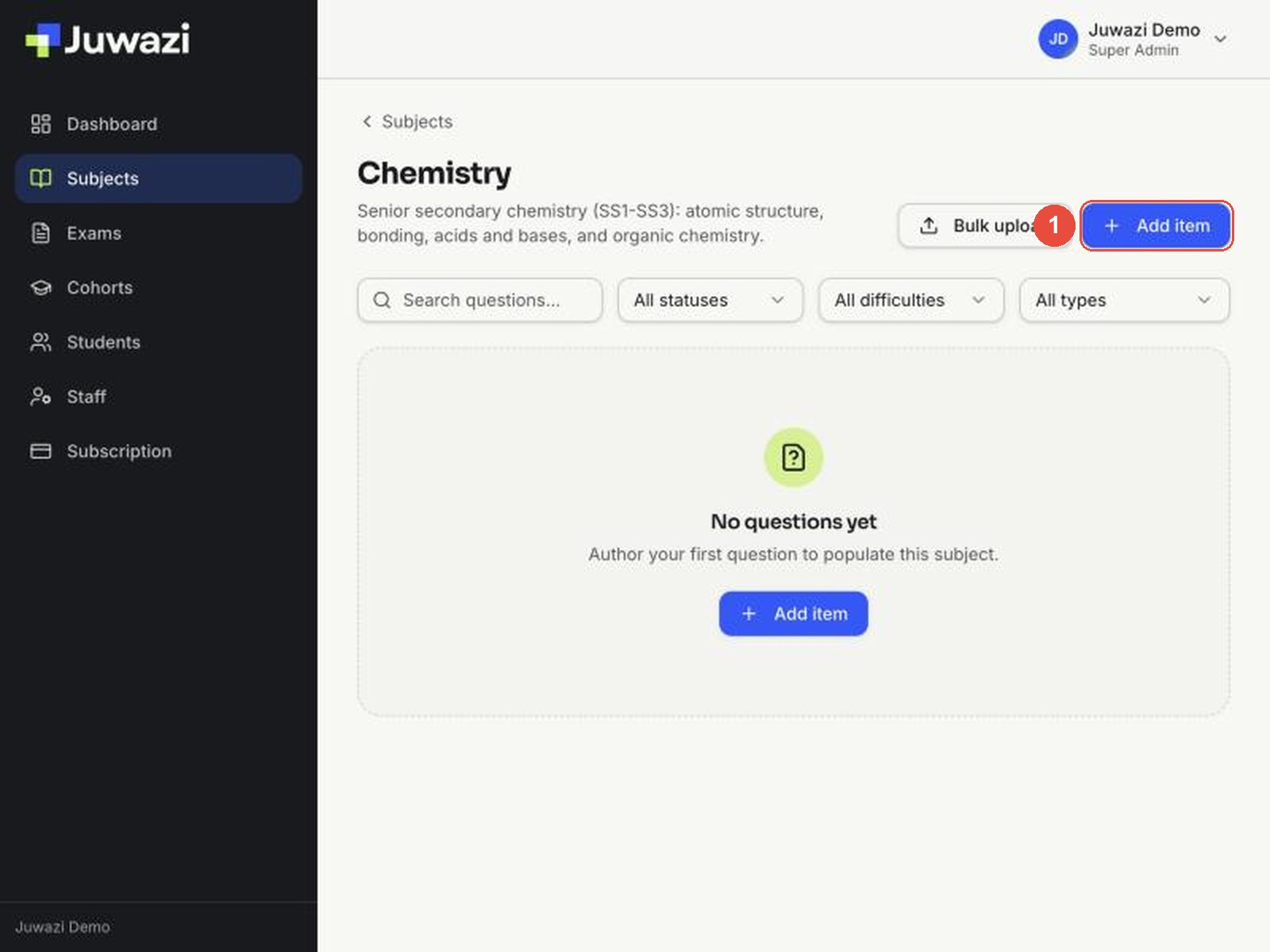
Step 1. Go to Subjects, click the subject’s card to open it, then click Add item.
Step 2. The Add question form opens. The top half is the same for every question type.
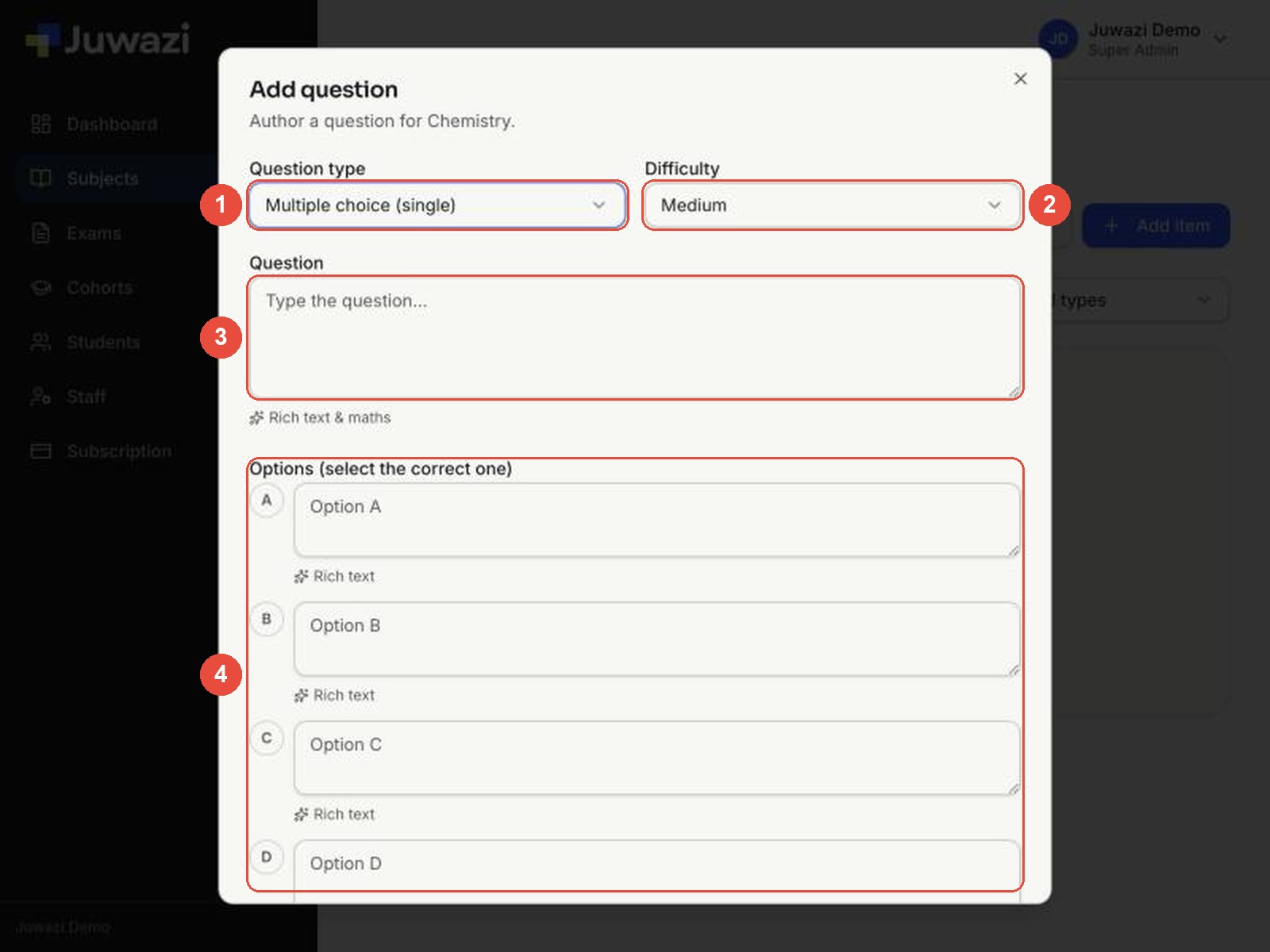
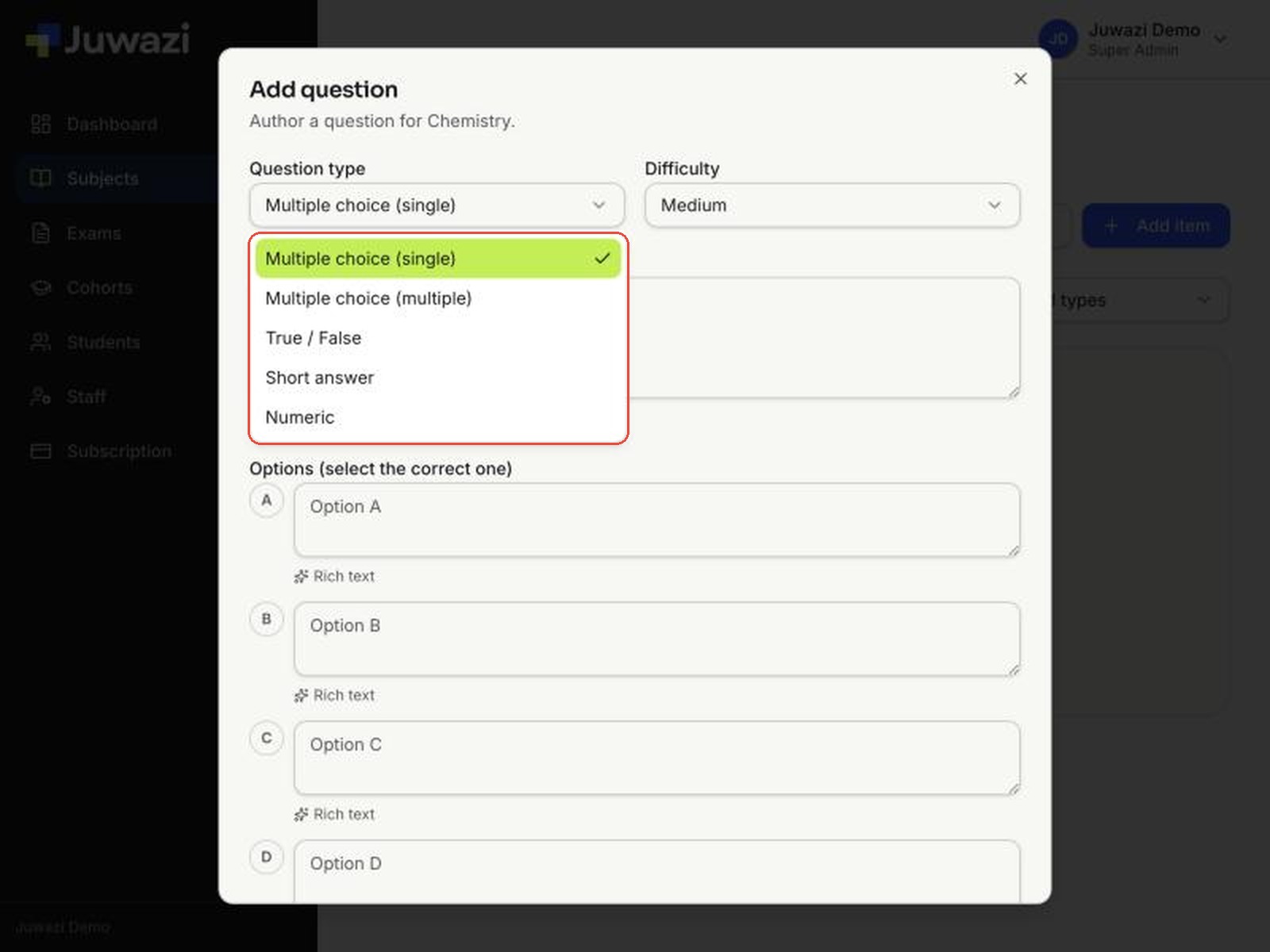
- Question type: choose this first. The rest of the form changes to suit the type.
- Difficulty: a label for sorting and filtering your bank (see below).
- Question: the question as students will read it. Click Rich text & maths under the box for formatting, formulas, tables and images (Guide 5).
- Answer area: options for multiple choice, True/False buttons, or an Expected answer box for short-answer and numeric questions.
The bottom of the form has two more settings for every type:
- Marks: what the question is worth. It starts at 1. Give harder or multi-part questions more marks.
- Explanation (optional): why the answer is correct. If you allow review after an exam (Guide 13), students can learn from it.
When you’re done, click Add item. Juwazi saves the question, closes the form and adds the question to the top of the list.
Difficulty labels#
The Difficulty menu has eight labels. You can use them in two ways:
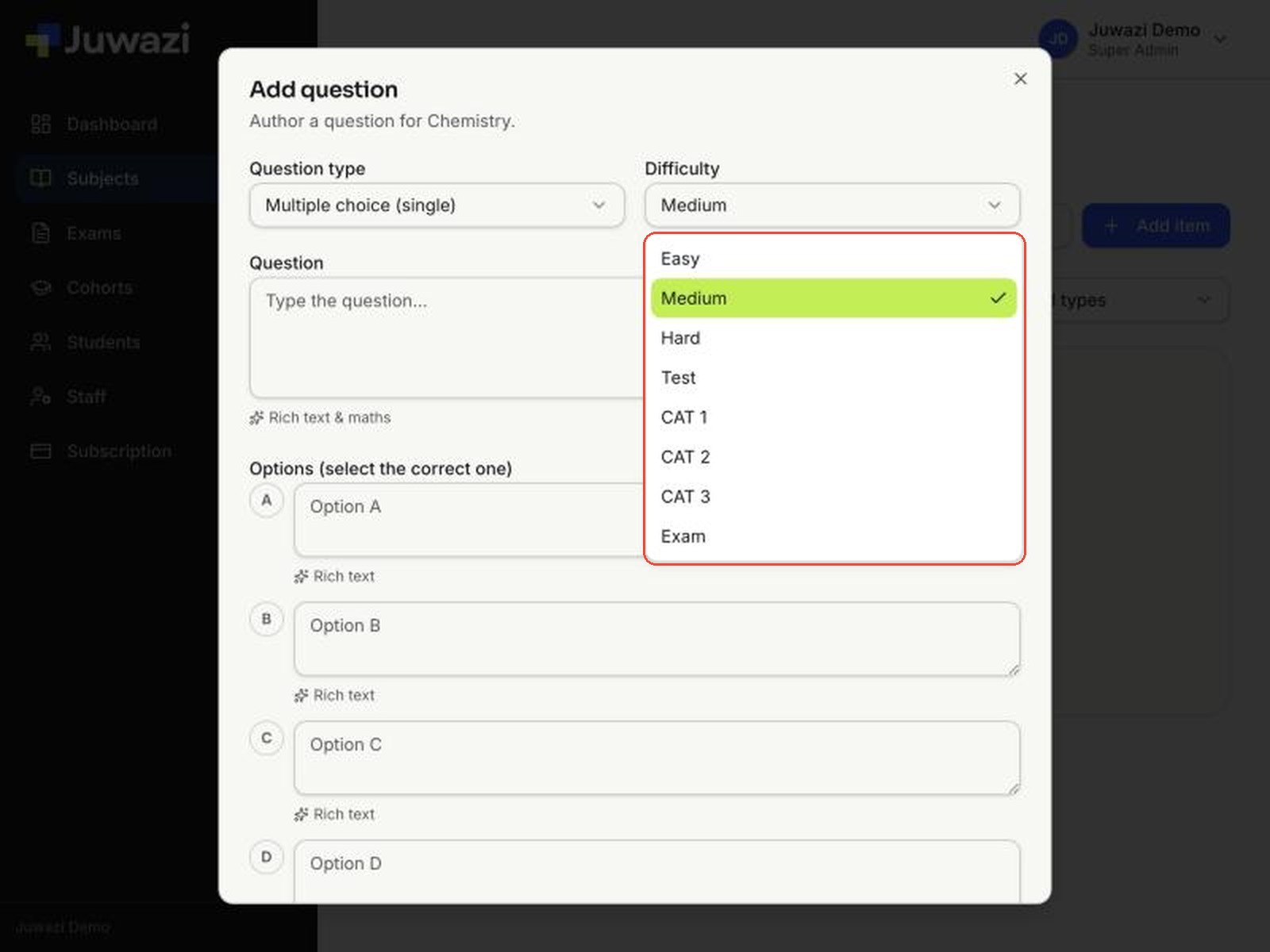
- By level: Easy, Medium or Hard, to balance papers.
- By assessment: Test, CAT 1, CAT 2, CAT 3 or Exam, to keep questions for a particular assessment together.
Each question takes only one label, so agree on one approach with your teachers and use it everywhere. New questions start as Medium.
Multiple choice (single answer)#
The student picks the one correct option out of four (A–D). This is the default type, so it’s already selected when the form opens.
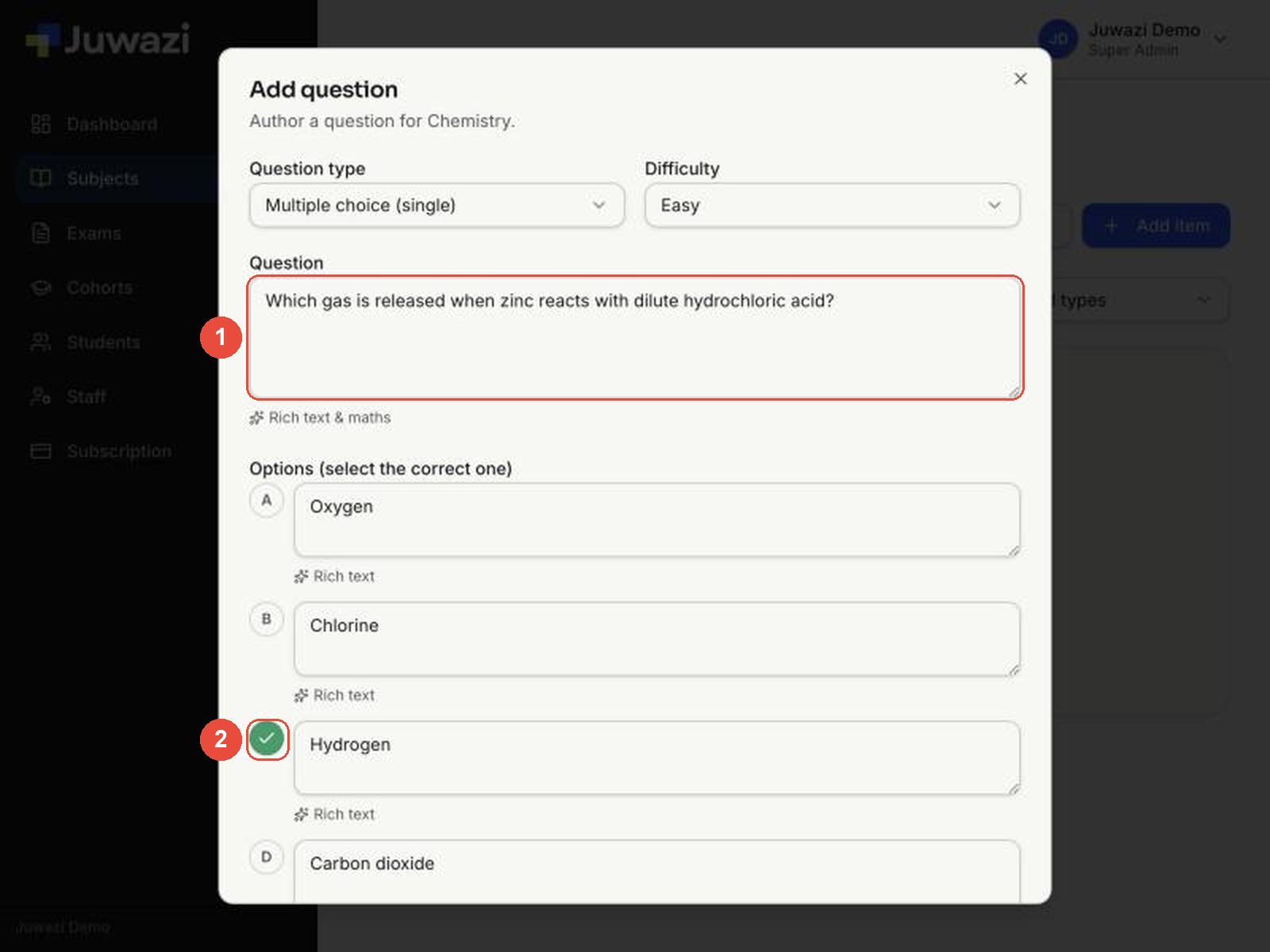
- Leave Question type as Multiple choice (single) and choose a Difficulty (here Easy).
- Type the Question: Which gas is released when zinc reacts with dilute hydrochloric acid?
- Type the four options: A Oxygen, B Chlorine, C Hydrogen, D Carbon dioxide.
- Click the letter circle next to the correct option. It turns green with a tick. Click a different letter to change your mind; only one can be correct.
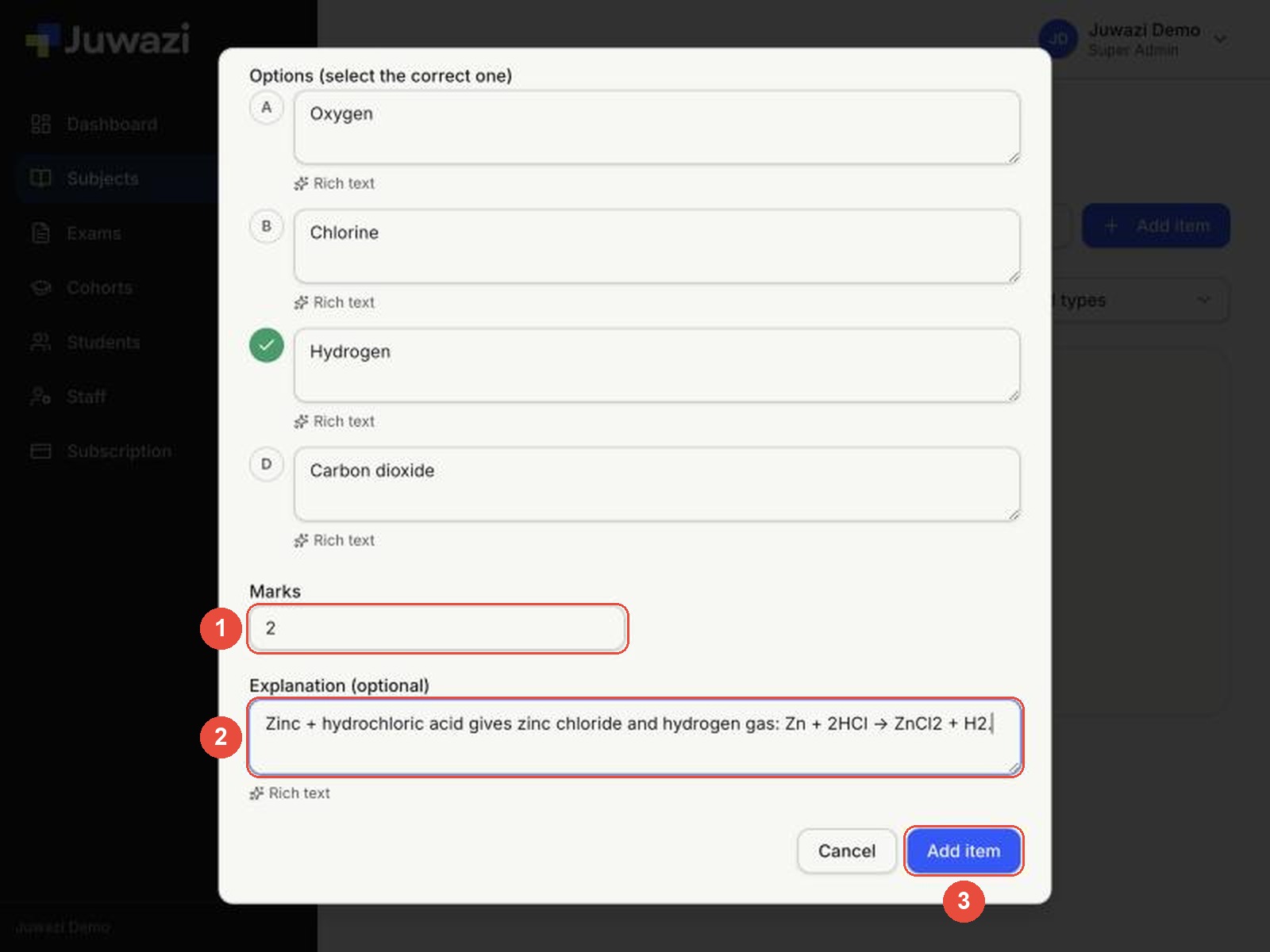
- Scroll down. Set Marks (here 2) and add an Explanation.
- Click Add item.
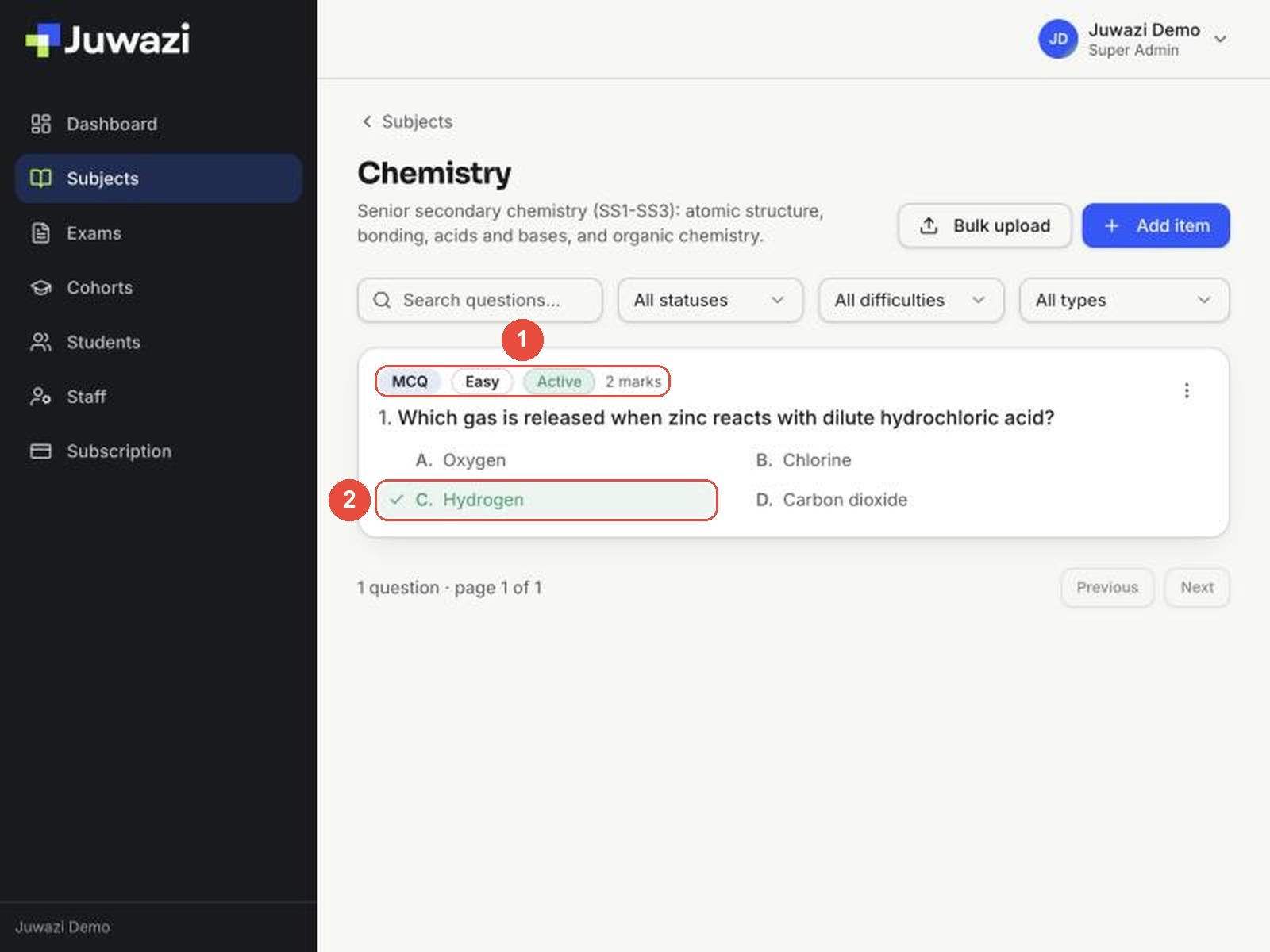
The new question appears in the list. Its card shows the type (MCQ), difficulty, status and marks, with the correct answer ticked in green.
Tip: fill in all four options, and write wrong options (distractors) that sound possible, so students have to know the answer rather than guess.
Multiple choice (multiple answers)#
The student ticks every option they think is correct. Use it for “select all that apply” questions. (How a partly correct answer is marked will be confirmed in Guide 16.)
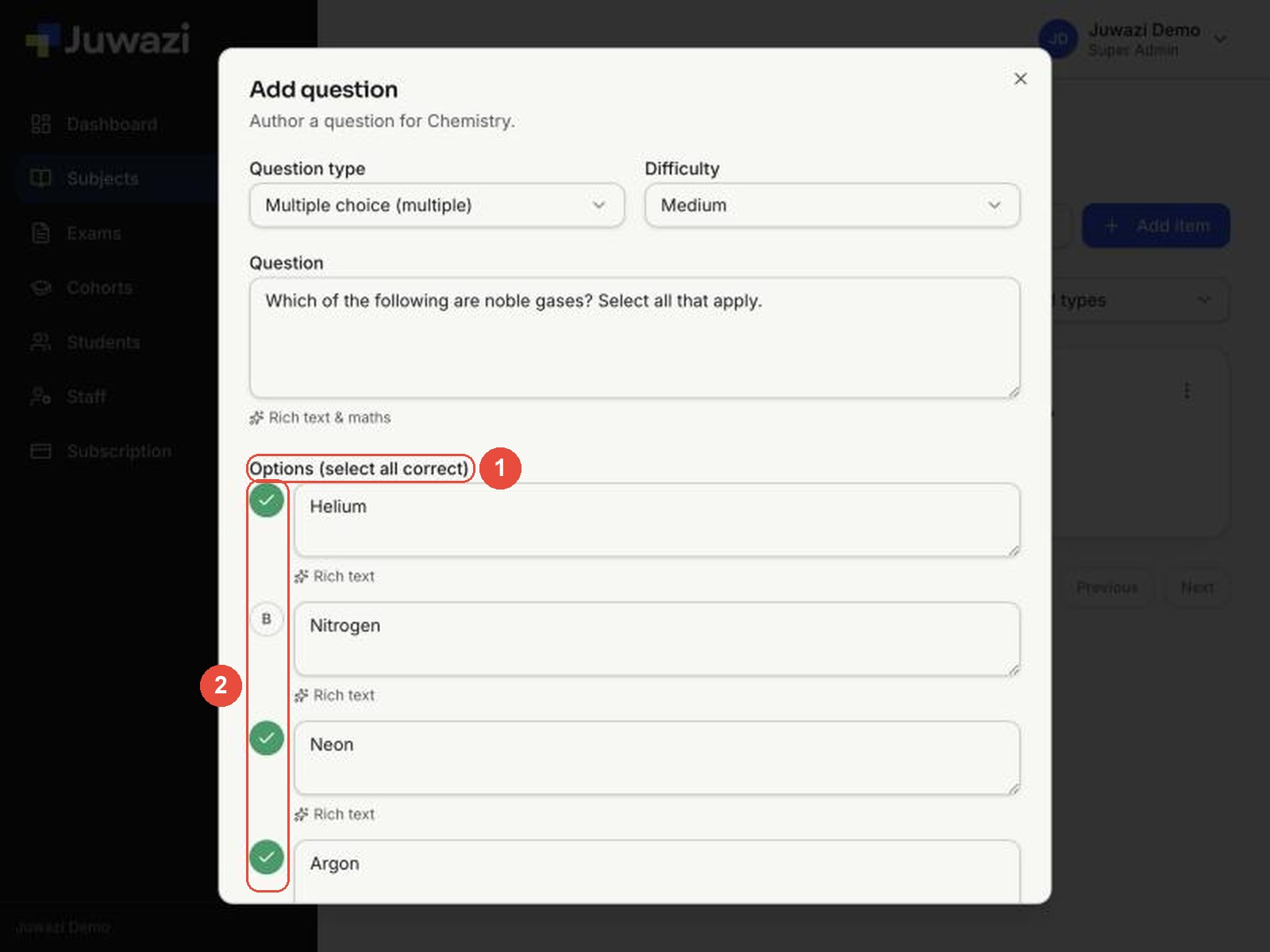
- Set Question type to Multiple choice (multiple).
- Type the Question: Which of the following are noble gases? Select all that apply. Say “select all that apply” so students know more than one answer may be right.
- Type the four options: A Helium, B Nitrogen, C Neon, D Argon.
- Click the letter circle of every correct option (here A, C and D). The label above changes to Options (select all correct).
- Set Marks (here 3), add an Explanation, and click Add item.
In the list, this type is labelled Multi-select, with every correct option ticked.
True / False#
The student decides whether a statement is true or false.
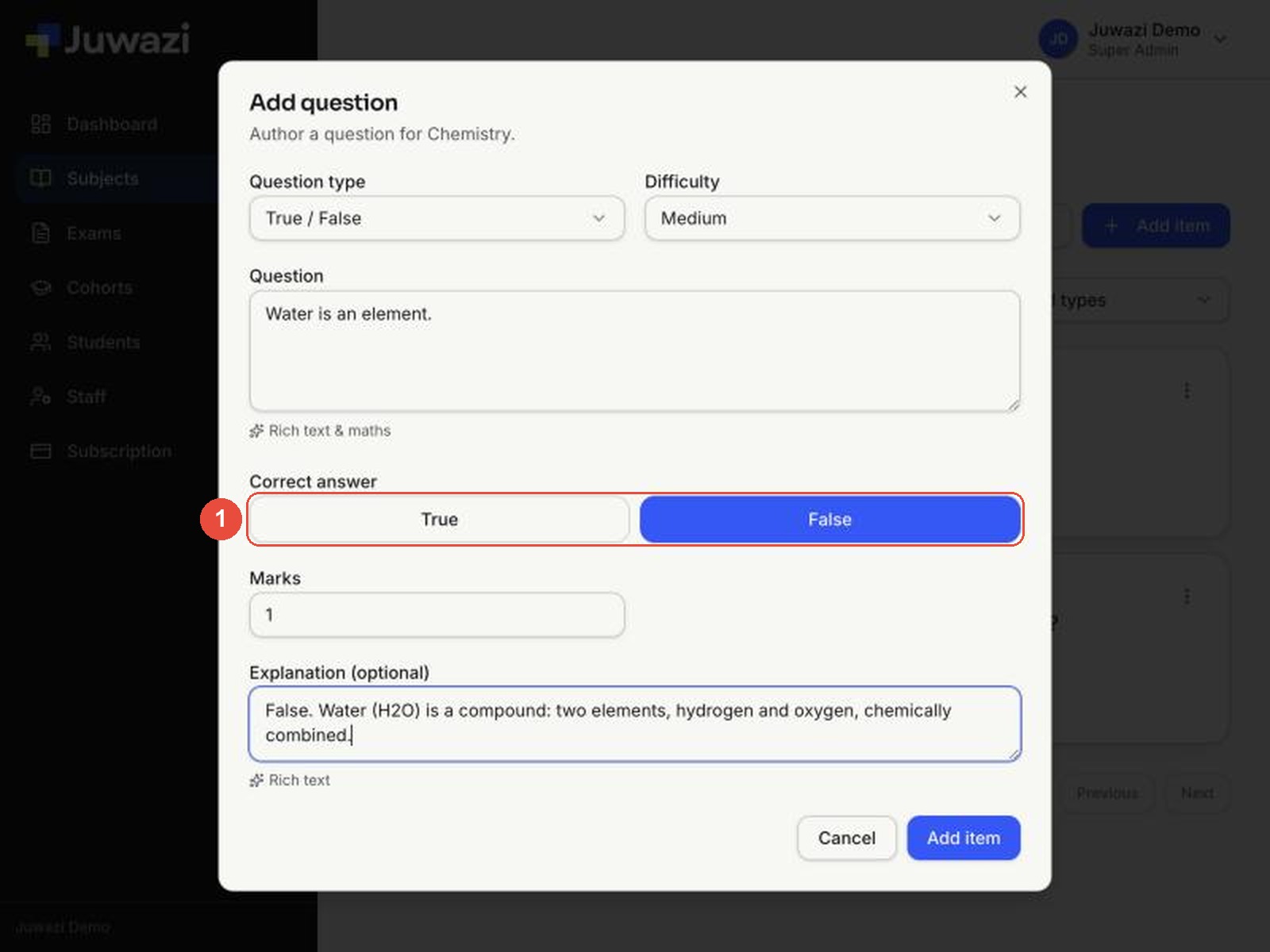
- Set Question type to True / False. The options area changes to two buttons under Correct answer.
- Type the statement in Question: Water is an element.
- Click the correct answer. Here it’s False, which turns blue.
- Add an Explanation (False. Water (H2O) is a compound…) and click Add item.
Tip: write one clear statement per question. Avoid “not” and “never”, which make students misread the statement.
Short answer#
The student types a word or short phrase, which Juwazi checks against your expected answer.
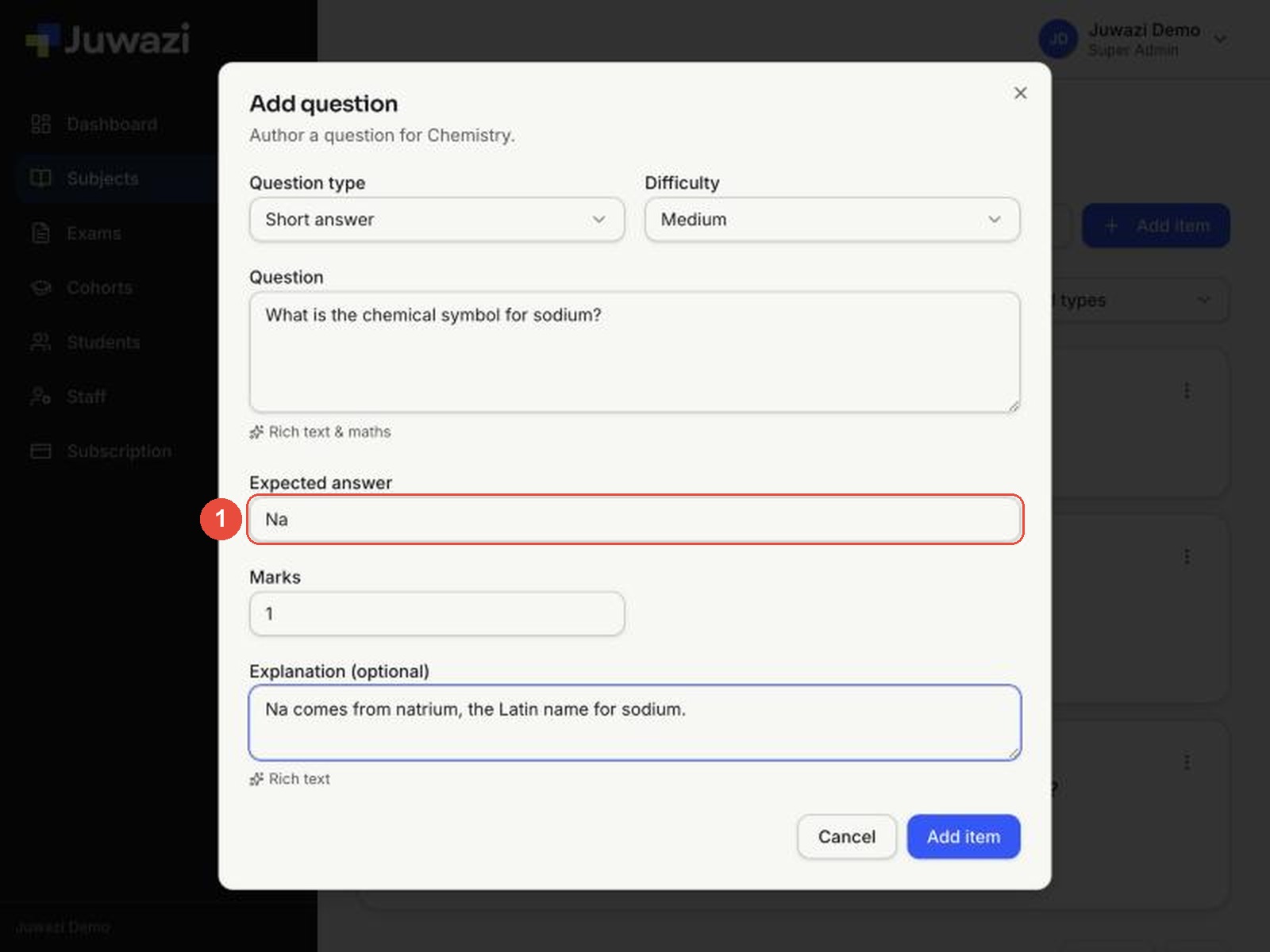
- Set Question type to Short answer. An Expected answer box replaces the options.
- Type the Question: What is the chemical symbol for sodium?
- Type the Expected answer: Na.
- Add an Explanation and click Add item.
Tip: you can enter only one expected answer, so ask questions with a single, short, unambiguous answer, such as a symbol, a name or a term. Avoid questions where students could word a correct answer differently. We’ll confirm in Guide 16 how Juwazi treats capital letters and extra spaces.
In the list, short-answer and numeric questions don’t show the expected answer. To check it, open the question with ⋮ → Edit question.
Numeric#
The student types a number. Use it for calculations.
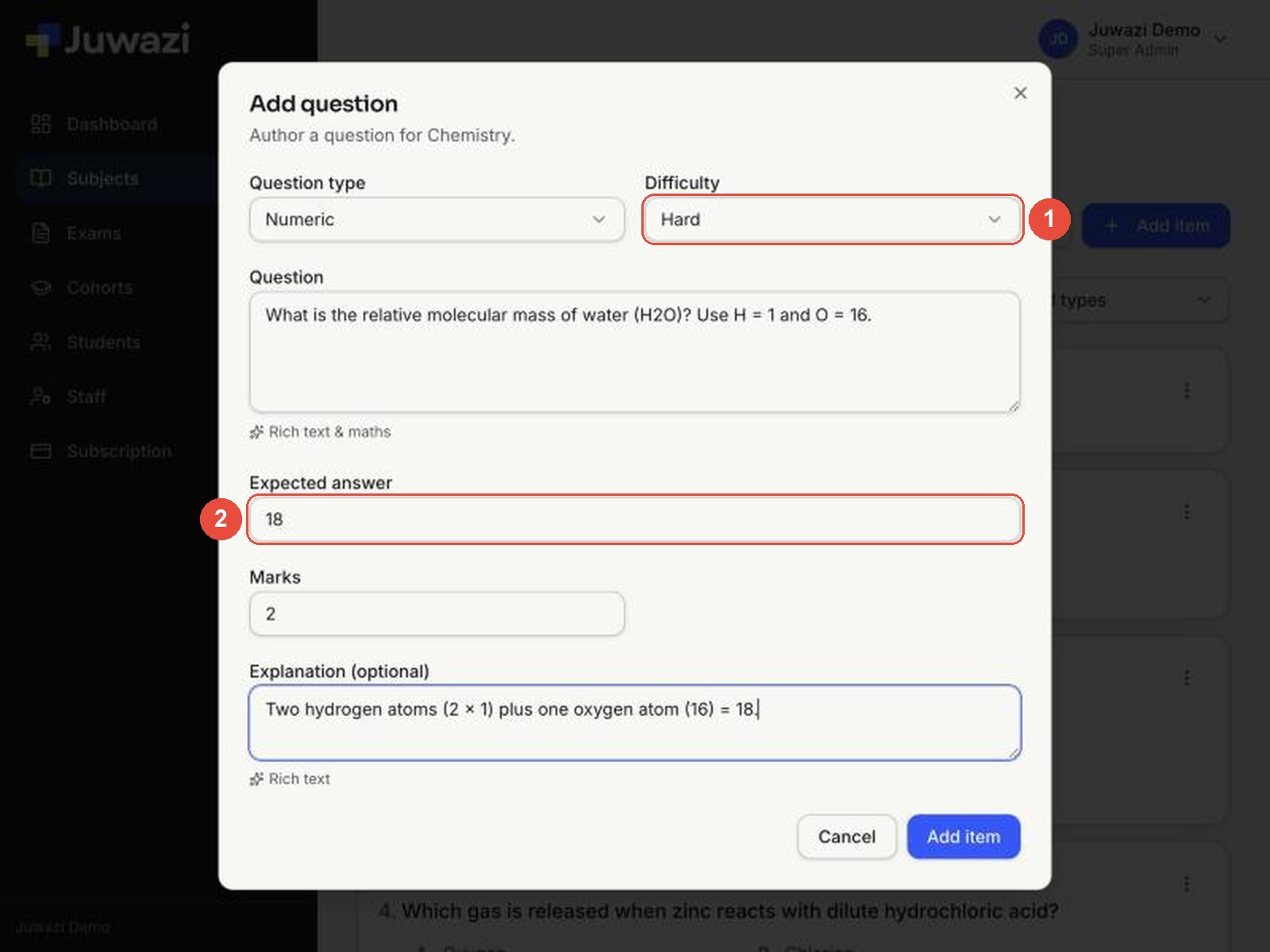
- Set Question type to Numeric and choose a Difficulty (here Hard).
- Type the Question: What is the relative molecular mass of water (H2O)? Use H = 1 and O = 16.
- Type the Expected answer: 18. This box only accepts numbers.
- Set Marks (here 2), add an Explanation and click Add item.
Tip: there is no setting for an acceptable range (for example 17.9–18.1), so make the expected answer exact. Give any values students need in the question, and say how to round if the answer isn’t a whole number (for example “to 1 decimal place”).
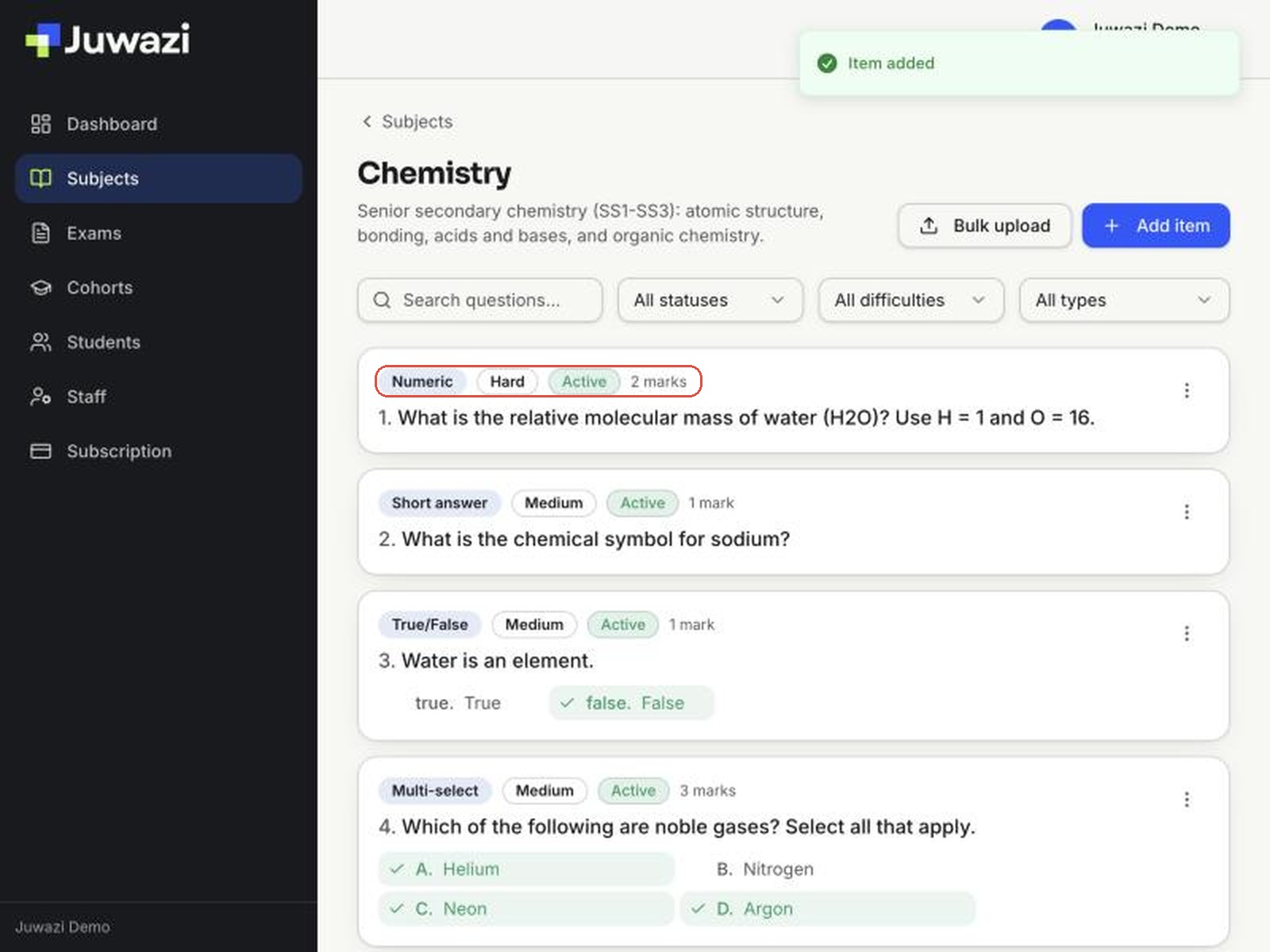
You now have one question of each type:
Finding questions: search and filters#
As your bank grows, use the search box and three filters above the list.
Search finds questions containing the words you type. Here, gas finds 2 of the 5 questions.
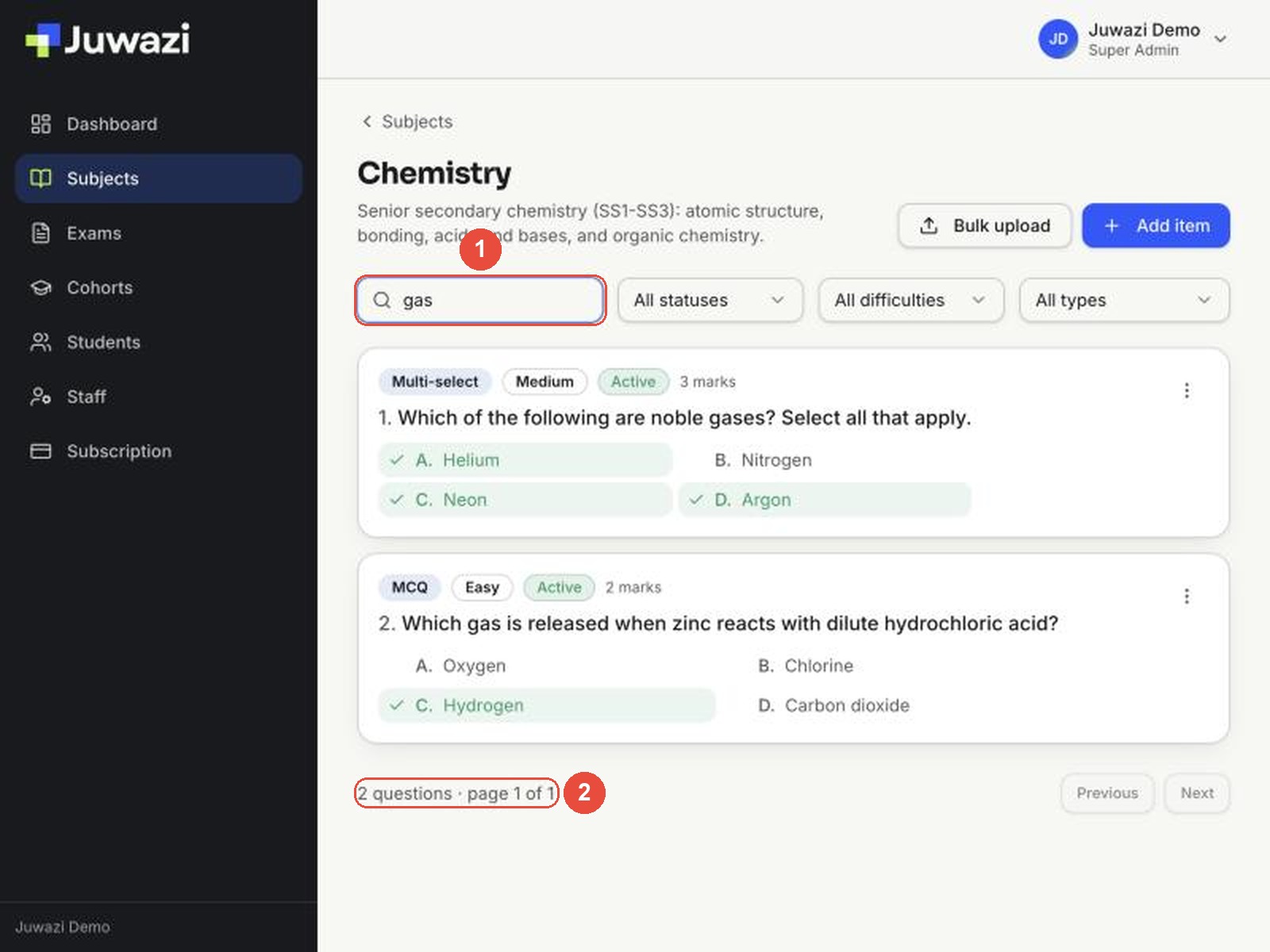
Filters:
- Status: All statuses, Active, Draft or Archived.
- Difficulty: any of the eight difficulty labels.
- Type: any of the five question types.
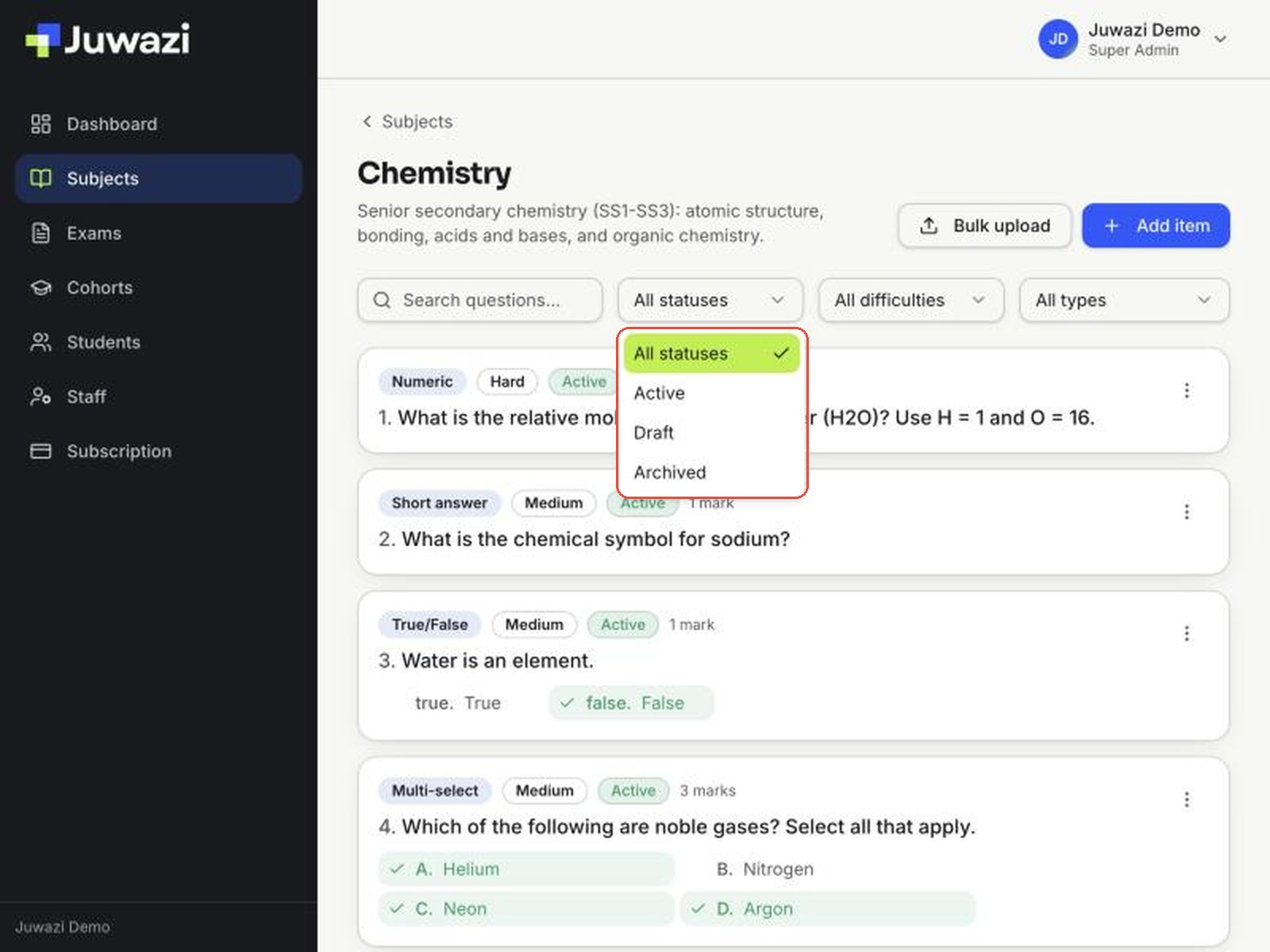
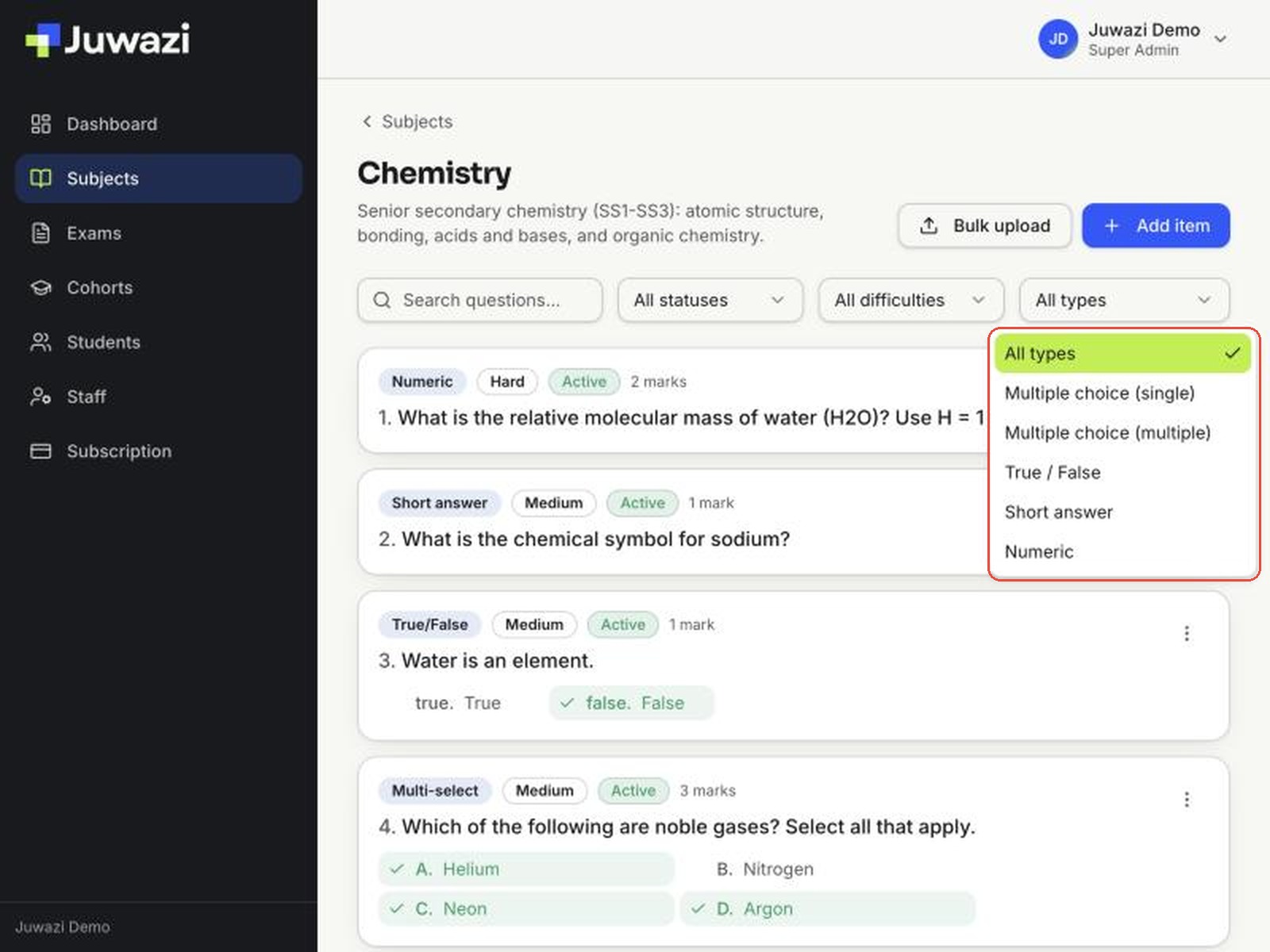
Important: despite its name, All statuses shows only Active questions. To see Draft or Archived questions, choose Draft or Archived in the status filter.
Managing a question#
Each question card has a ⋮ menu on the right.
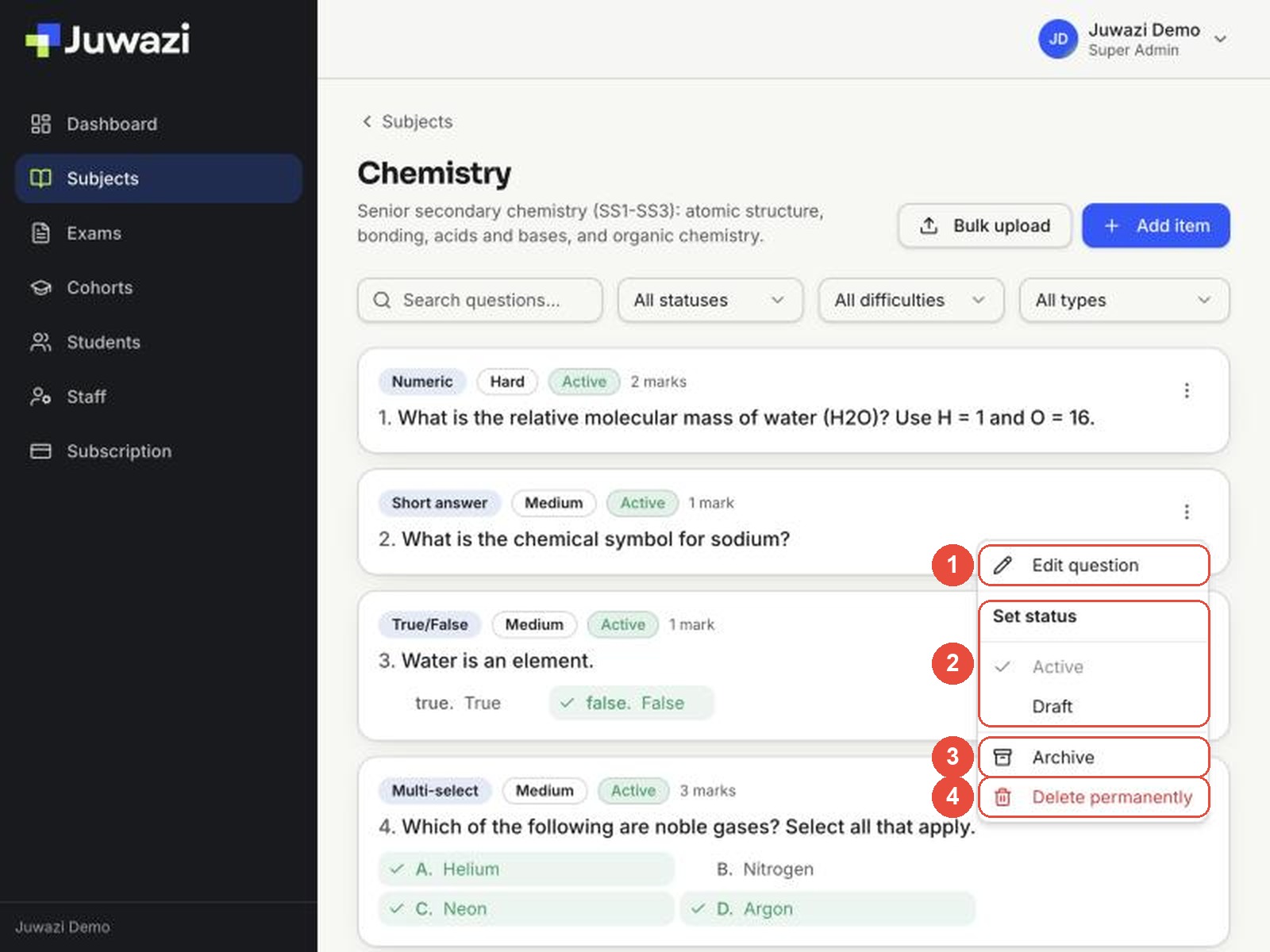
- Edit question: change the wording, options, correct answer, difficulty, marks or explanation, then click Save changes.
- Set status: switch between Active and Draft.
- Archive: retire a question you no longer want in new exams.
- Delete permanently: remove a question for good.
Edit a question#
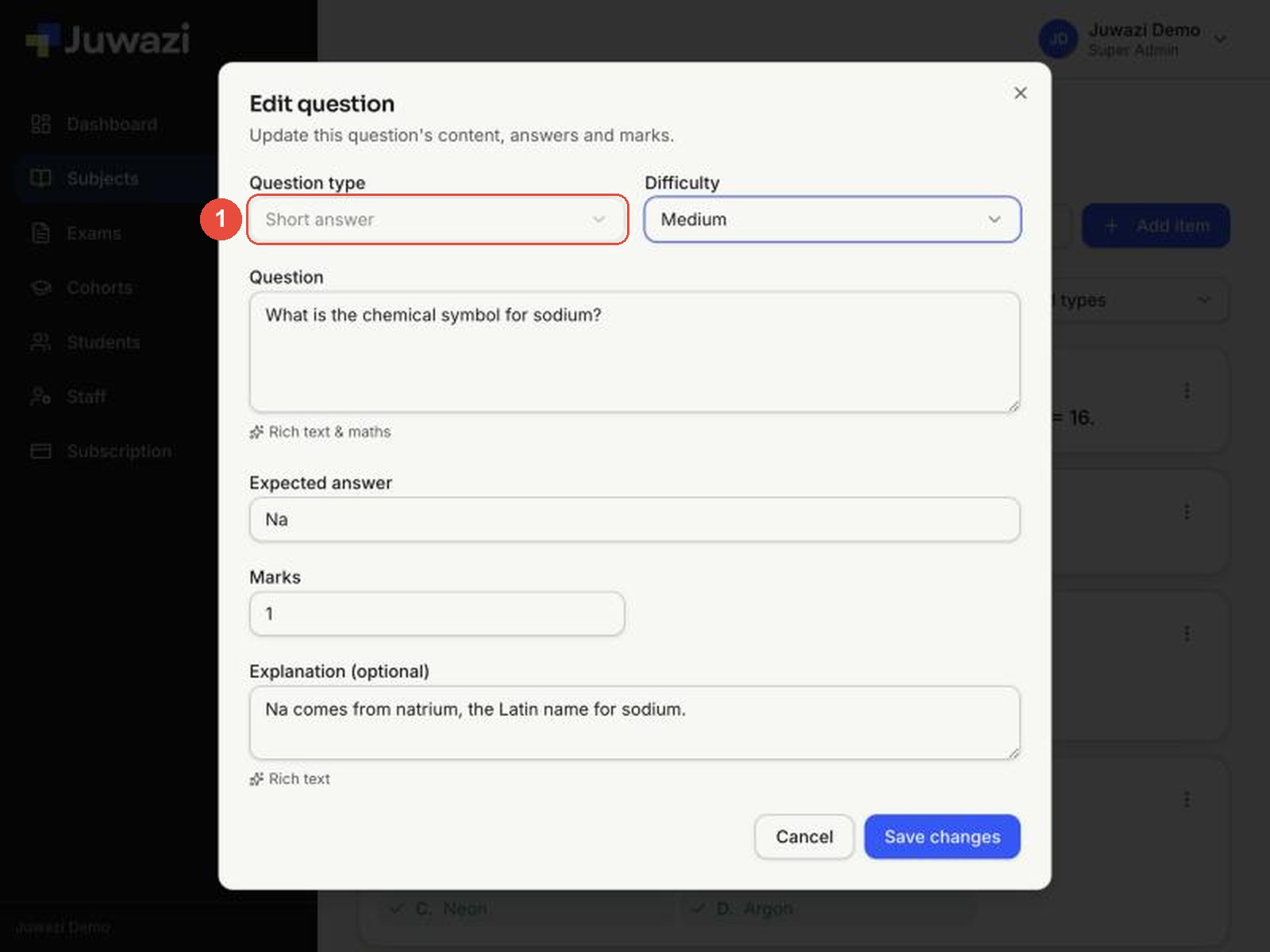
You can change everything except the question type, which is greyed out. To change the type, create a new question and archive the old one.
Active and Draft#
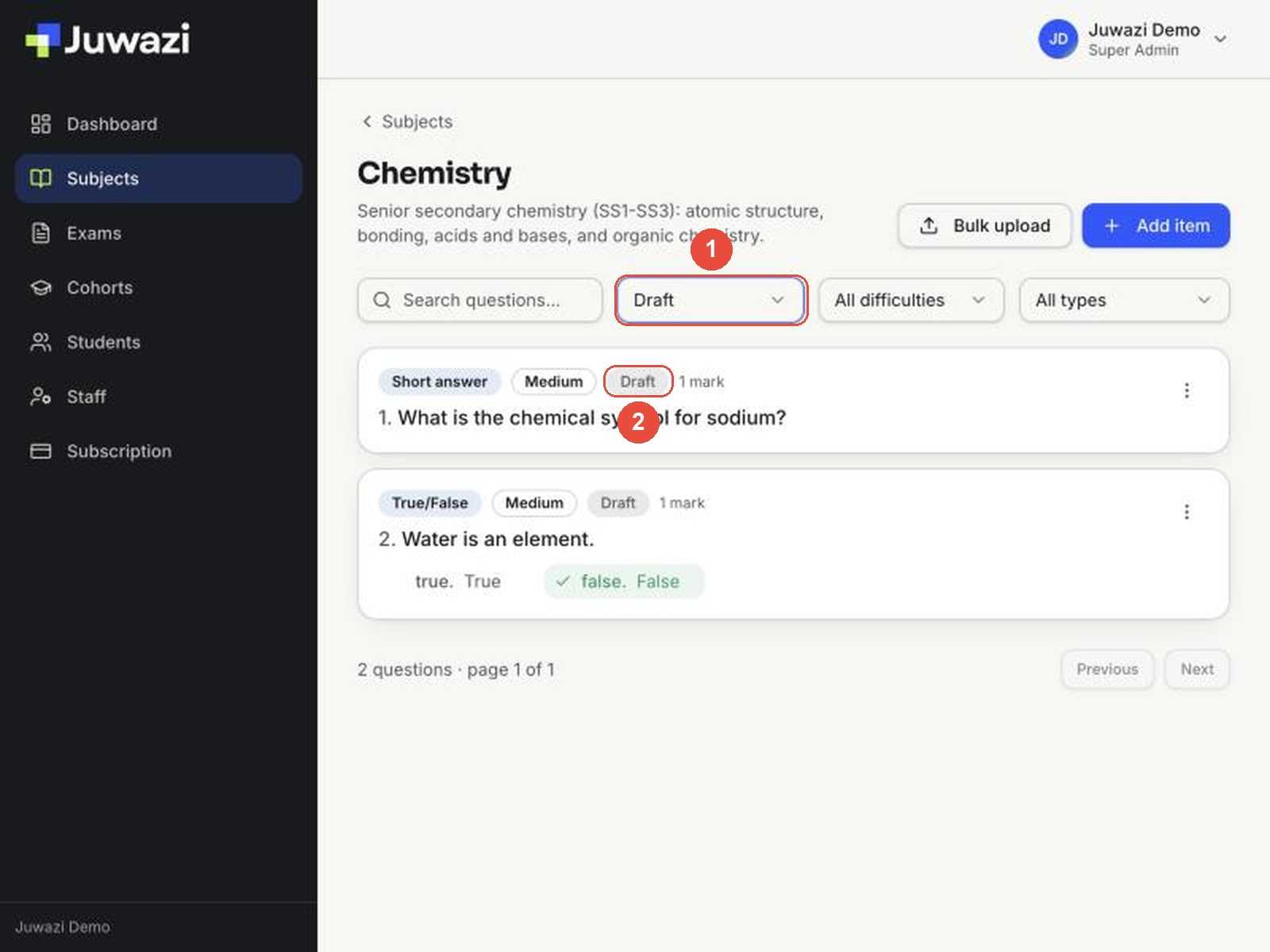
New questions are Active: ready to be added to exams. Set a question to Draft while it’s still being written or checked. Draft questions are hidden from the default list, so filter by Draft to find them, then set them back to Active when they’re ready.
Archive a question#
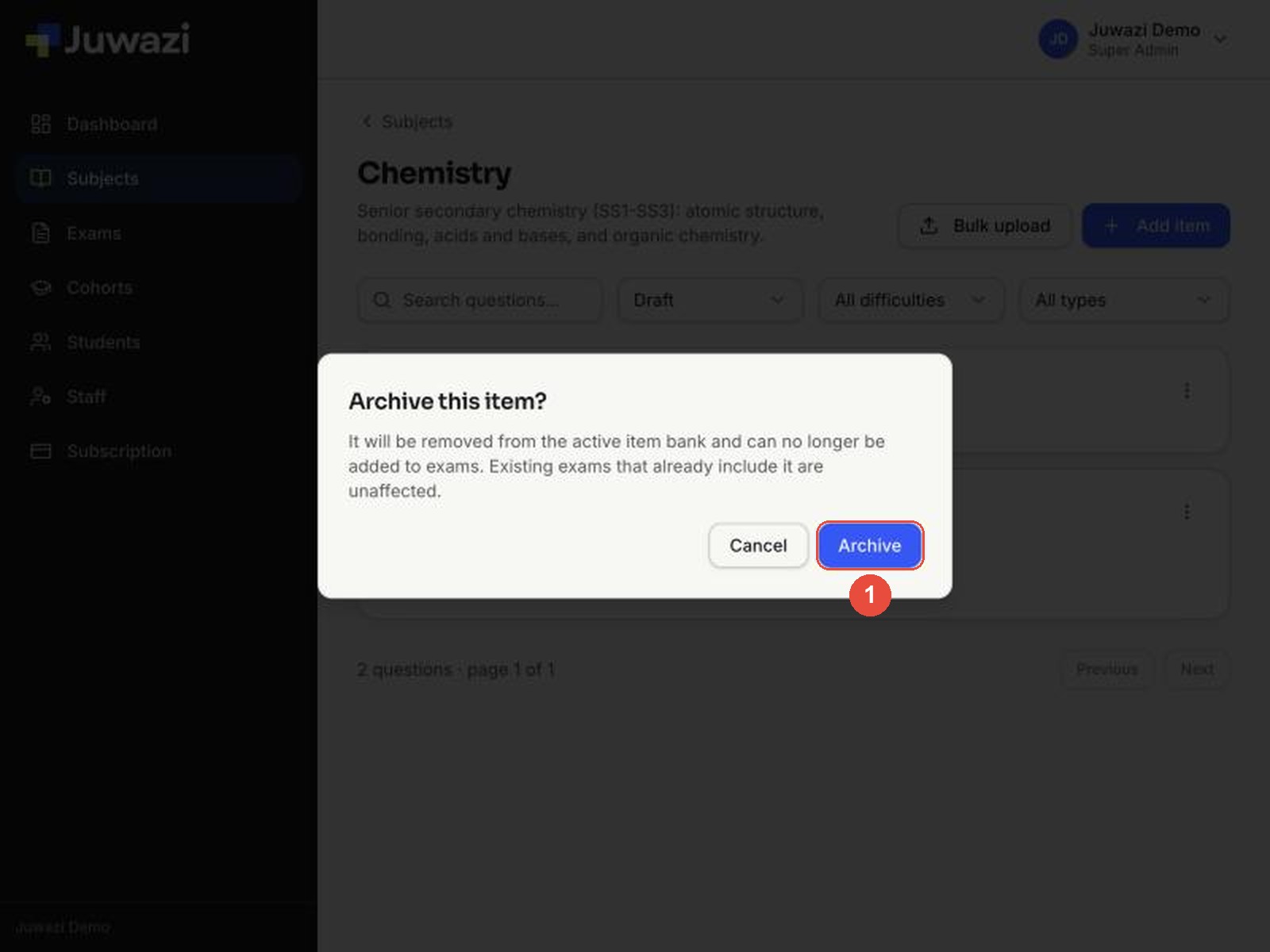
Archiving takes a question out of use without losing it. Juwazi asks you to confirm: It will be removed from the active item bank and can no longer be added to exams. Existing exams that already include it are unaffected.
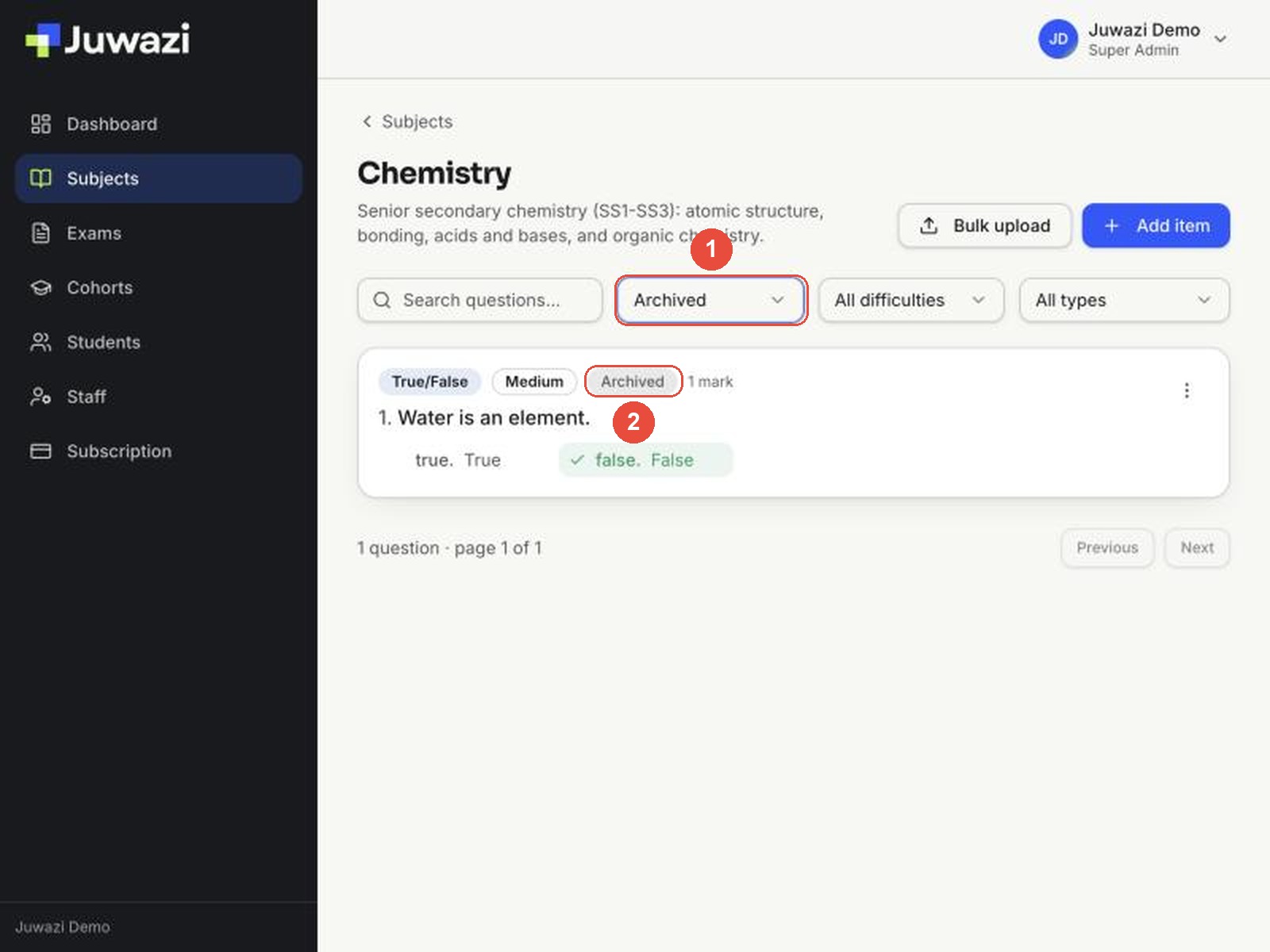
To find archived questions, set the status filter to Archived.
To bring an archived question back: open its ⋮ menu and choose Draft, then set it to Active. Choosing Active directly on an archived question doesn’t work at the moment.
Delete a question permanently#
Delete permanently removes the question from the bank for good. It can’t be undone. Juwazi warns you, and suggests archiving instead if the question is used in an exam.
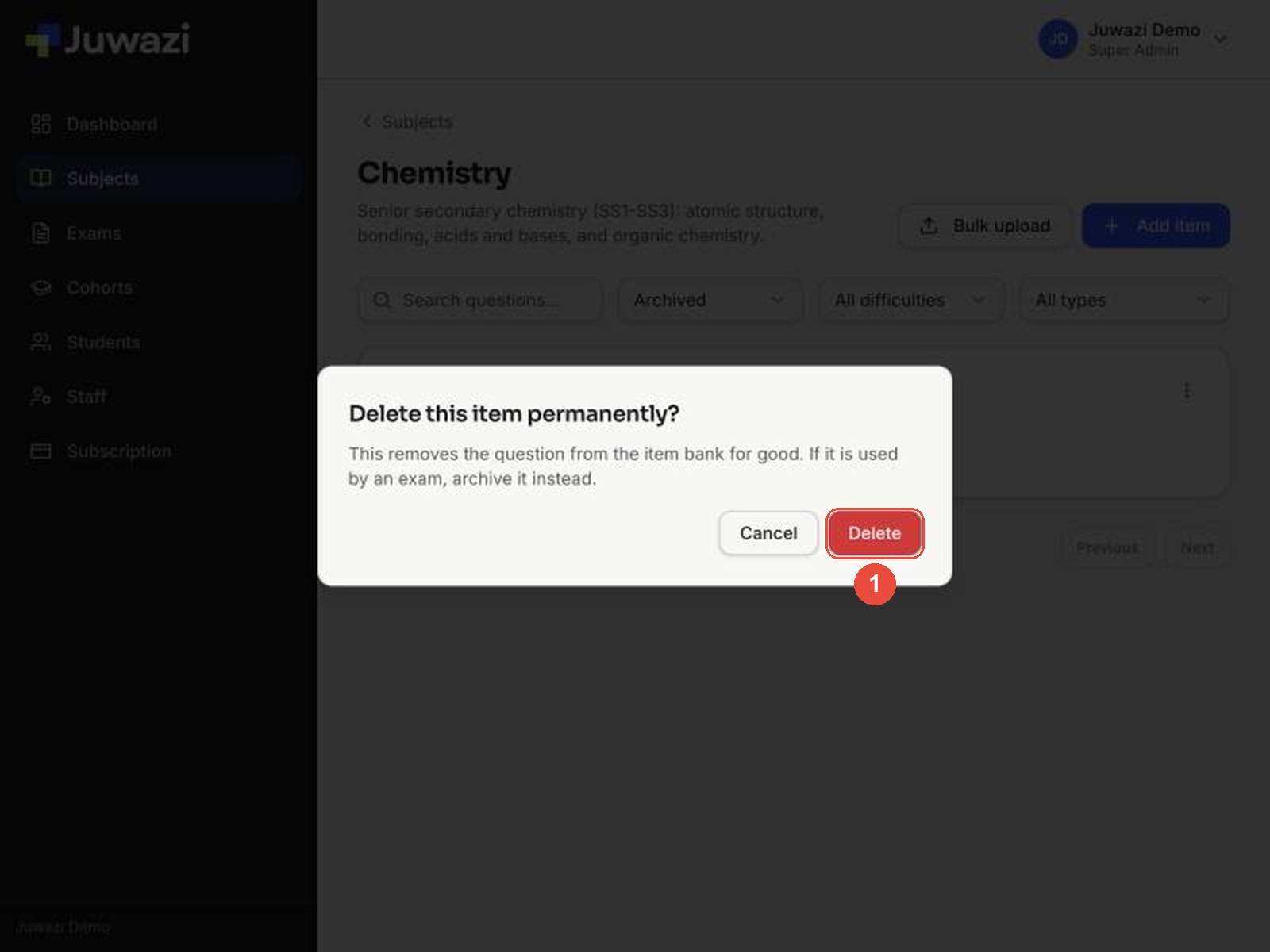
Rule of thumb: archive questions that have been used in an exam, and only delete questions created by mistake.
Tips and what’s next#
- Write more questions than you need. With 3–4 times as many questions as one paper uses, you can set different papers each term.
- Always add an explanation. It takes a few seconds and turns each exam into a learning opportunity when review is switched on.
- Use marks to reflect effort. Give 1 mark for recall questions and more for calculations or multi-answer questions.
- Check before you save. After saving, the question card shows the correct answer ticked in green, so glance at it to confirm.
Next: Guide 5, Maths, formulas, tables and images in questions, covers the Rich text & maths editor.