

The Rich text & maths editor#
Plain text is fine for most questions. When a question needs more, such as a fraction, an equation, a data table or a diagram, switch to the Rich text & maths editor. Students see exactly what you build here.
You can use it in three places in the Add question and Edit question forms:
- the Question box (link: Rich text & maths)
- each option of a multiple-choice question (link: Rich text)
- the Explanation box (link: Rich text)
This guide builds three Mathematics questions: one with a formula, one with a table and one with an image. Guide 4 covers the basics of adding a question.
Switch on the editor and find your way around#
Step 1. In the Add question form, click Rich text & maths under the Question box.
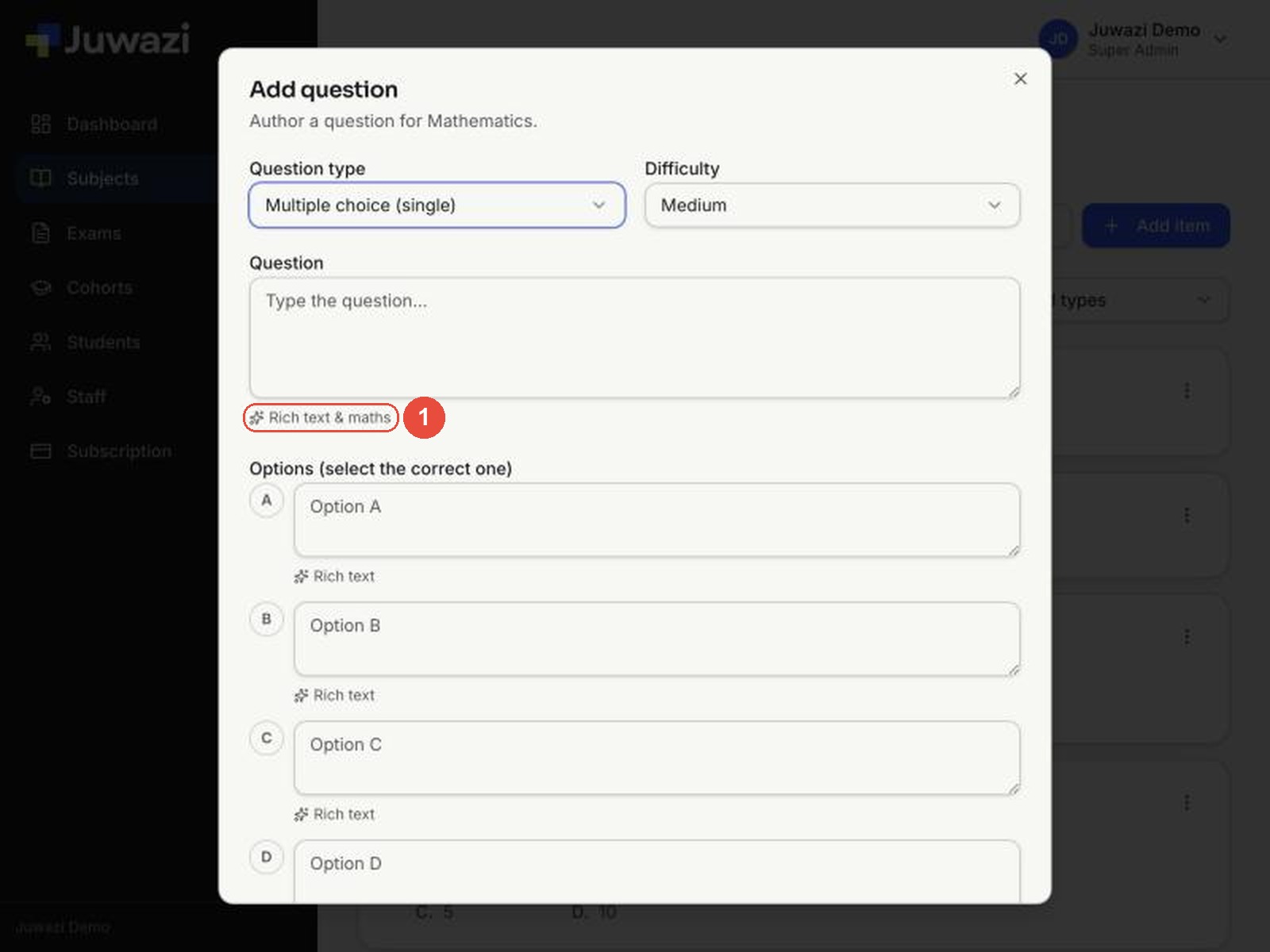
Step 2. The box becomes an editor with a toolbar. Click in the white area and type as normal.
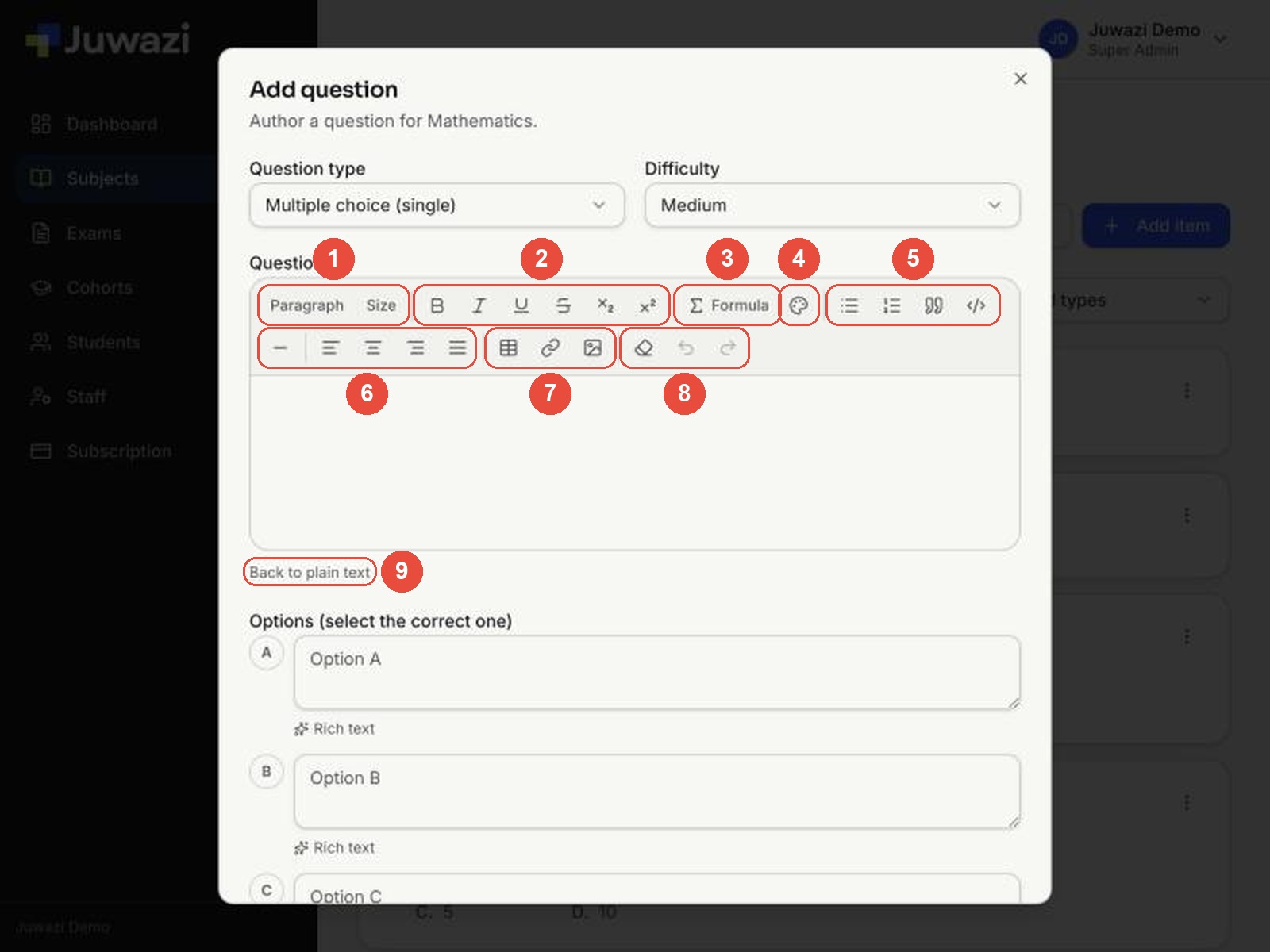
| # | Buttons | What they do |
|---|---|---|
| 1 | Paragraph, Size | Paragraph and heading styles, and text size |
| 2 | B, I, U, S, x₂, x² | Bold, italic, underline, strikethrough, subscript (H₂O) and superscript (x²) |
| 3 | Σ Formula | Insert a maths or science formula (next section) |
| 4 | Palette | Text colour and highlight |
| 5 | Lists, quote, code | Bulleted list, numbered list, quotation and code block |
| 6 | Line, alignment | Horizontal line; align left, centre, right or justify |
| 7 | Table, link, image | Insert a table, a web link or an image by URL |
| 8 | Clear, undo, redo | Remove formatting, undo and redo |
| 9 | Back to plain text | Switch the box back to a plain text box |
Tip: for a quick superscript or subscript in ordinary text, such as cm² or CO₂, use the buttons in group 2. Use Formula for anything with fractions, roots or several symbols.
Careful: we haven’t yet checked whether Back to plain text keeps your formatting. Avoid switching back once you’ve added formulas, tables or images.
Insert a formula#
Formulas are written in LaTeX, the standard language for maths notation, but you don’t need to know it: presets and symbol buttons write it for you, and a live preview shows the result. Students see exactly what the preview shows.
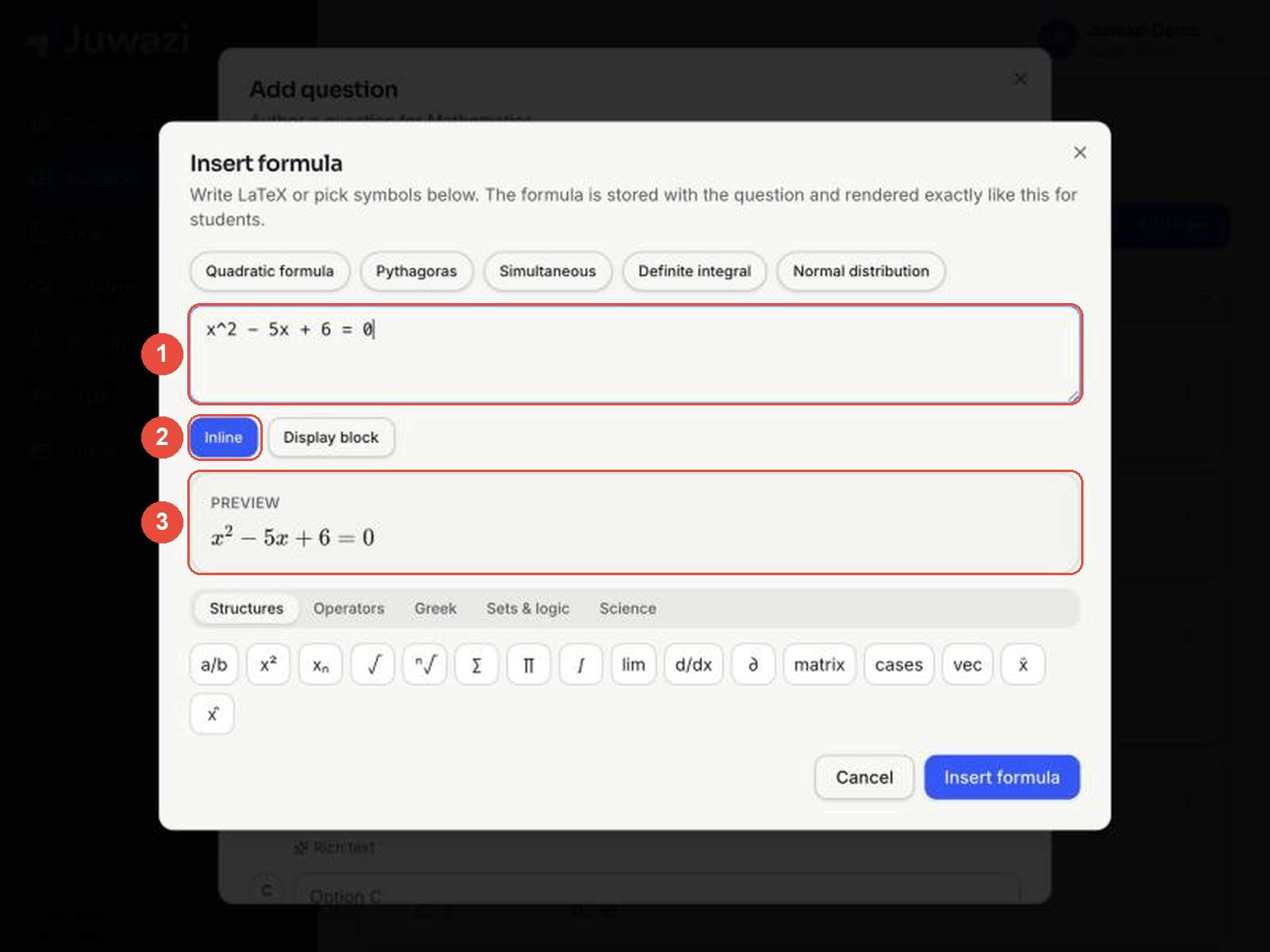
Step 1. Click in the editor where the formula should go, then click Σ Formula. The Insert formula window opens.
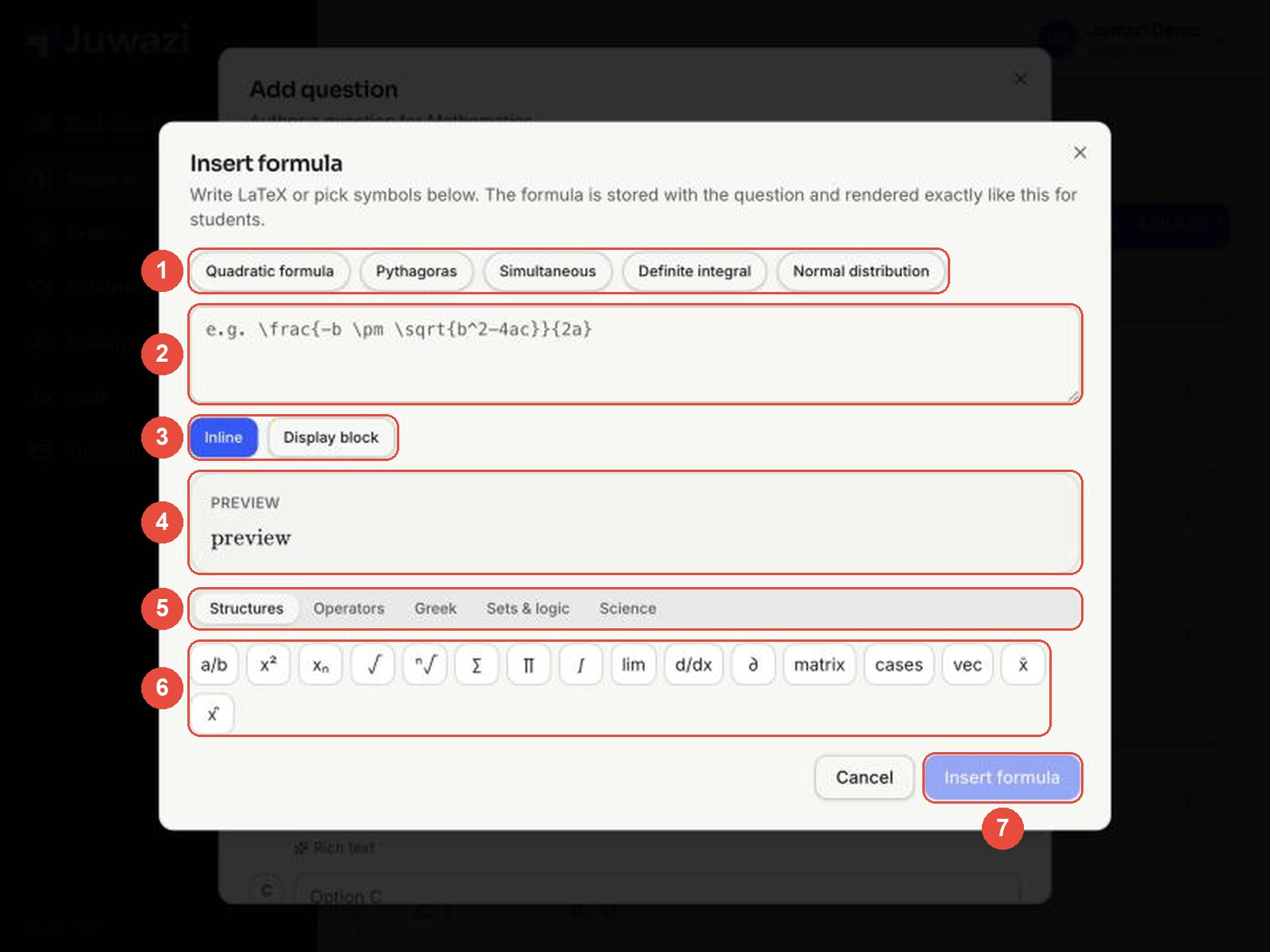
- Presets: one click inserts a common formula: Quadratic formula, Pythagoras, Simultaneous equations, Definite integral or Normal distribution.
- LaTeX box: type or edit the formula here.
- Inline / Display block: Inline sits inside a sentence, like x² − 5x + 6 = 0. Display block puts the formula on its own line, centred and larger.
- Preview: updates as you type. If it looks wrong here, it will look wrong to students.
- Symbol tabs: Structures, Operators, Greek, Sets & logic and Science.
- Symbol buttons: click one to add it to the LaTeX box. Structures has fractions, powers, roots, sums, integrals, limits, derivatives, matrices and vectors. Science has chemical formulas (H₂O, SO₄²⁻), reaction and equilibrium arrows, ΔH, units and pH.
- Insert formula: adds the formula to your question.
Example 1: a display formula from a preset#
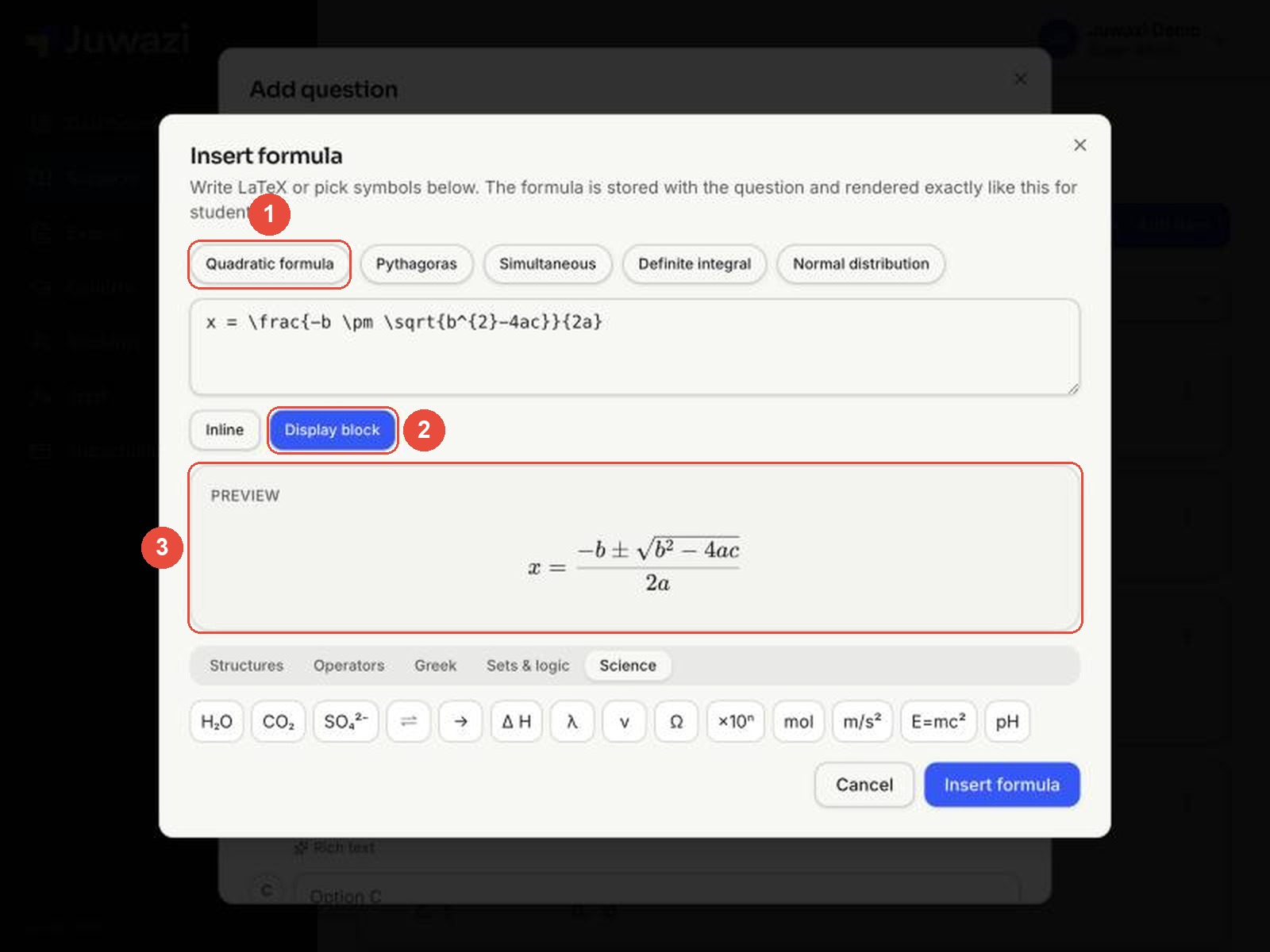
We click Quadratic formula, then Display block. The preview shows the formula on its own line.
Example 2: an inline formula you type#
For a short expression inside a sentence, type it in the LaTeX box and leave Inline selected. Here, x^2 - 5x + 6 = 0 previews as x² − 5x + 6 = 0.
After both formulas are inserted, the question reads naturally, with text and maths mixed:
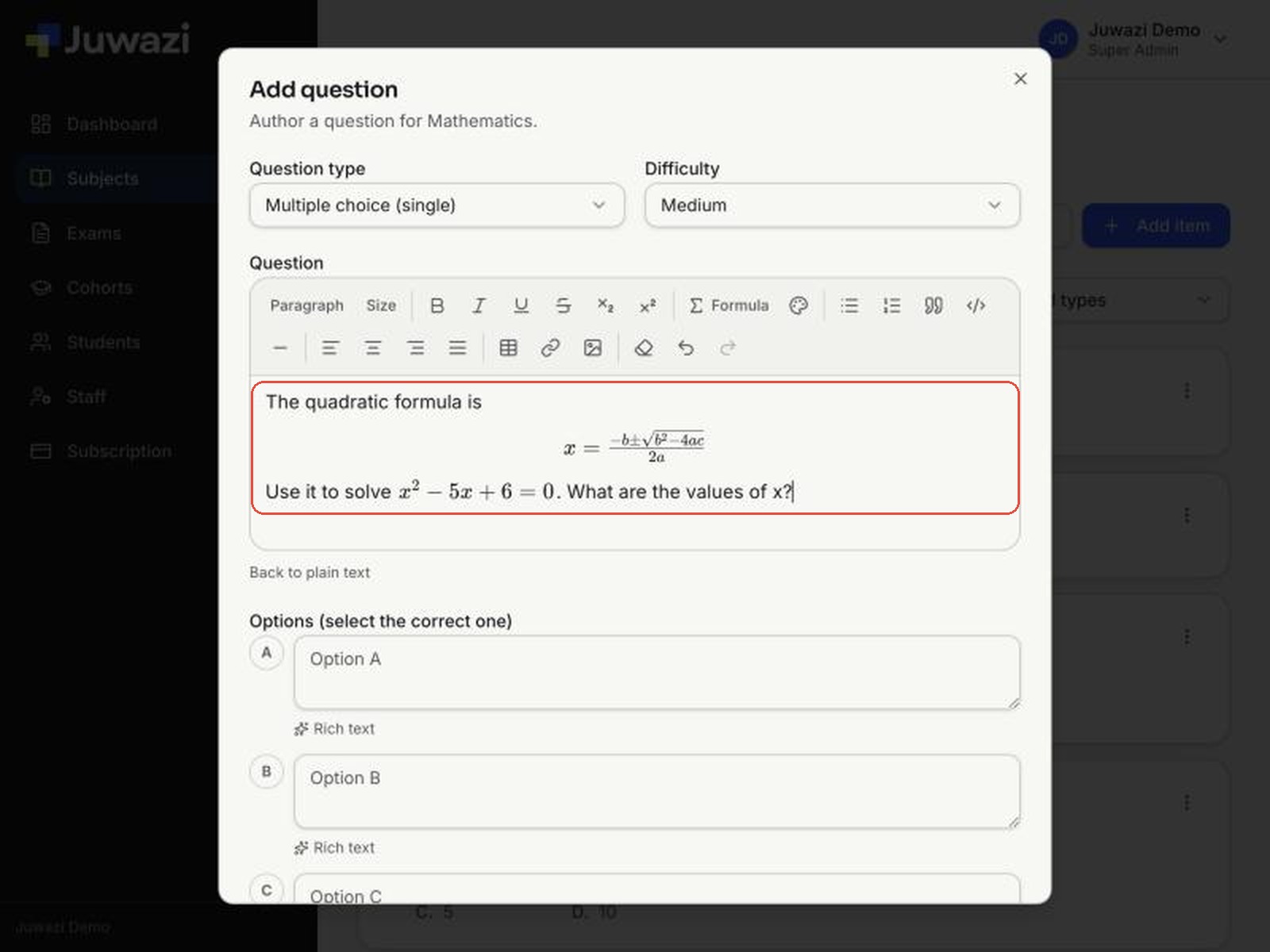
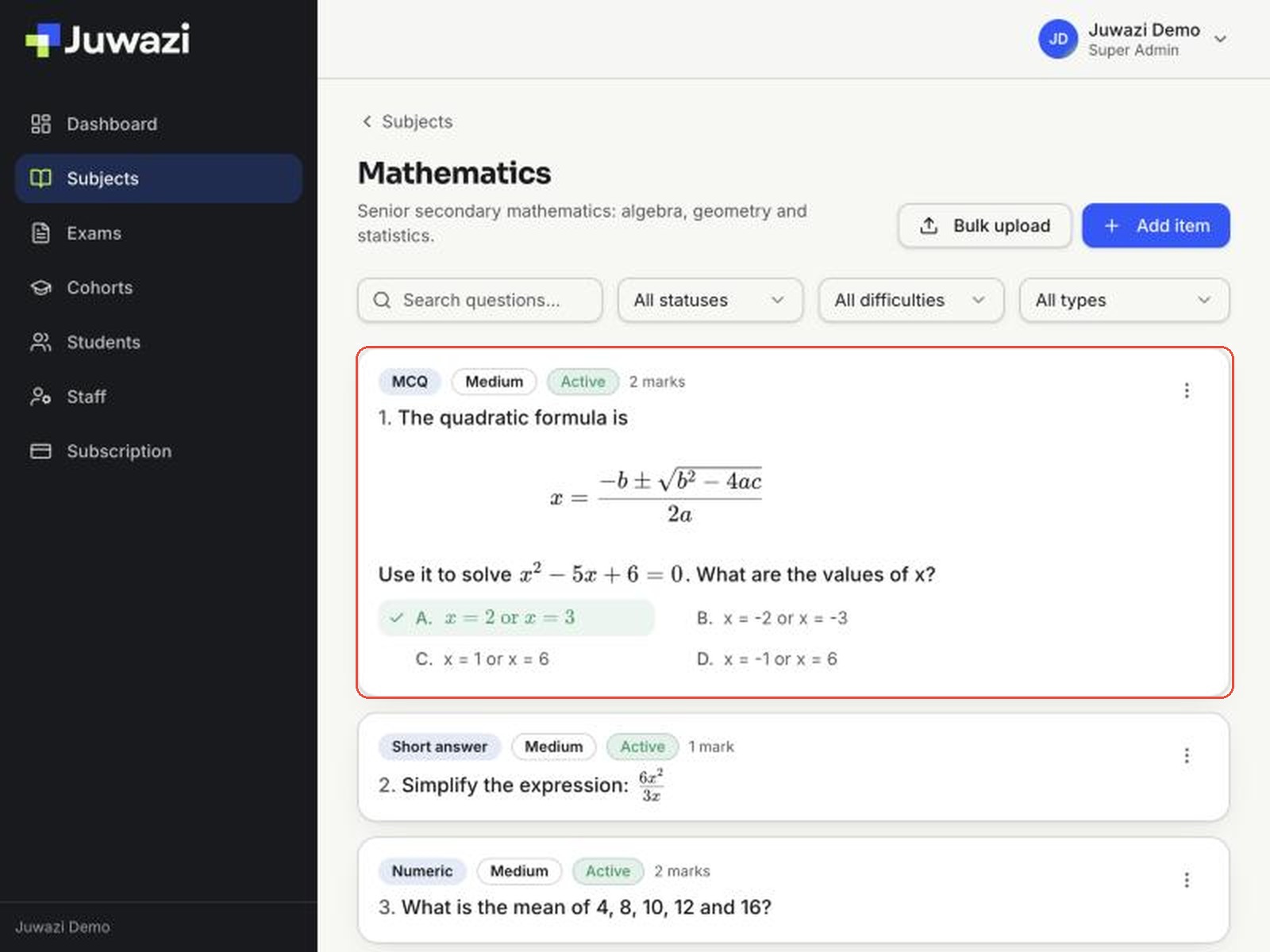
Note: a display formula looks small while you’re editing. It shows at full size once saved (see the item bank picture below).
Add a table#
Tables are useful for data questions: results, measurements, timetables or prices. In this example we build a Numeric question about goals scored.
Step 1. Click the table button in the toolbar. A menu opens.
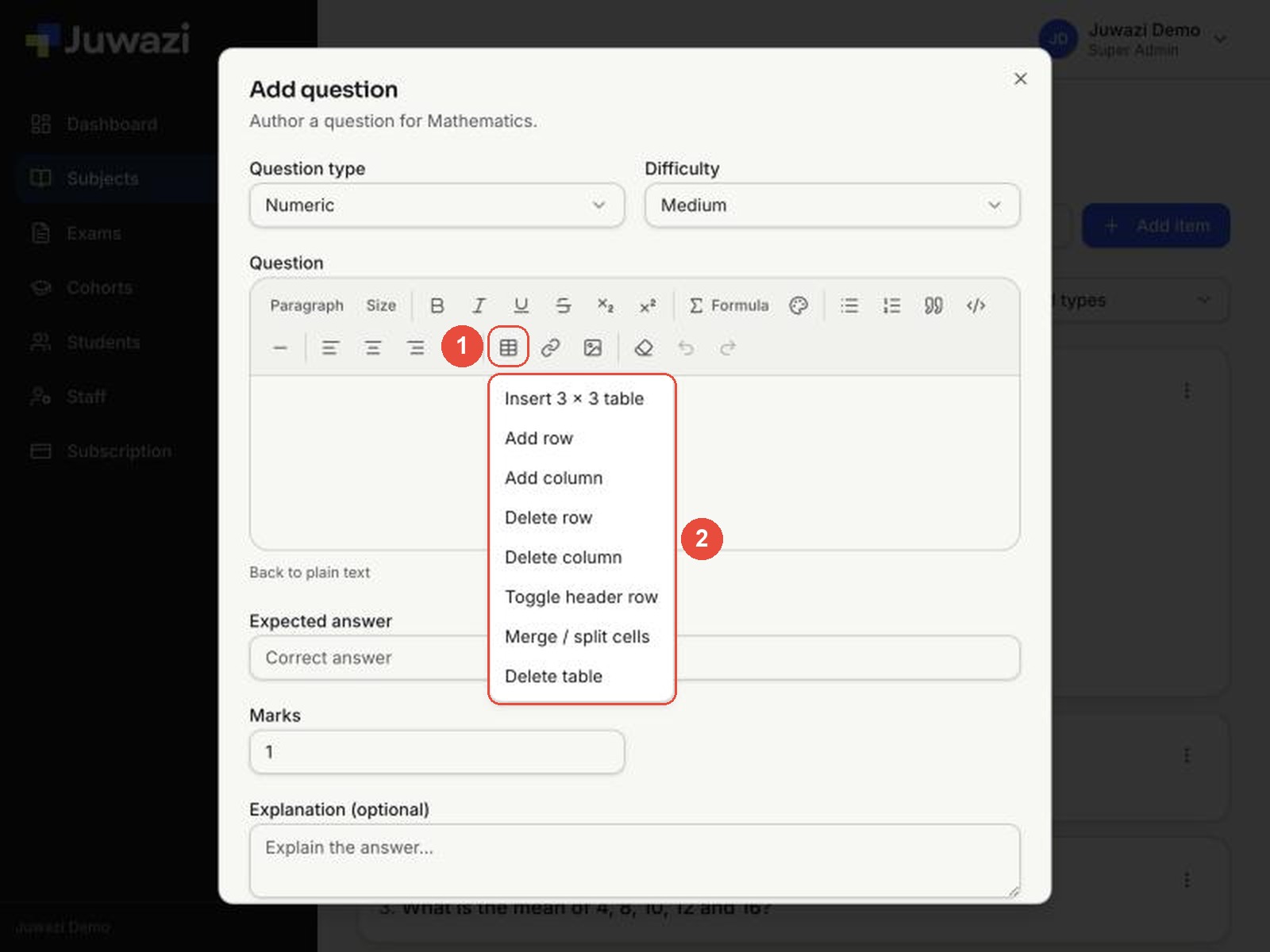
Step 2. Choose Insert 3 × 3 table. You get a table whose first row is a grey header row.
Step 3. Click the first cell and type. Press Tab to move to the next cell. Pressing Tab in the very last cell adds a new row, so you can keep typing.
Step 4. To change the table’s shape, click in a cell and use the table menu: Add row, Add column, Delete row, Delete column, Merge / split cells, Toggle header row or Delete table.
Step 5. Press the down arrow to leave the table, then type the question underneath.
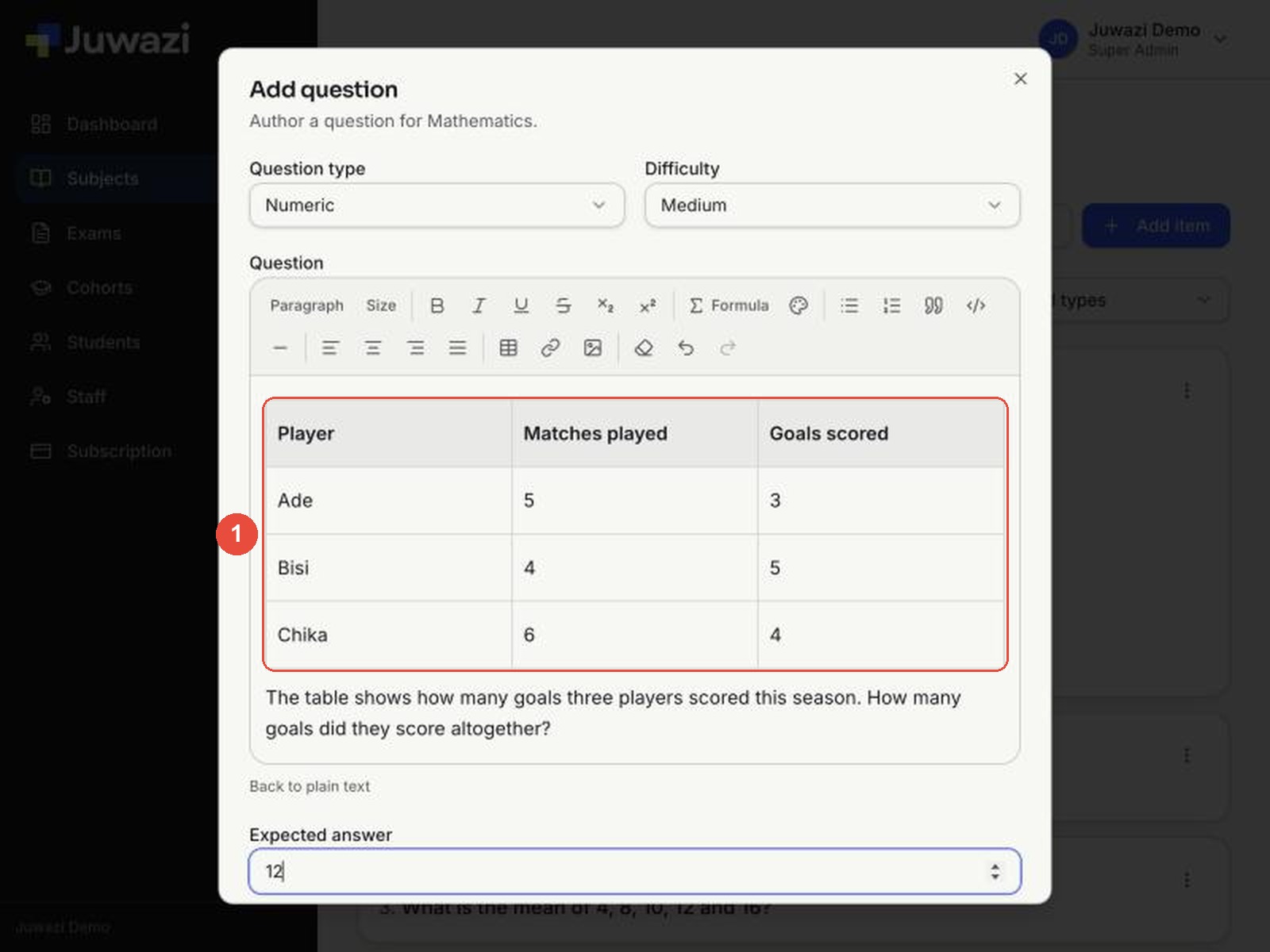
In the item bank, the table shows compactly with the question:
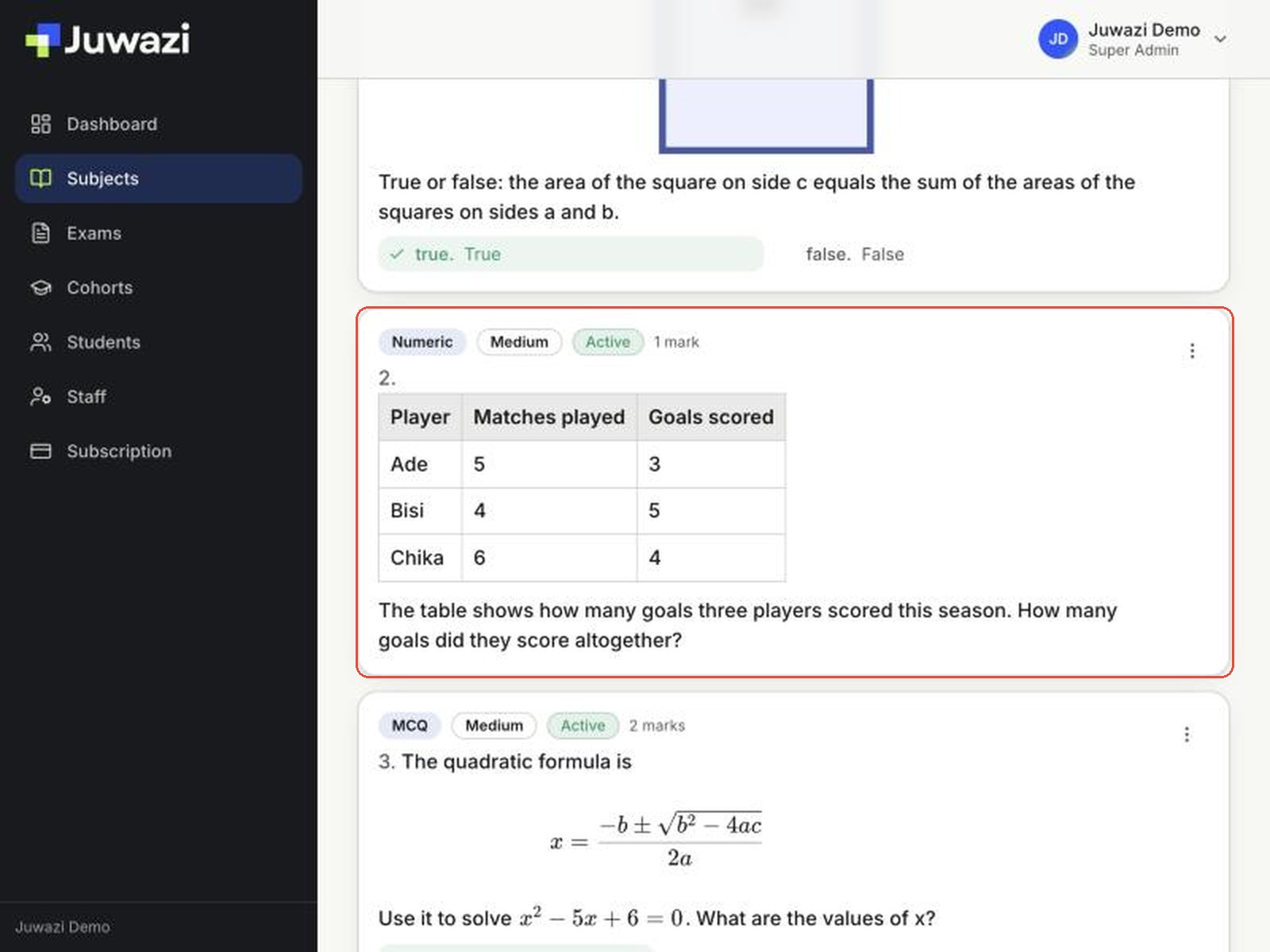
Tip: write a short sentence before or after the table telling students what it shows and what to do with it.
Add an image#
Use an image for diagrams, graphs, maps or photos. Juwazi adds images by web address (URL). There is no upload button, so the image must already be online.
Step 1. Click in the editor where the image should go, then click the image button in the toolbar.
Step 2. Paste the image’s web address into Image URL and click Insert image.
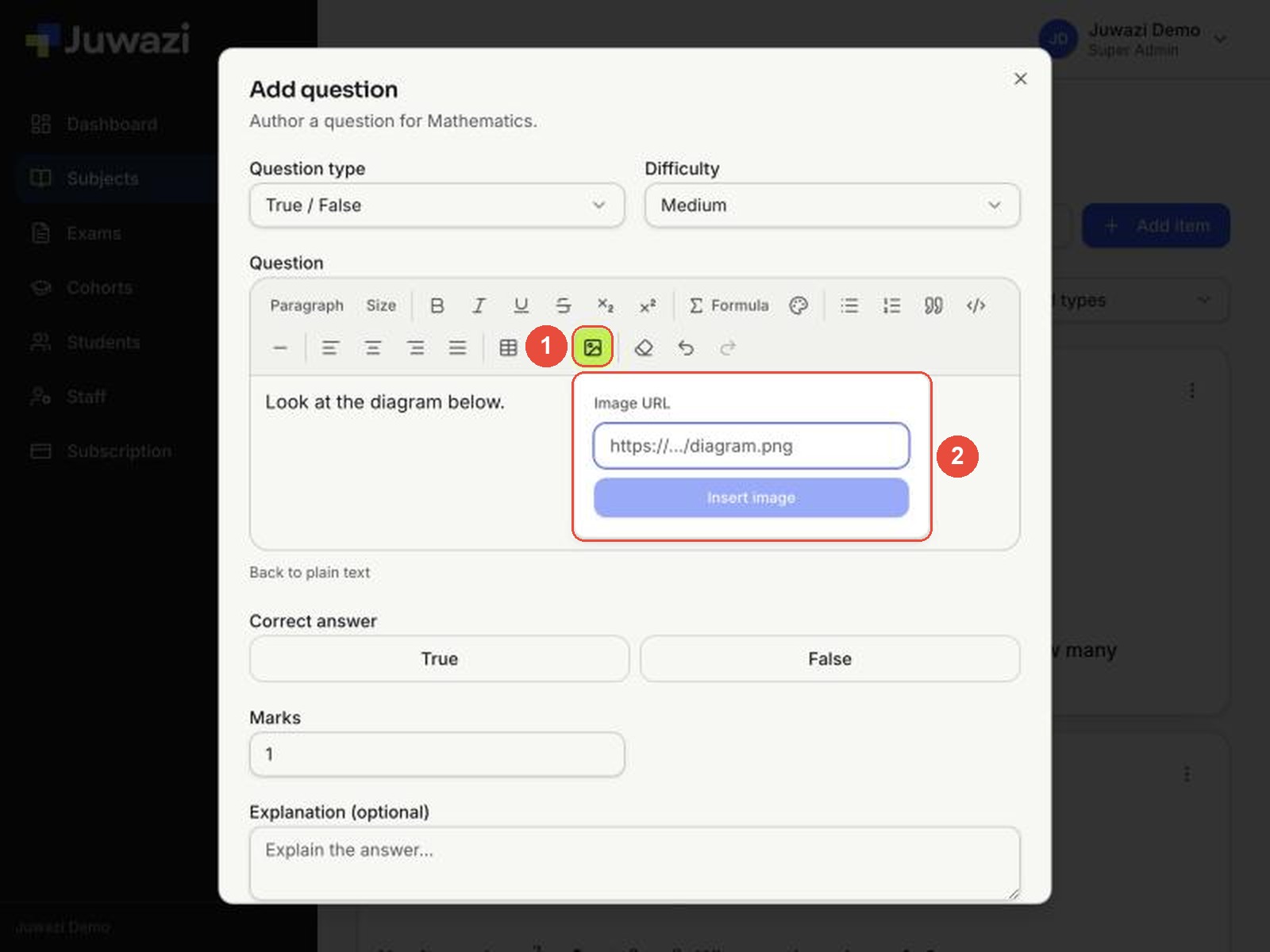
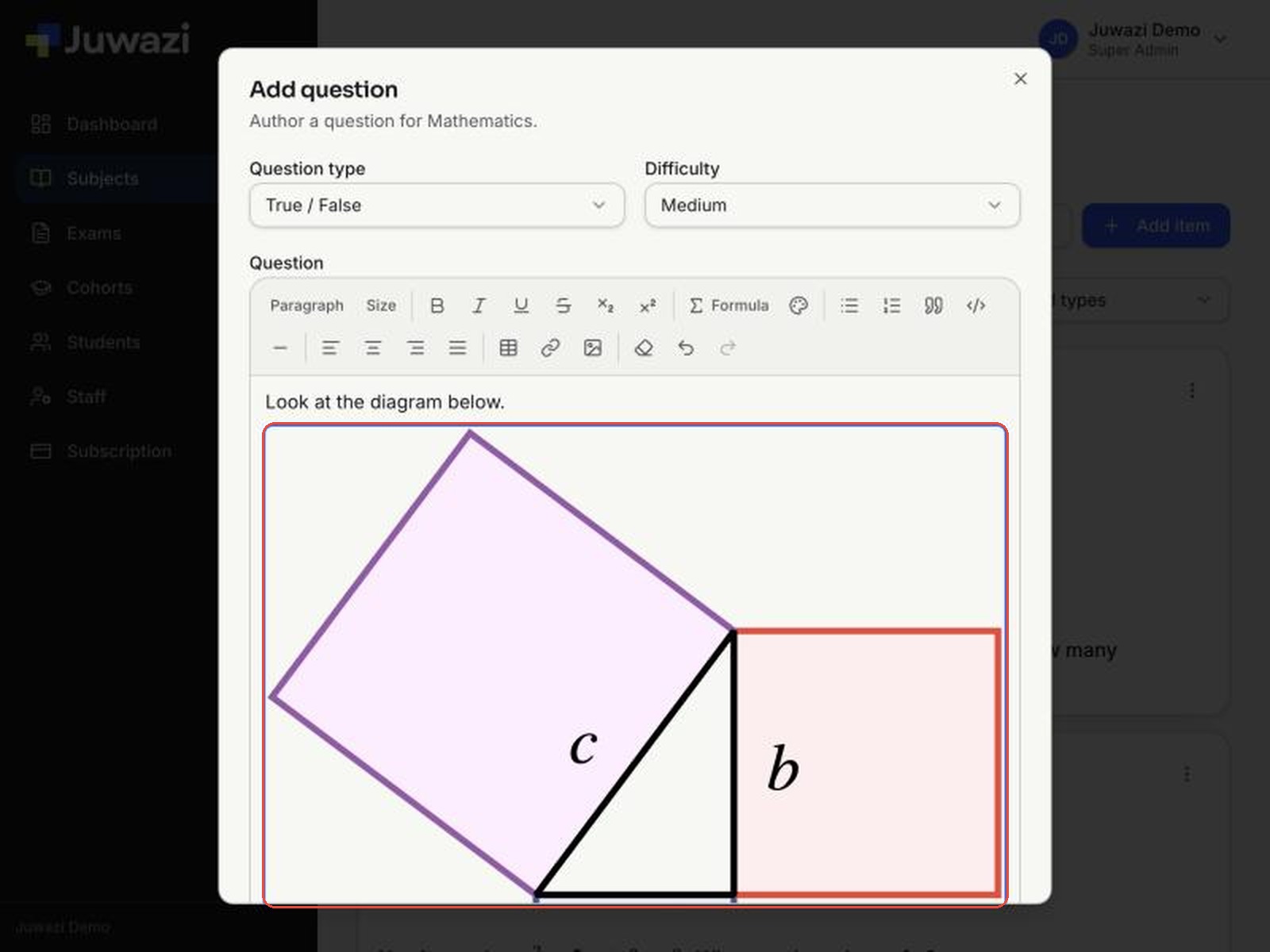
Step 3. The image appears in the question. Press the right arrow and then Enter to start a new line below it, and type the rest of the question.
Getting an image URL#
- Your own diagrams: upload them to your school website or an image-hosting service, then copy the direct link to the image itself (not a link to a page or a shared folder). It usually ends in .png, .jpg or .svg.
- Online images: right-click the image and choose Copy image address. Only use images you have permission to use.
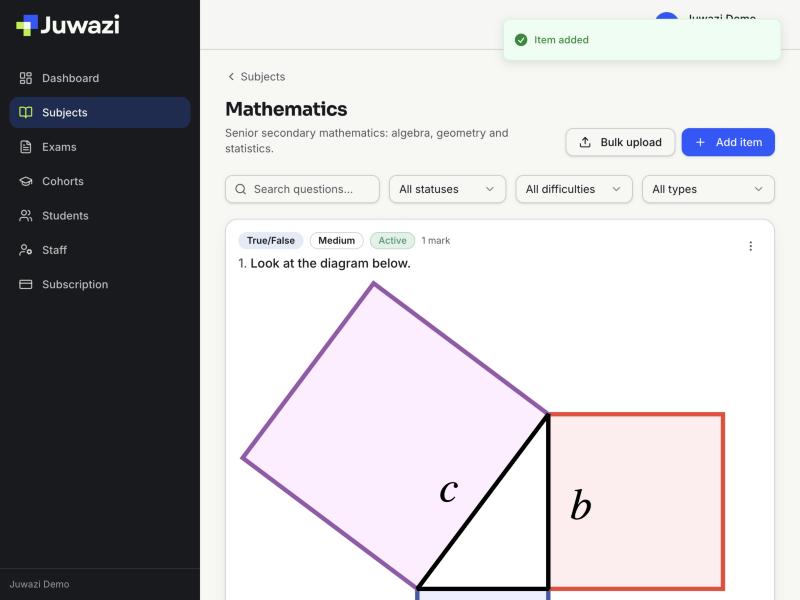
Important: images show full width, both in the editor and in the item bank, and there’s no way to resize them. Crop or resize the image before you upload it. If the image is later deleted or moved, it disappears from the question, so use a stable host.
Rich text in options and explanations#
Multiple-choice options and the explanation each have their own Rich text link. Click it to get a smaller toolbar: bold, italic, underline, strikethrough, subscript, superscript, Σ Formula, colour, image and clear formatting.
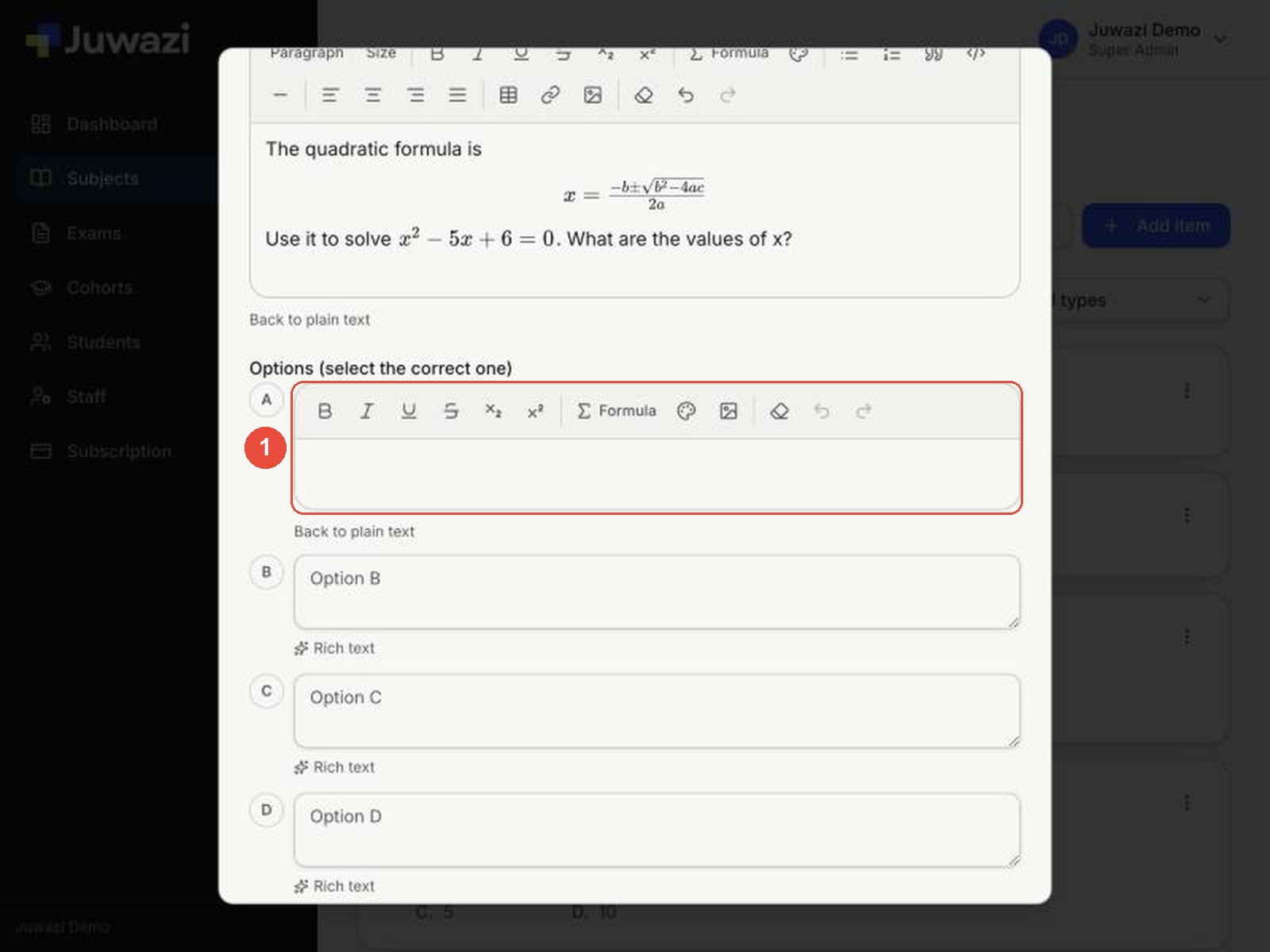
Formula in an option. Here, option A uses a formula so its answer matches the maths in the question. Options B–D are plain text, and you can mix the two.
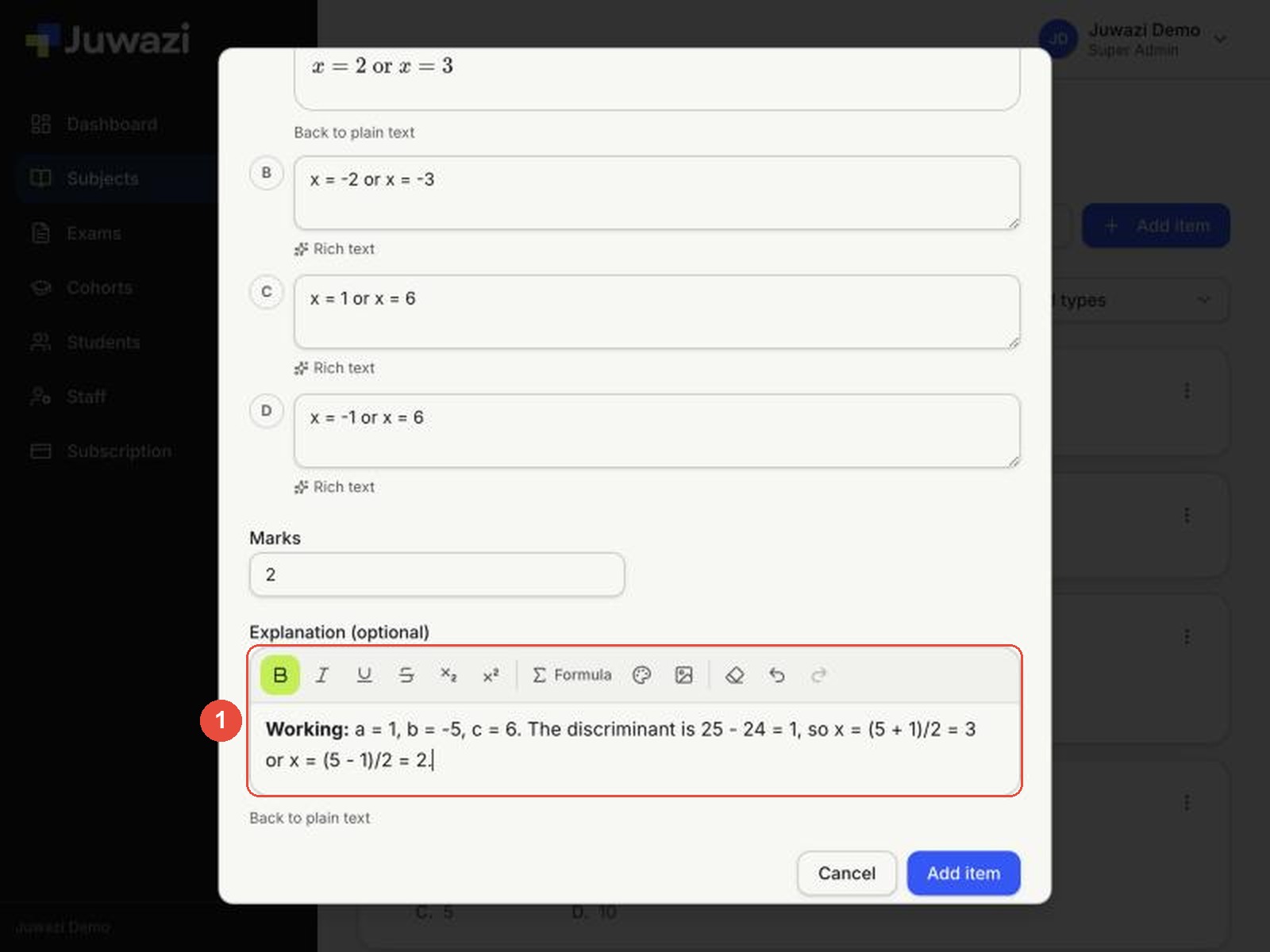
Formatting in the explanation. Here the word Working: is in bold to make the explanation easier to scan.
How it looks once saved#
Saved questions show in the item bank exactly as you built them, with formulas at full size and the correct answer ticked:
Tips, LaTeX cheat sheet and what’s next#
- Check the preview. The formula preview is exactly what students see, so if a symbol is missing there, it’s missing on the exam paper too.
- Keep plain text plain. Only switch to rich text when a question needs it. Plain questions are quicker to write and edit.
- Save often. Long rich questions take a while to build; save, then use Edit question to keep refining.
LaTeX you’ll use most (type it in the LaTeX box):
| You want | Type | Shows as |
|---|---|---|
| Fraction | \frac{a}{b} |
a over b |
| Power / index | x^2, x^{10} |
x², x¹⁰ |
| Subscript | x_1, H_2O |
x₁, H₂O |
| Square root | \sqrt{x}, \sqrt[3]{x} |
√x, ∛x |
| Plus-minus, times, divide | \pm, \times, \div |
±, ×, ÷ |
| Not equal, ≤, ≥ | \neq, \leq, \geq |
≠, ≤, ≥ |
| Greek letters | \pi, \theta, \alpha |
π, θ, α |
| Words inside a formula | \text{ or } |
keeps spaces and upright letters |
Next: Guide 6, Bulk-uploading questions from Excel.