

Signing in#
Sign in at app.juwazi.com with the email address (or phone number) and password you used when you created your organization.
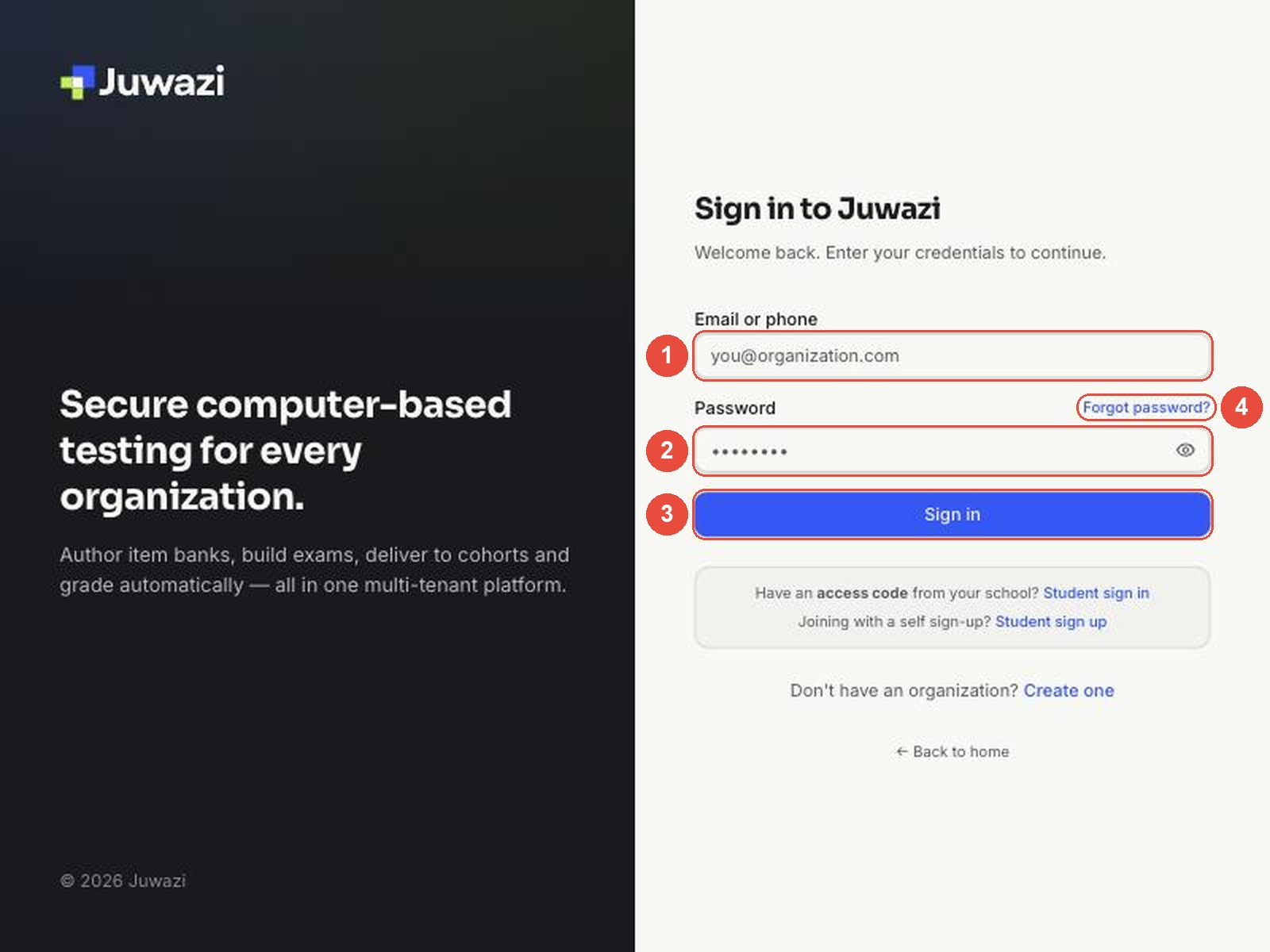
- Email or phone: type the email address or phone number on your account.
- Password: type your password. Click the eye icon to check what you’ve typed.
- Click Sign in. Juwazi opens your Dashboard.
- Forgot password? opens the password reset page (see the next section).
The grey box under the Sign in button is for students. Student sign in takes them to the access-code page, and Student sign up is for students who register themselves. As Super Admin you won’t need either link.
Tip: Juwazi remembers you on the same browser, so you won’t need to sign in every time. On a shared computer, always sign out when you finish.
Forgot your password#
If you can’t remember your password, reset it by email from the sign-in page.
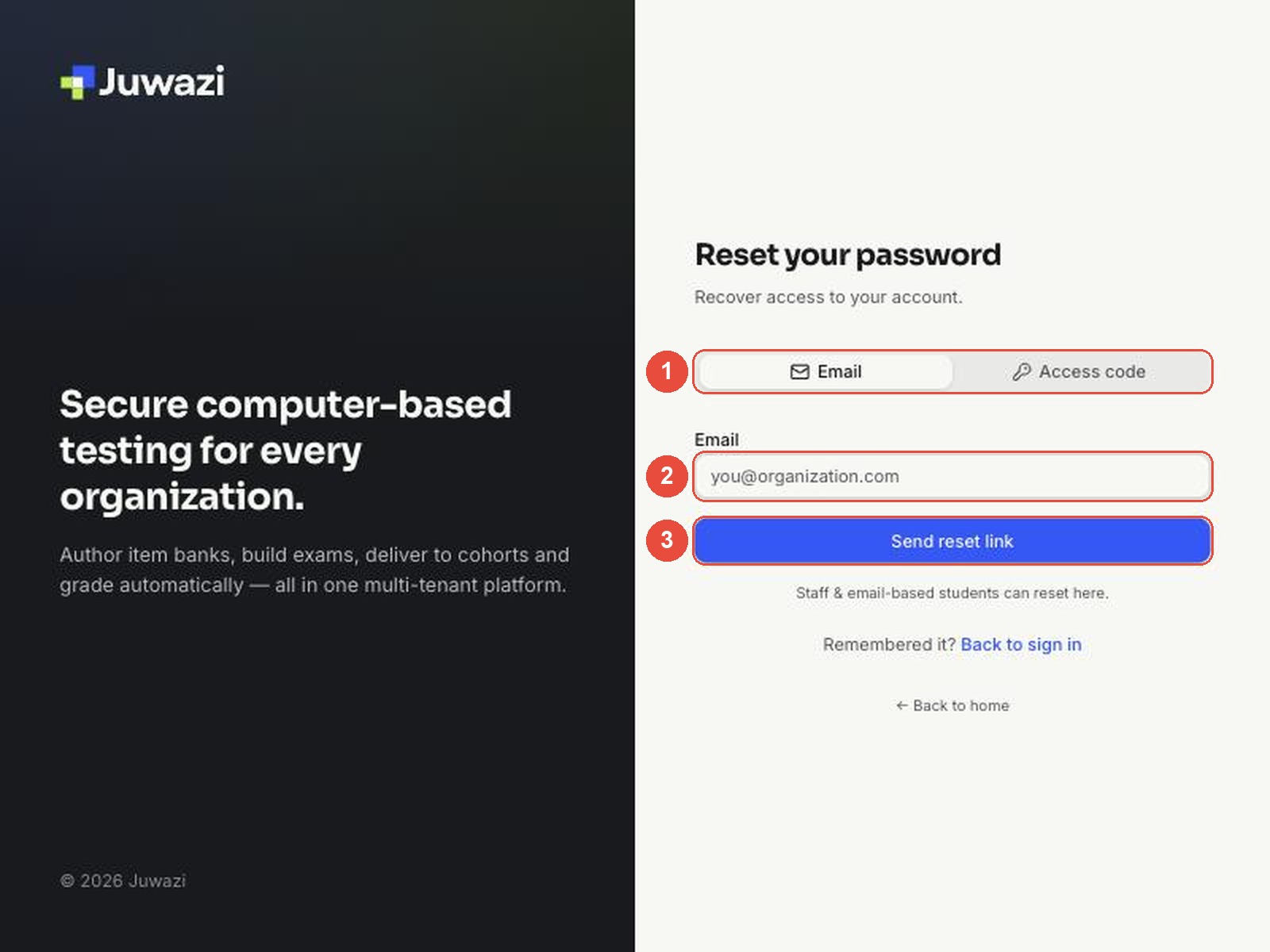
- On the sign-in page, click Forgot password?. Leave the Email tab selected. (The Access code tab is for students who sign in with a code.)
- Type the email address on your account.
- Click Send reset link, then open the email from Juwazi and follow the link to choose a new password.
Click Back to sign in if you remember your password after all.
The dashboard#
The Dashboard is your home page. It shows how much is in your workspace and the latest exams.
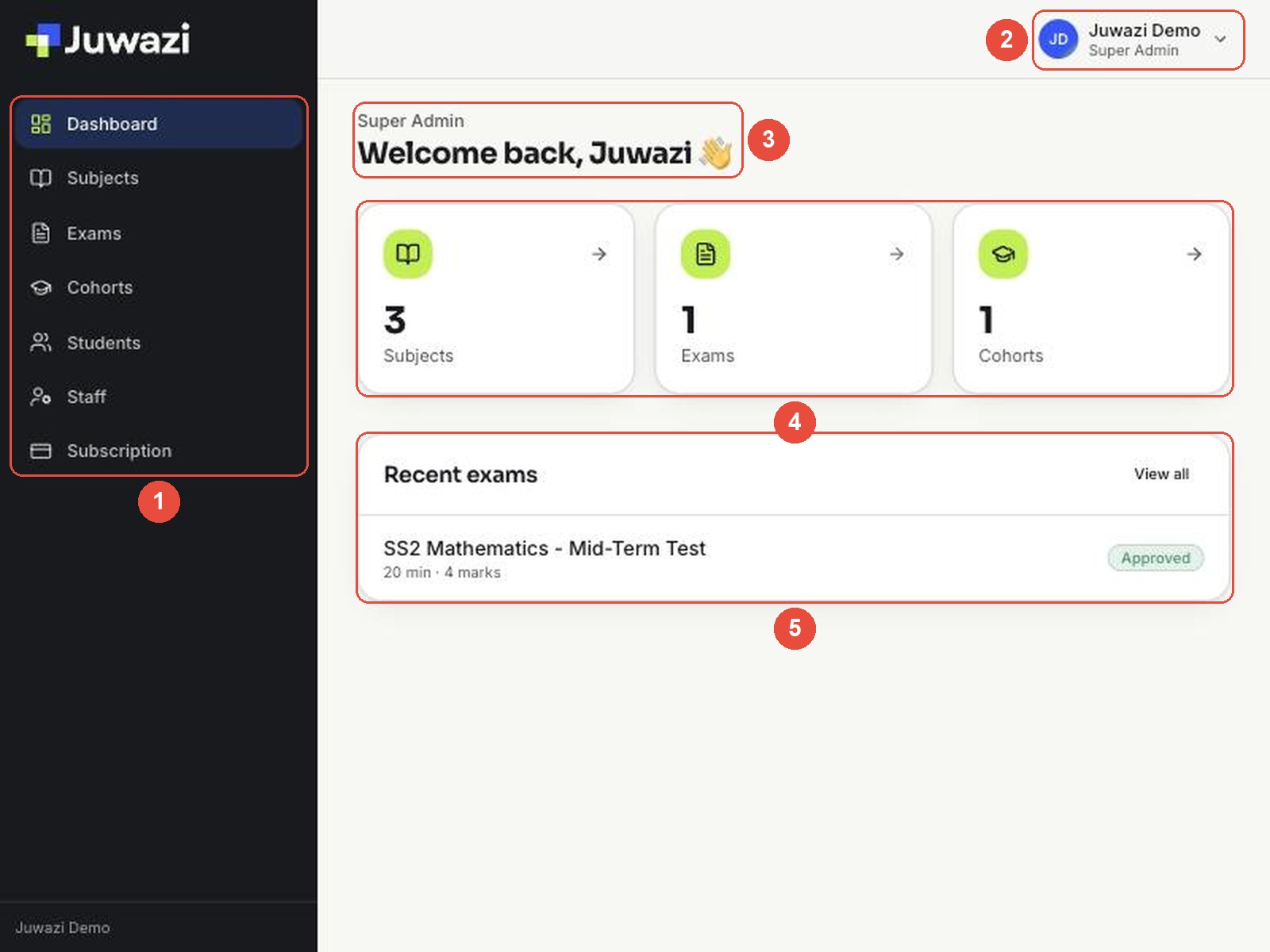
- Menu: the left-hand menu takes you to every part of Juwazi. The page you’re on is highlighted.
- Account: your name and role. Click it to open the account menu.
- Welcome: your role (Super Admin) is shown above the greeting, so you can always check which account you’re using.
- Counters: the number of Subjects, Exams and Cohorts in your workspace. Click a card (or its arrow) to open that page.
- Recent exams: your latest exams with their duration, total marks and status badge (for example Approved). Click an exam to open it, or View all to see every exam.
The menu#
The left-hand menu has seven items. Each one opens a page covered by its own guide in this series.
| Menu item | What you do there | Guides |
|---|---|---|
| Dashboard | See your counters and recent exams. | This guide |
| Subjects | Create subjects and build each subject’s question bank, one question at a time or from Excel. | 3–6 |
| Exams | Create exams, add questions, send them for approval, assign them to cohorts and see results. | 11–20 |
| Cohorts | Create classes or batches, add students and teachers, and graduate or archive a cohort. | 7, 22 |
| Students | Enrol students, give out access codes, move students between cohorts, and export the list. | 8, 9, 21 |
| Staff | Invite Administrators, Teachers, Supervisors and Staff, and assign their subjects and cohorts. | 10, 24 |
| Subscription | Choose a plan for your organization. | 25 |
Your organization’s name (Juwazi Demo in these screenshots) appears at the bottom of the menu.
Your account menu and signing out#
The account menu shows who is signed in and lets you sign out.
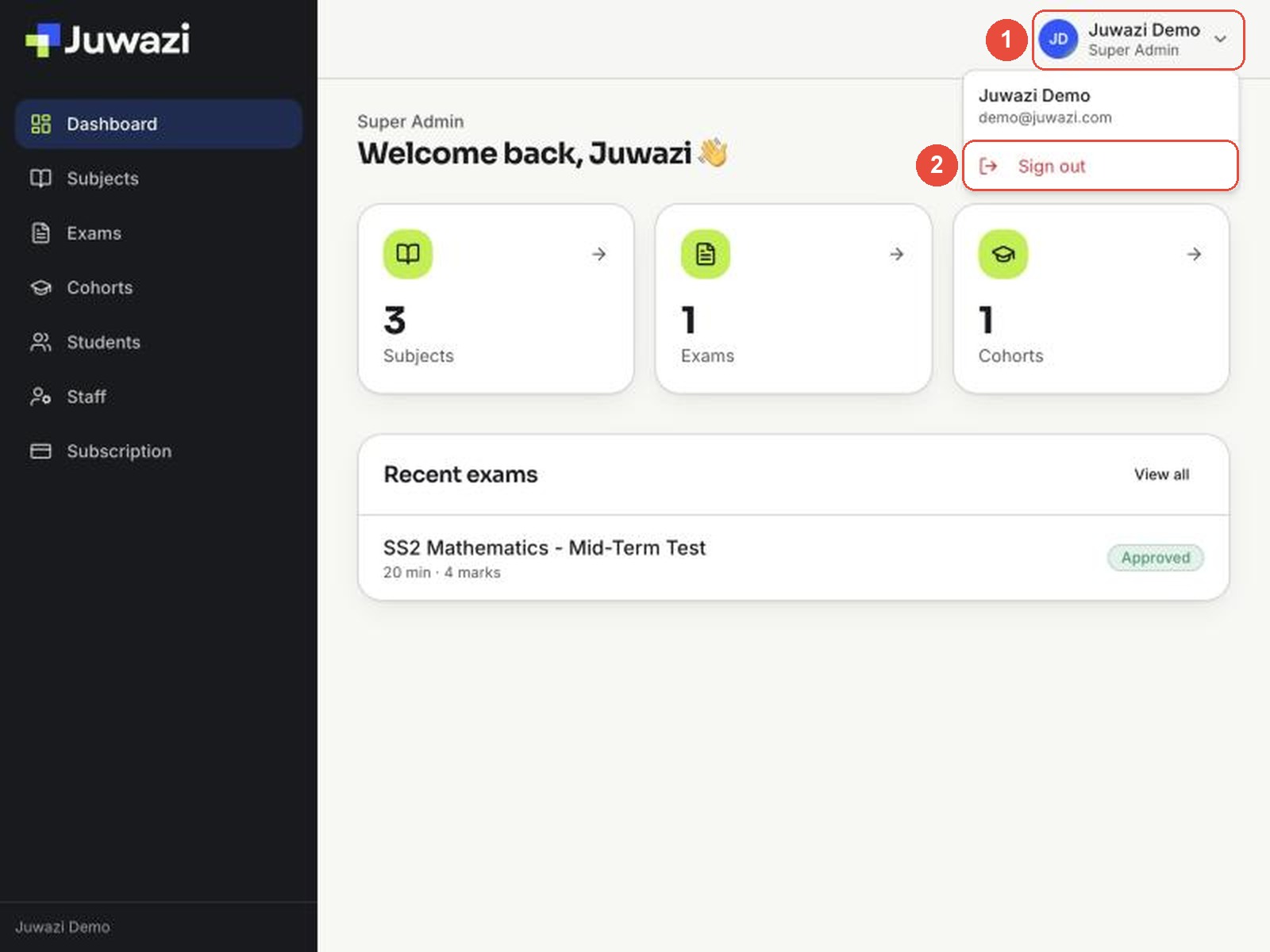
- Click your name in the top-right corner. The menu shows your name and email address.
- Click Sign out. Juwazi returns you to the sign-in page.
Sign out before someone else uses your computer. A Super Admin account can change or delete anything in your workspace.
Using Juwazi on a phone or small screen#
Juwazi works in a phone or tablet browser too. On a narrow screen the menu folds away to make room.
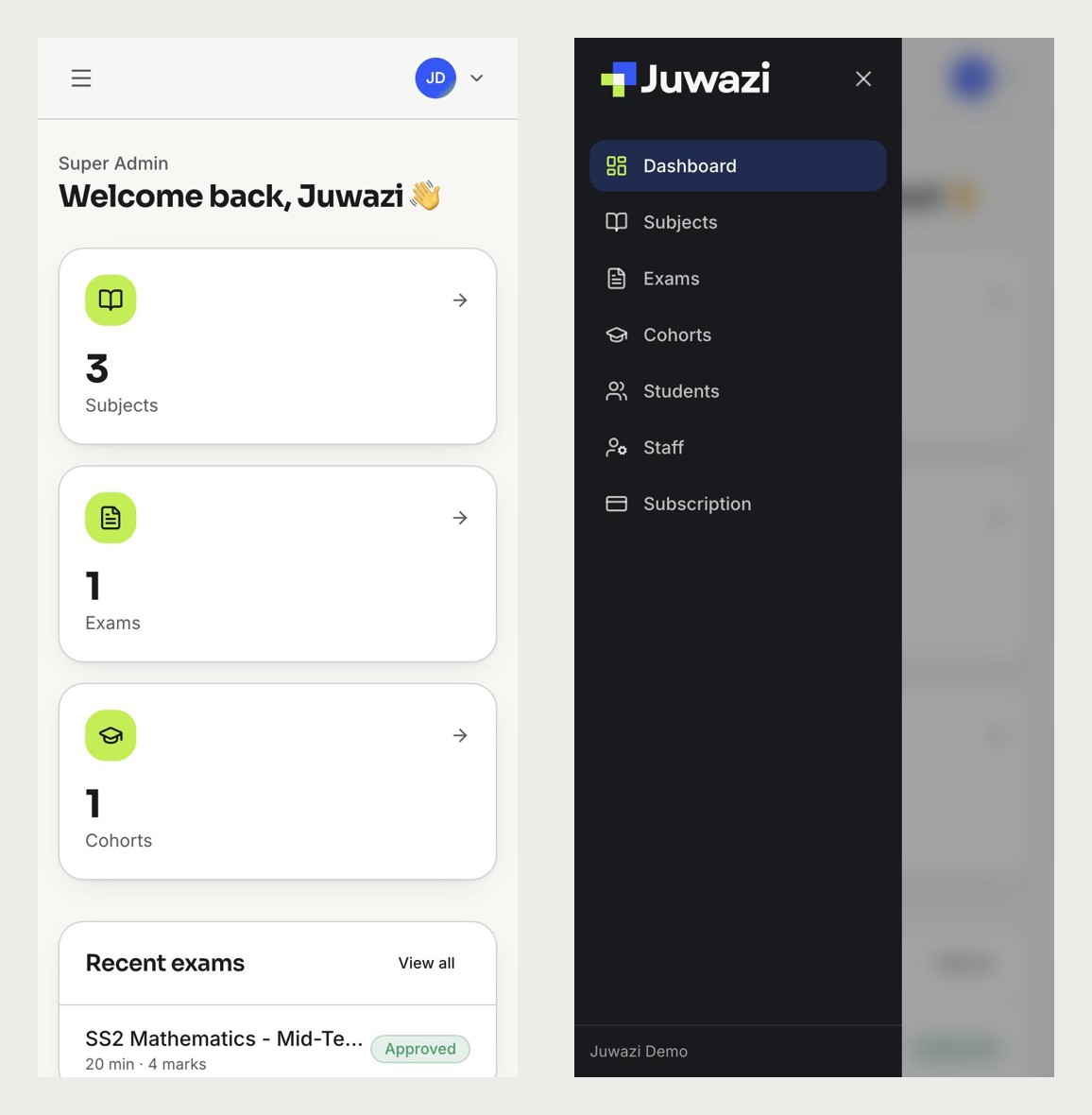
- The counters stack one above another.
- Tap the ☰ icon in the top-left corner to open the menu, and the × to close it.
- Your account button is still in the top-right corner.
Building exams and writing questions is easiest on a computer. A phone is handy for checking results or approving an exam on the go.
Quick tips and what’s next#
- Pages can show Loading your workspace… for a few seconds when you first open Juwazi. Wait for it to finish before clicking.
- After you save something, Juwazi confirms it with a small message in the top-right corner, such as Subject created.
- To get back to the Dashboard from anywhere, click Dashboard in the menu.
Next: Guide 3, Creating and managing subjects, sets up the first building block of your workspace.