

What a subject is#
A subject is a topic you test, such as Mathematics, English Language or Biology. Each subject has its own item bank: the store of questions that its exams are built from.
Create your subjects before anything else. Every question lives in a subject, every exam is set for one subject, and teachers are given access to subjects. You need at least one subject before you can write a question or create an exam.
Create a subject#
It takes about 30 seconds. In this example we add Chemistry.
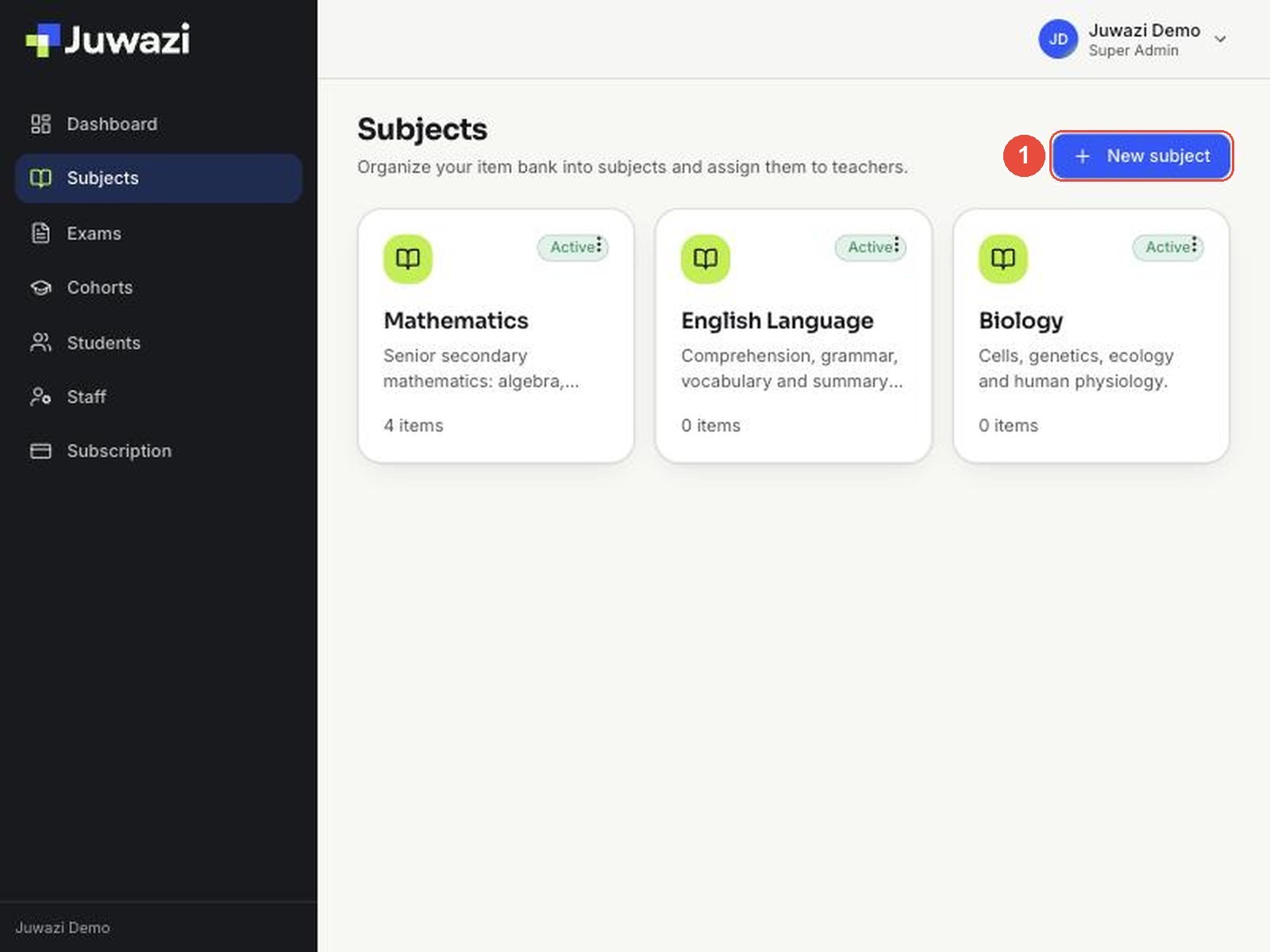
Step 1. Click Subjects in the left-hand menu, then click New subject at the top right.
Step 2. Fill in the Create subject form.
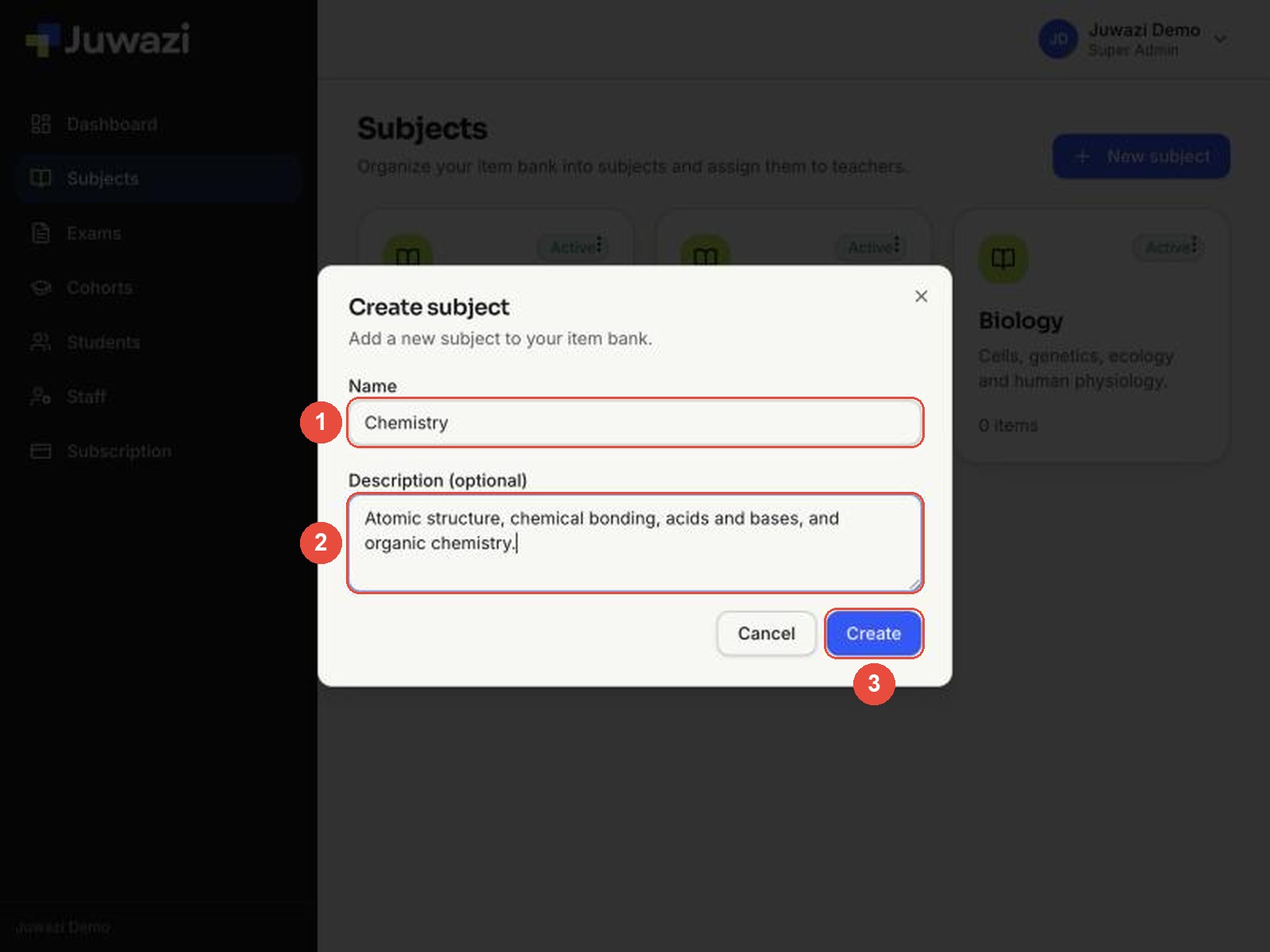
- Name (required): the subject as students and staff will see it, for example Chemistry. The Create button stays greyed out until you type a name.
- Description (optional): a short note on what the subject covers, for example Atomic structure, chemical bonding, acids and bases, and organic chemistry.
- Click Create.
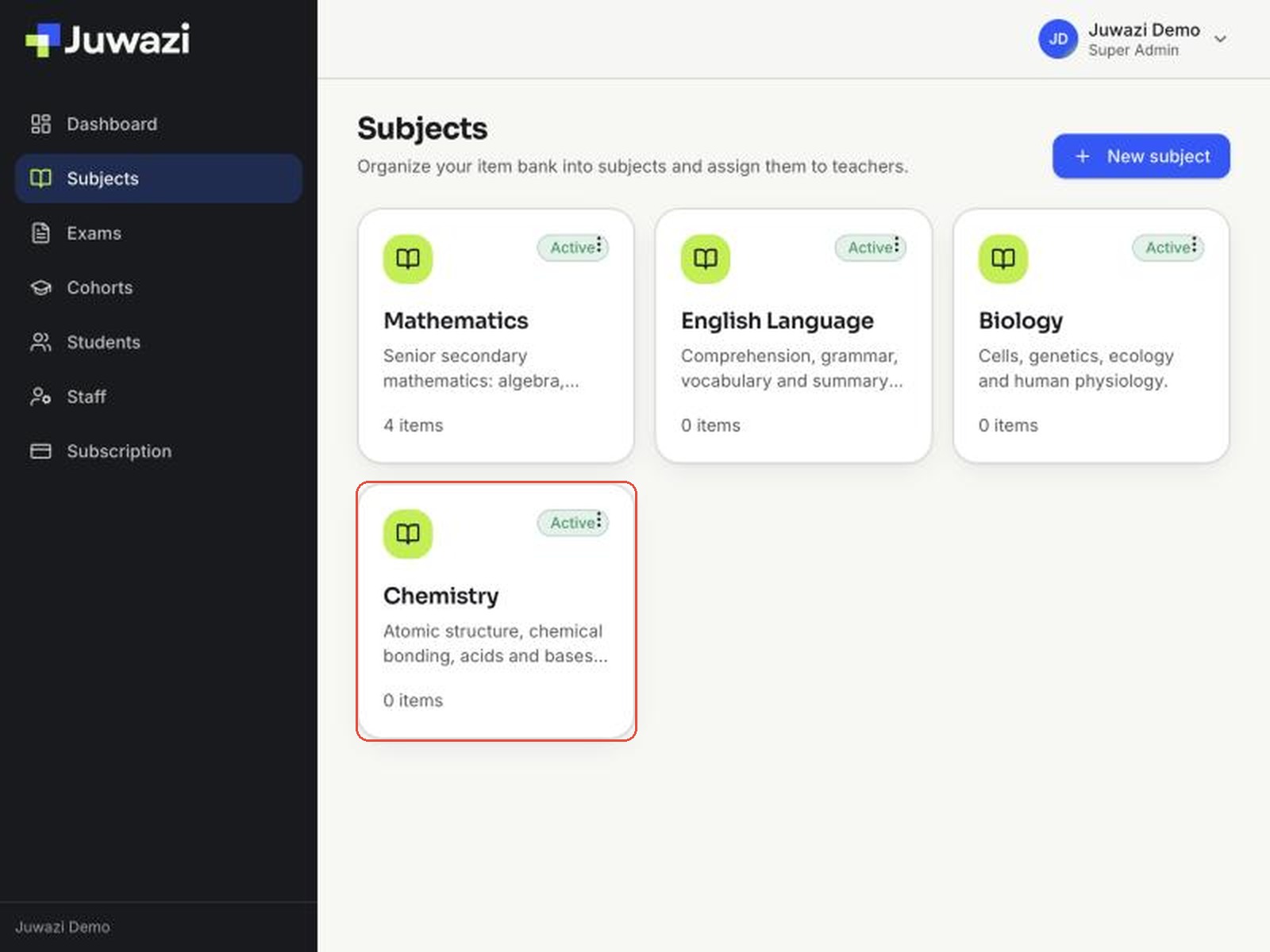
Step 3. Juwazi shows Subject created in the top-right corner, and the new subject appears as a card on the Subjects page. It can take a second or two to appear.
Repeat for each subject you teach or test. You can add more subjects at any time.
Reading a subject card#
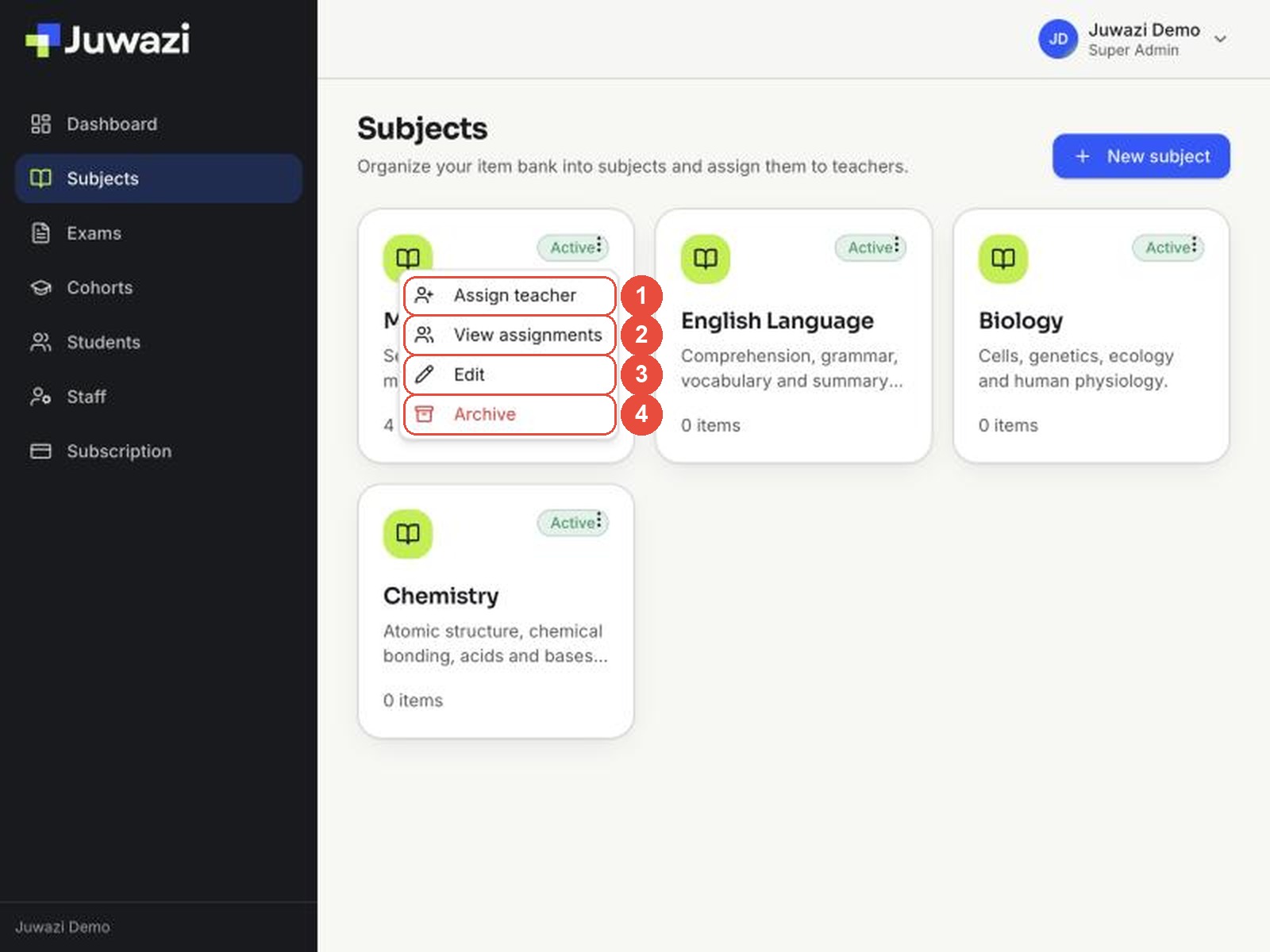
Each subject shows as a card on the Subjects page.
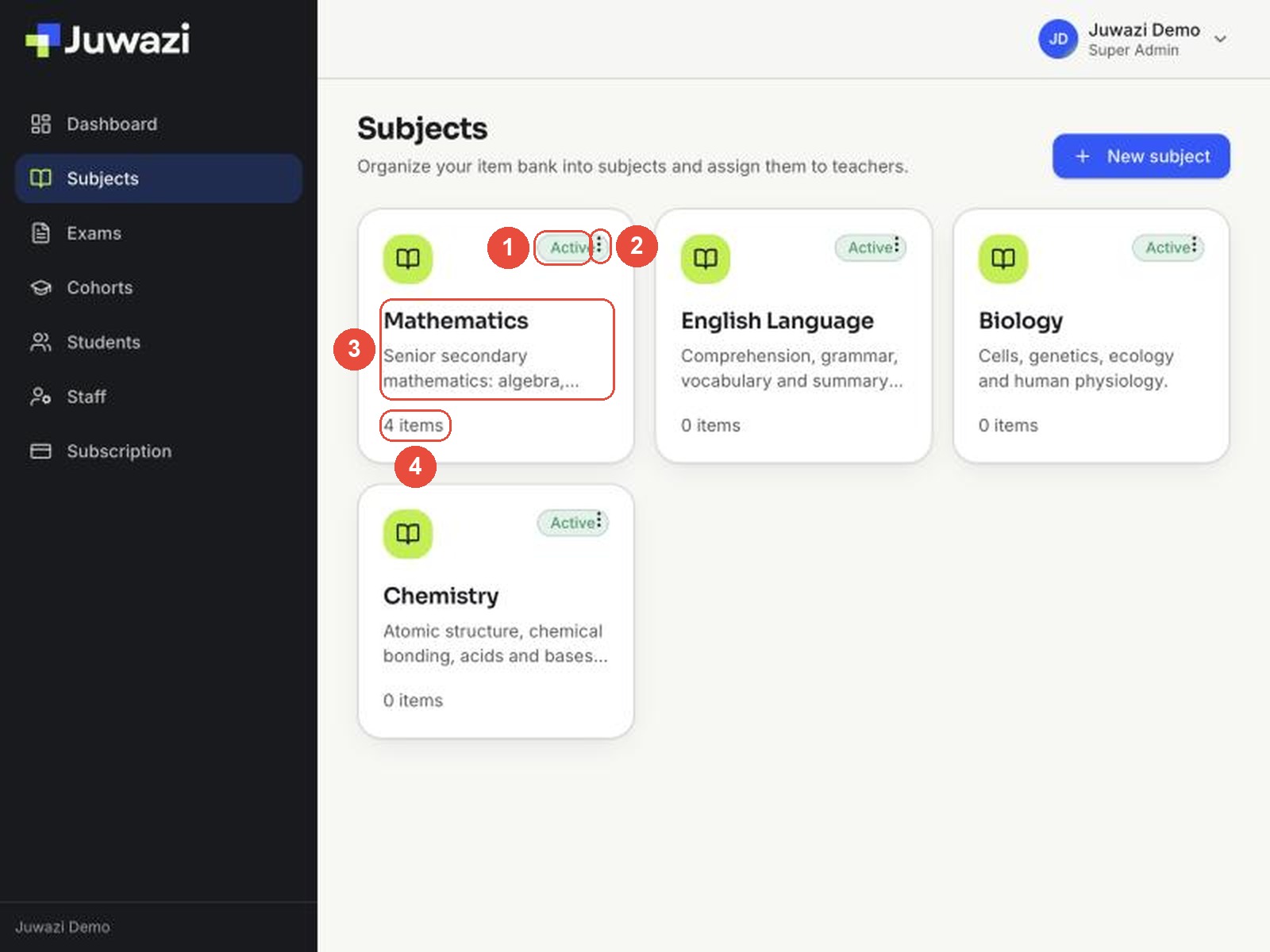
- Status: Active means the subject is in use. Archived subjects are hidden from this page.
- Menu (⋮): the three dots next to the badge open the subject’s actions: Assign teacher, View assignments, Edit and Archive.
- Name and description: long descriptions are cut short on the card. You see the full text when you open the subject.
- Items: the number of questions in the subject’s item bank.
Opening a subject#
Click anywhere on a card (away from the ⋮ menu) to open the subject. This is where you build its item bank, covered in the next guides.
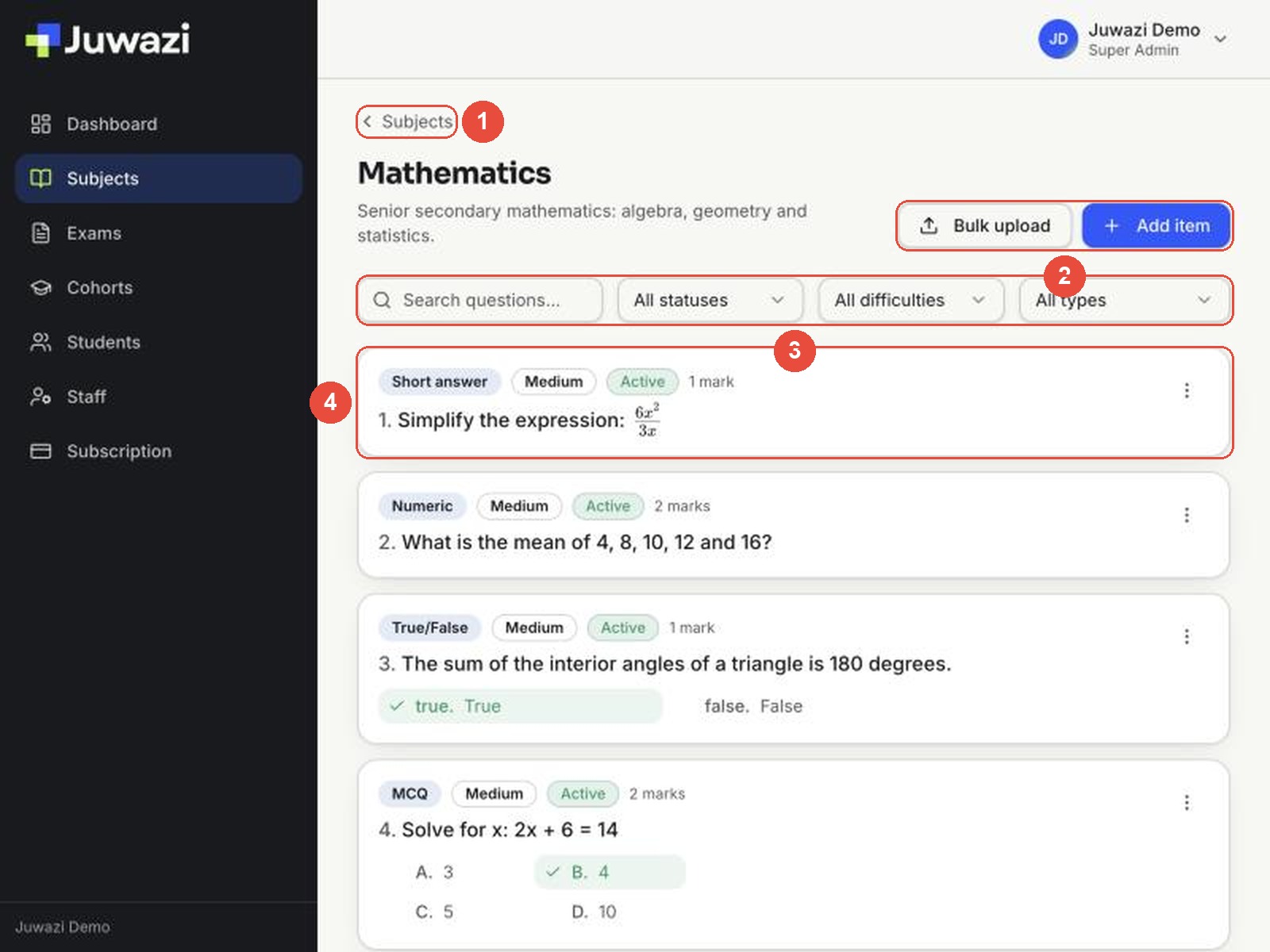
- ‹ Subjects takes you back to the list.
- Add item writes one question; Bulk upload imports many from Excel (Guides 4 and 6).
- Search the questions, or filter by status, difficulty and question type.
- Each question shows its type, difficulty, status and marks, with the correct answer ticked.
Edit a subject#
You can rename a subject or change its description at any time. Its questions stay in its item bank.
- On the Subjects page, click the ⋮ menu on the subject’s card and choose Edit.
- Change the details in the Edit subject form.
- Click Save.
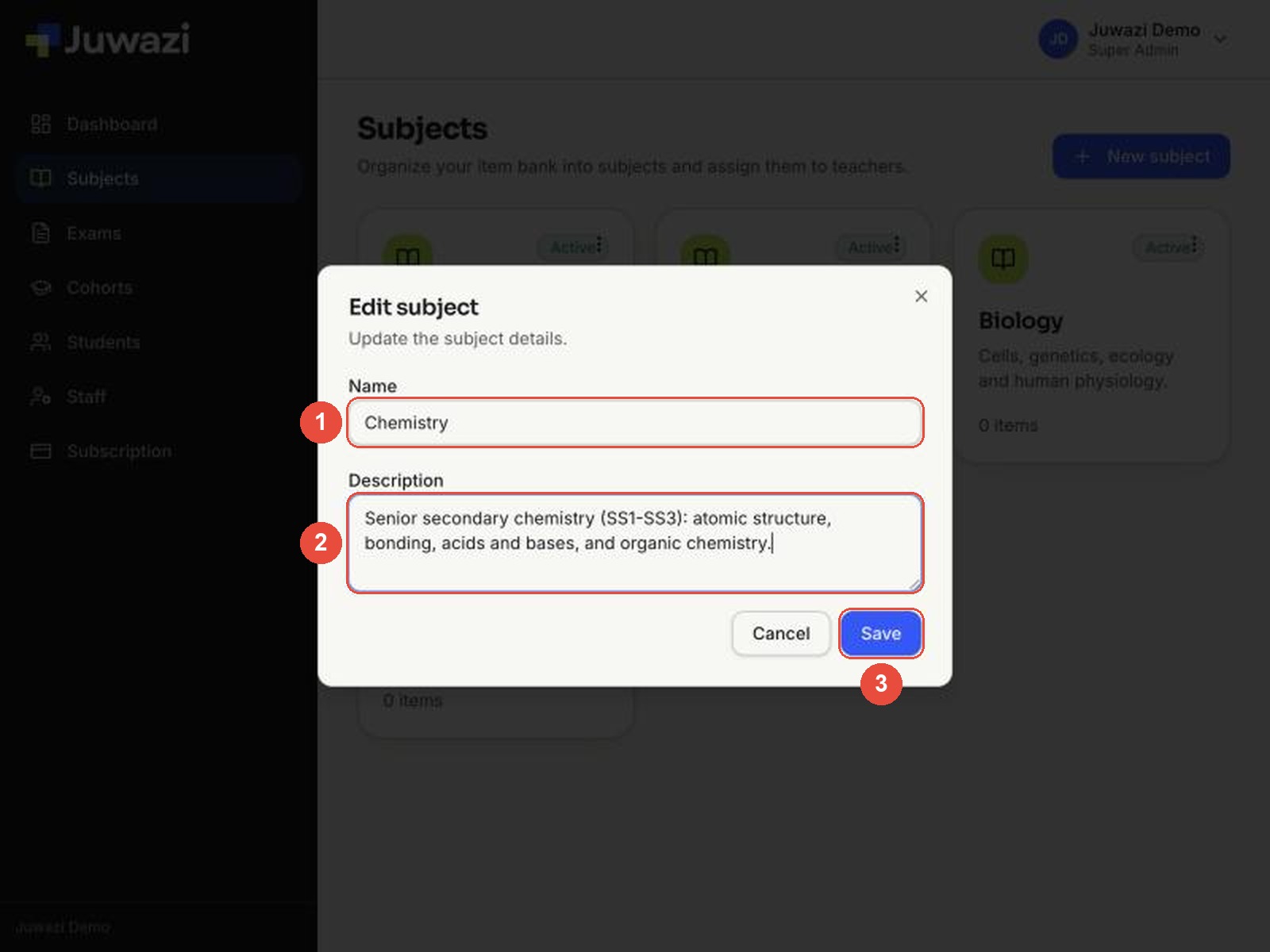
Tip: to replace all the text in a box, click into it and press Ctrl+A (Cmd+A on a Mac) before typing, or triple-click the text to select it.
Assign a teacher to a subject#
Assigning a subject to a teacher (or another staff member) lets them write questions for it. Invite the person first (Guide 10); only people already on your Staff page can be assigned.
Step 1. On the subject’s card, click ⋮ → Assign teacher. The Assignments dialog opens. (View assignments in the same menu is for checking who is already assigned.)
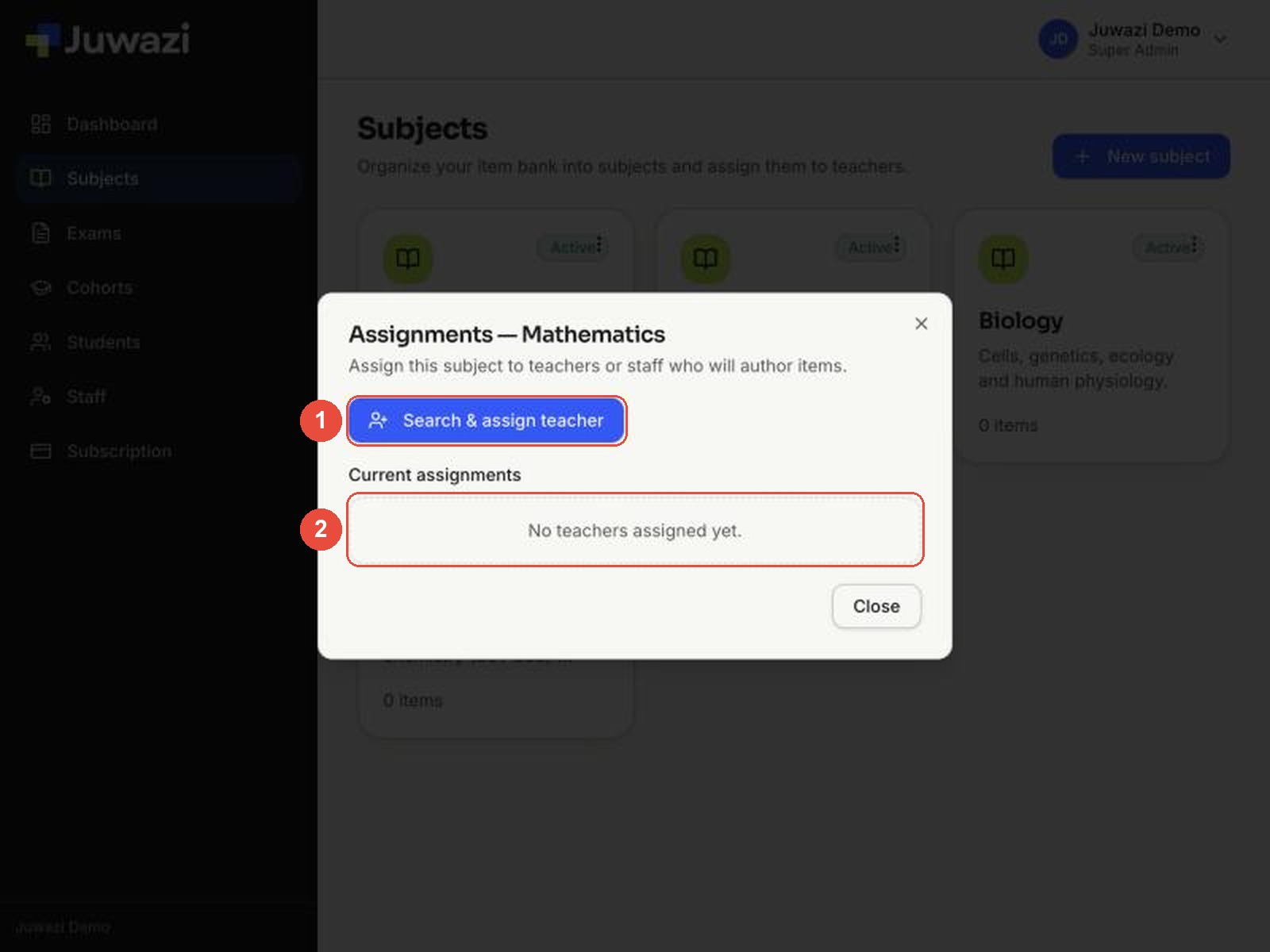
- Search & assign teacher opens the staff picker.
- Current assignments lists everyone assigned to the subject.
Step 2. Click Search & assign teacher to open the staff picker.
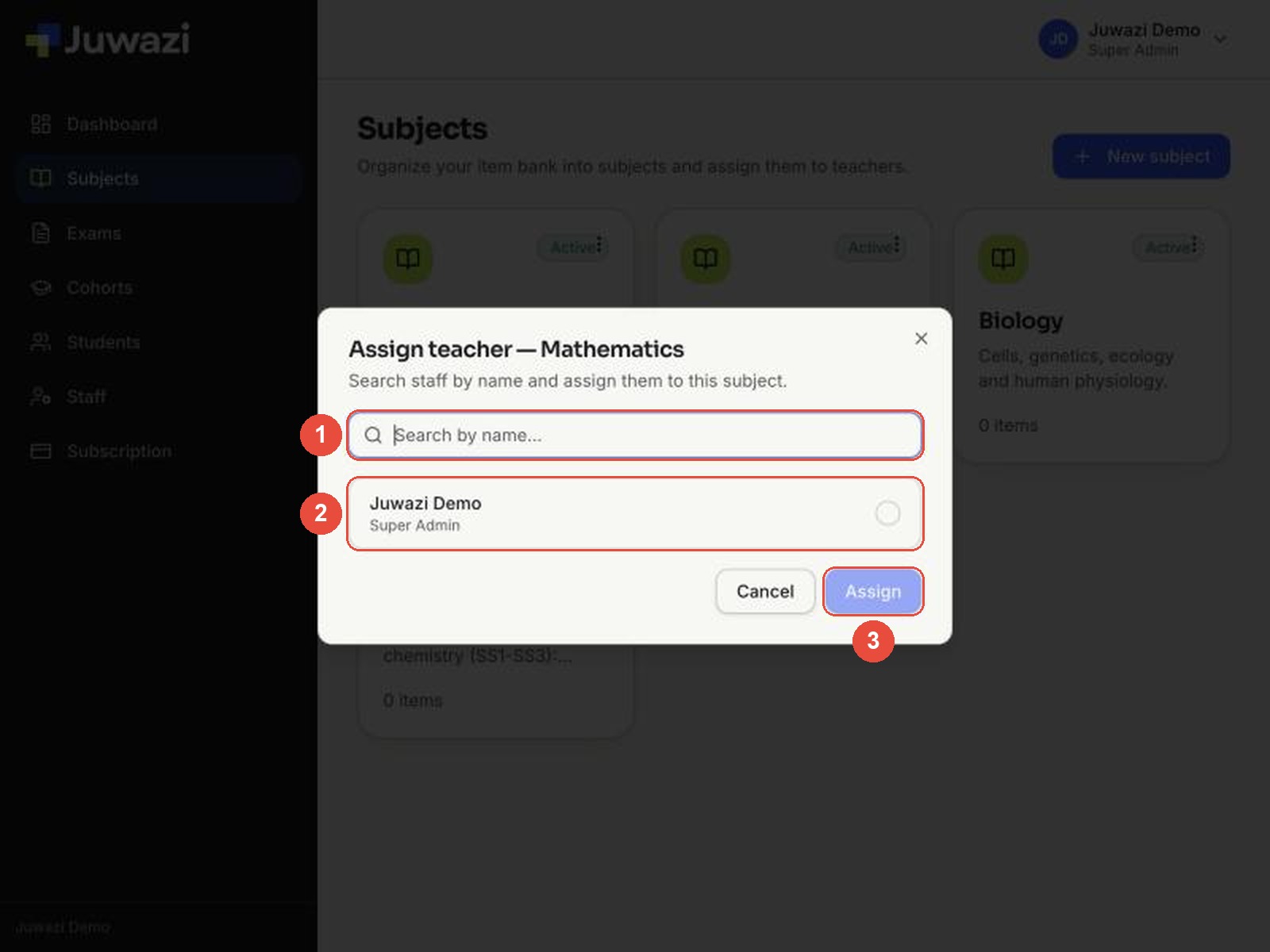
- Type part of the person’s name to find them.
- Click their row to select it. Each row shows the person’s name and role.
- Click Assign.
You can also manage a staff member’s subjects from the Staff page (Guide 10).
Draft note: the screenshots show a new workspace whose only staff member is the Super Admin. We’ll add a picture with a teacher assigned once teacher accounts are set up.
Archive a subject you no longer use#
Archive a subject when you stop teaching or testing it, for example when a syllabus is replaced. Archiving hides the subject from your lists but keeps its questions. In this example we archive Physics (Old Syllabus).
- Click the ⋮ menu on the subject’s card and choose Archive (shown in red).
- Juwazi asks you to confirm: The subject will be hidden from active lists. Items are retained. Click Archive.
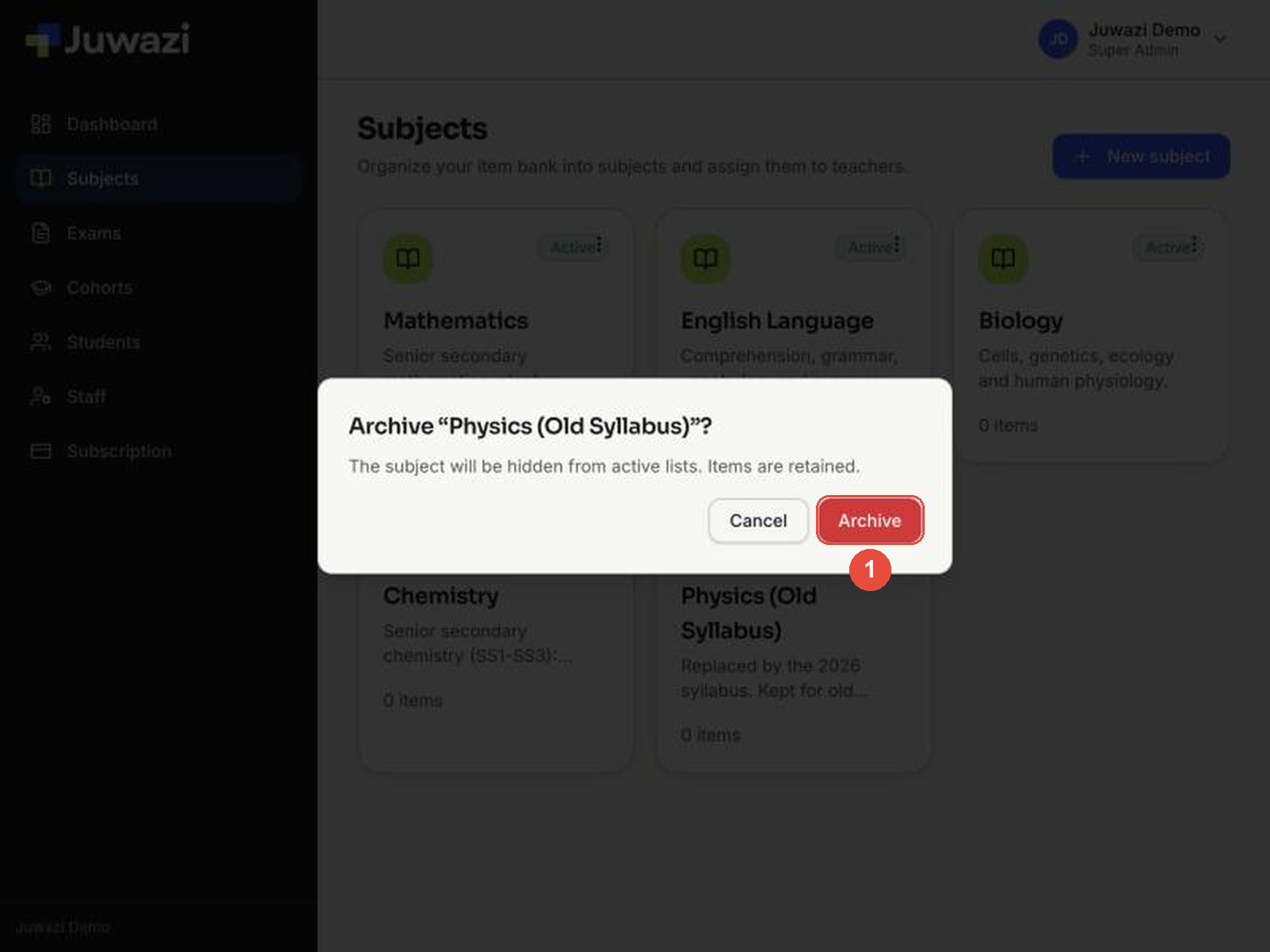
- Juwazi shows Subject archived and the card disappears from the Subjects page.
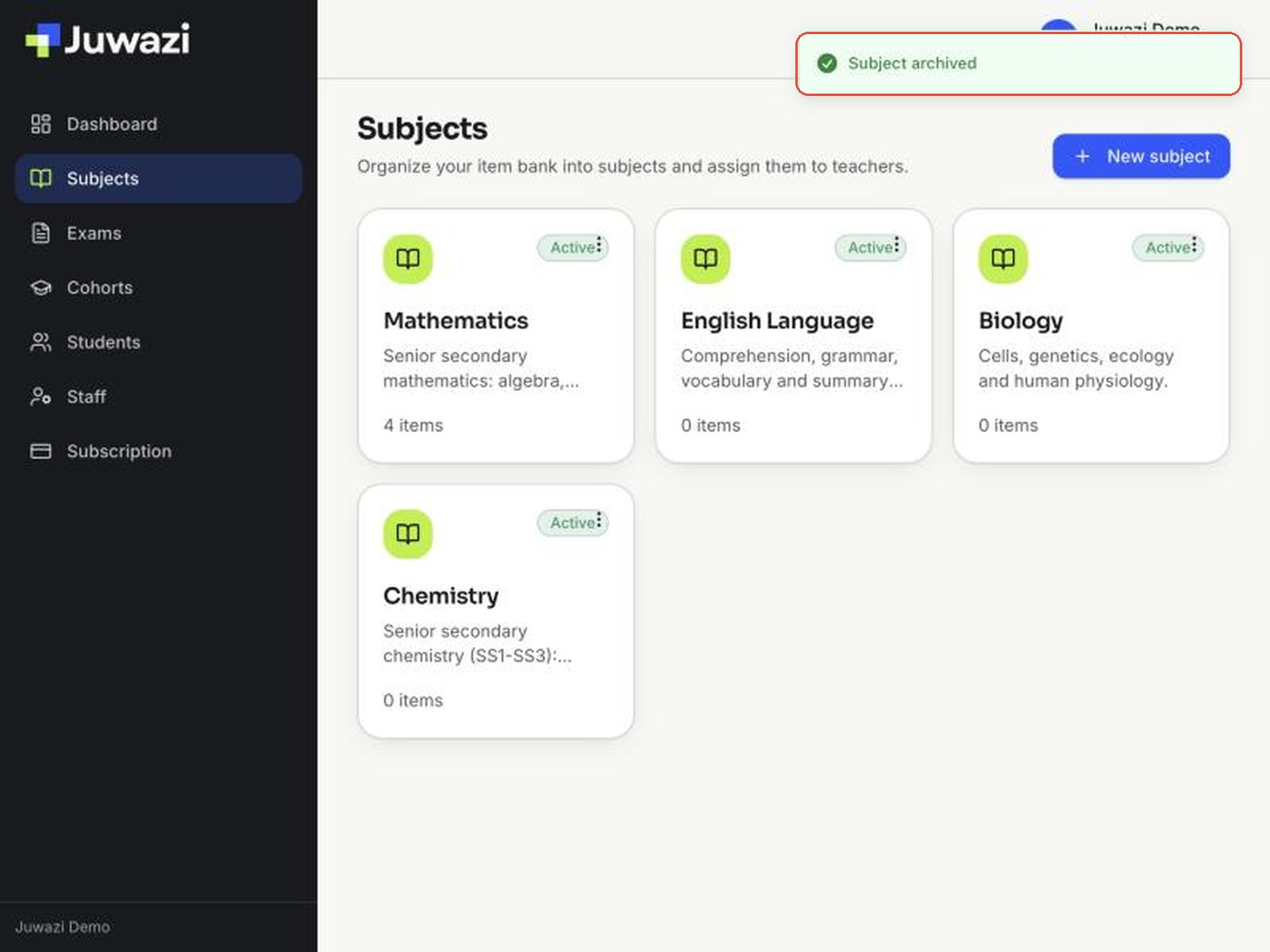
Important: at the moment there is no way to view or restore an archived subject from the Subjects page. Archive only subjects you are sure you no longer need. If you just want to rename a subject, use Edit instead.
Tips and what’s next#
- Name subjects the way students know them. The subject name appears on every exam built from it, so Mathematics is clearer than MTH-SS2.
- One subject per topic, not per class. Use a single Mathematics subject for all year groups and separate them with cohorts (Guide 7) and exam titles. This lets every class’s exams reuse the same item bank.
- Use the description for scope. Note the syllabus or year groups it covers, for example SS1–SS3, so teachers know which questions belong there.
Next: Guide 4, Building the question bank, shows how to add each of the five question types to a subject.