

When to use bulk upload#
Bulk upload adds many questions to a subject at once from an Excel file, instead of typing them one by one in the Add question form. Use it when you:
- already have questions in a spreadsheet or past paper
- are setting up a new subject with dozens of questions
- want teachers to prepare questions offline and send you one file
You need: Microsoft Excel, Google Sheets or LibreOffice to edit the file, and a subject to upload into (Guide 3). This guide uploads Biology questions.
Step 1: Download the Excel template#
Always start from Juwazi’s template. It has the exact column names the upload expects.
- Go to Subjects and open the subject the questions are for (here Biology).
- Click Bulk upload at the top right.

- In the Bulk upload questions window, click Download Excel template. Your browser saves the Excel file, usually to your Downloads folder.
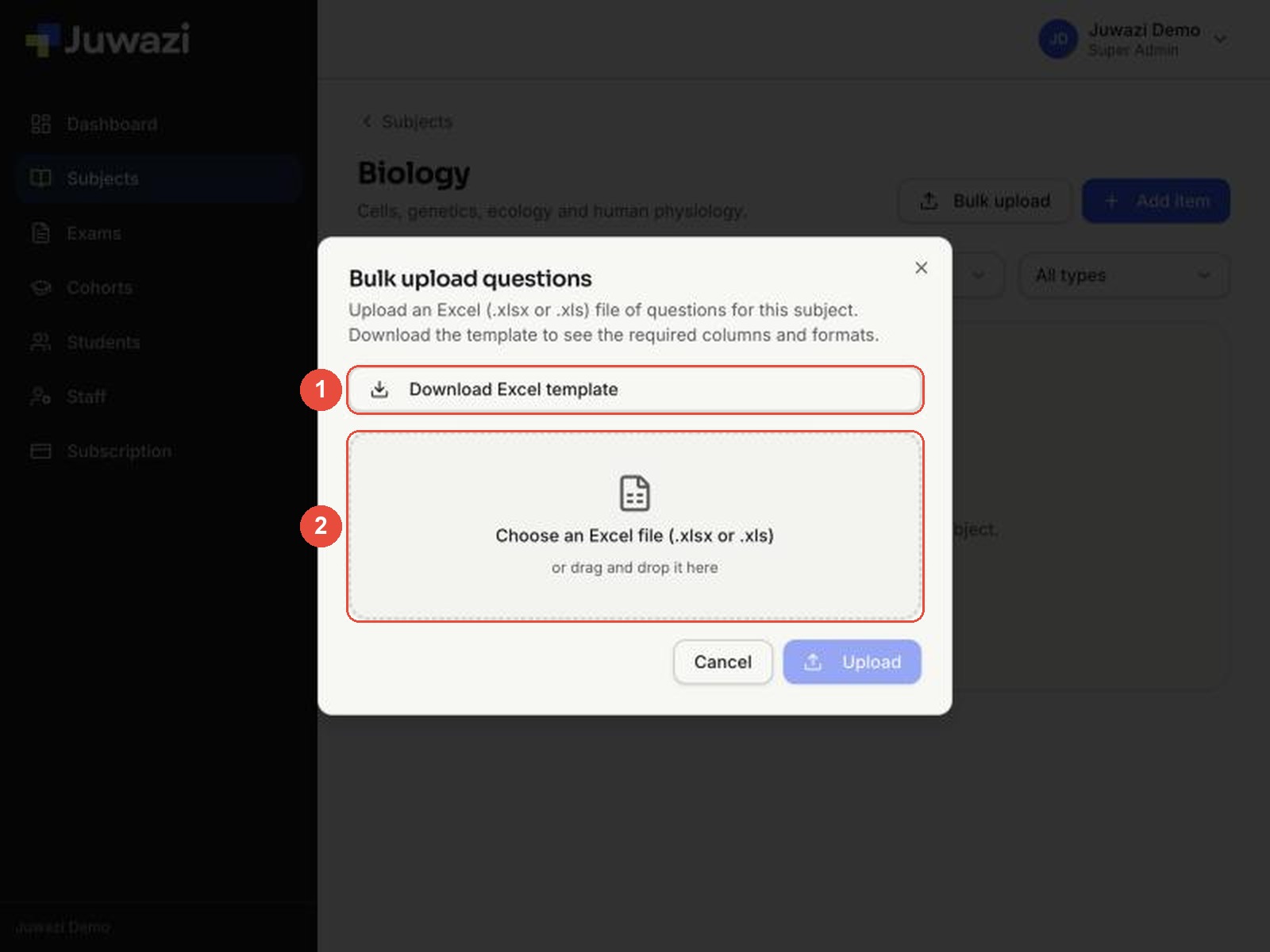
The template has two sheets:
- Questions: where your questions go. It comes with 5 example rows, one per question type. Delete them before adding your own.
- Instructions: a short description of every column.
Step 2: Fill in the template#
Open the file in Excel, Google Sheets or LibreOffice. On the Questions sheet, add one question per row, starting at row 2. Keep row 1, the column headings, exactly as it is.
Here’s the sheet with 8 Biology questions, covering every question type:

The columns#
| Column | Required? | What to enter |
|---|---|---|
| question_text | Yes | The question. |
| item_type | Yes | Exactly one of: mcq_single, mcq_multi, true_false, numeric, short_answer |
| option_a – option_e | Multiple choice and True/False | The answer options. Multiple choice needs at least 2. You can use up to 5 (A–E), one more than the on-screen form allows. |
| correct_answers | Yes, except essay-style short answers | The option letter (B), several letters separated by commas for multi-answer (A,B,D), True/False, the number, or the expected word. |
| explanation | No | Shown to students after the exam if review is turned on. |
| marks | No | Marks for a correct answer. Default 1. |
| negative_marks | No | Marks taken off for a wrong answer, e.g. 0.5. Default 0. Only available through bulk upload. |
| tags | No | Topic labels separated by commas, e.g. genetics,chapter-3. Only available through bulk upload. |
| difficulty | No | easy, medium or hard. |
How to fill each question type#
| Question type | item_type | Options | correct_answers |
|---|---|---|---|
| Multiple choice (single) | mcq_single |
option_a to option_d (or _e) | One letter: B |
| Multiple choice (multiple) | mcq_multi |
option_a to option_e | Letters with commas: A,B,D |
| True / False | true_false |
option_a = True, option_b = False |
True or False |
| Numeric | numeric |
leave blank | The number: 4 |
| Short answer | short_answer |
leave blank | The expected word: Chlorophyll |
Short answers with no fixed answer: you can leave correct_answers empty for an open, essay-style question, such as Explain why enzymes stop working at high temperatures. Juwazi’s own template marks this kind of question “Manual review”. We’ll confirm how these are marked in Guide 17.
Note: tags and negative marks are saved with the question, but they don’t currently appear in the item bank or the Edit question form.
Step 3: Upload the file#
- Save your file as .xlsx (or .xls).
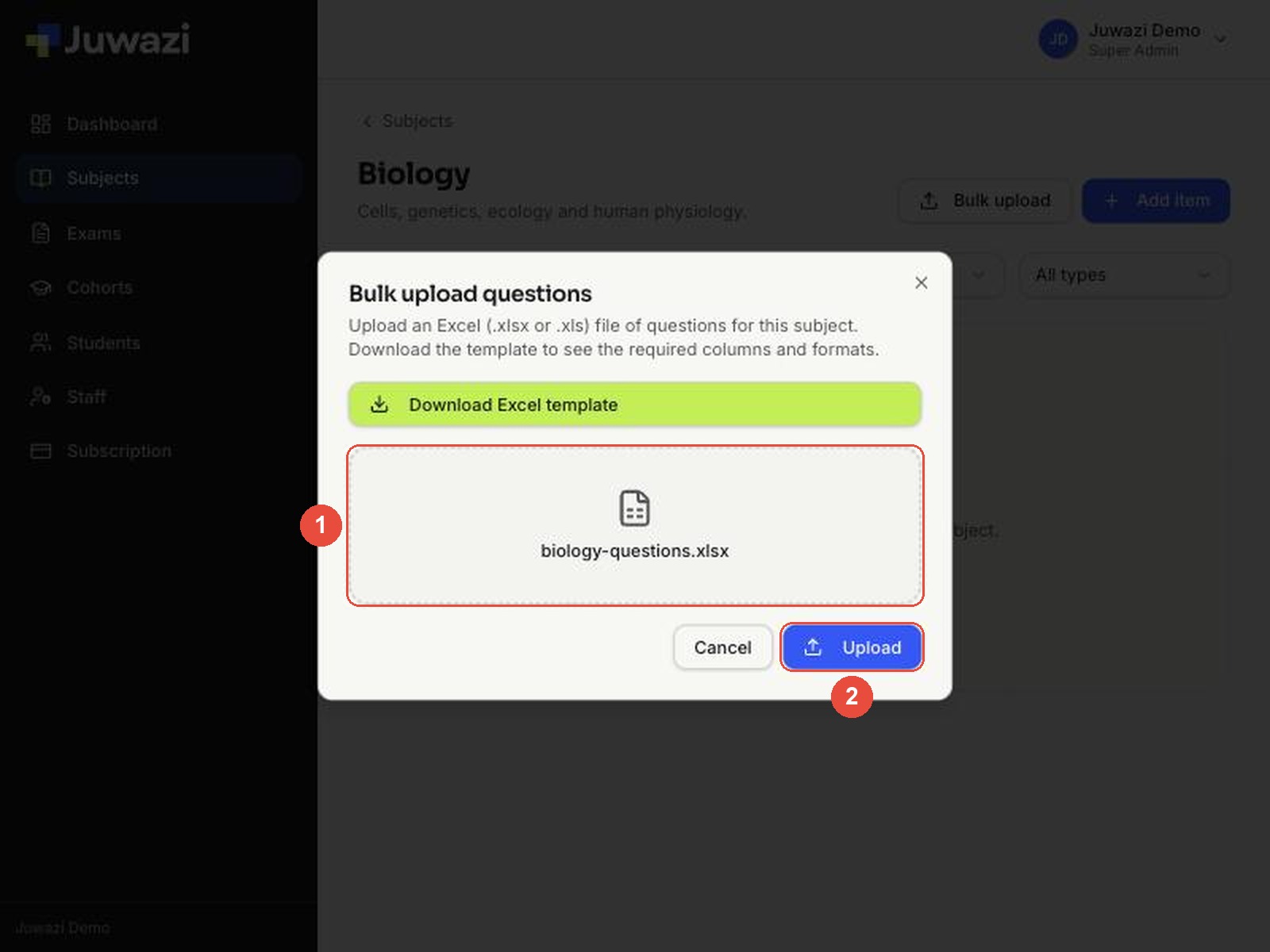
- Open the subject, click Bulk upload, then click the dashed box to choose your file, or drag the file onto it. The file’s name appears in the box.
- Click Upload.
After a few seconds Juwazi shows a summary: how many rows were imported and how many there were in total. A message also appears in the top-right corner.
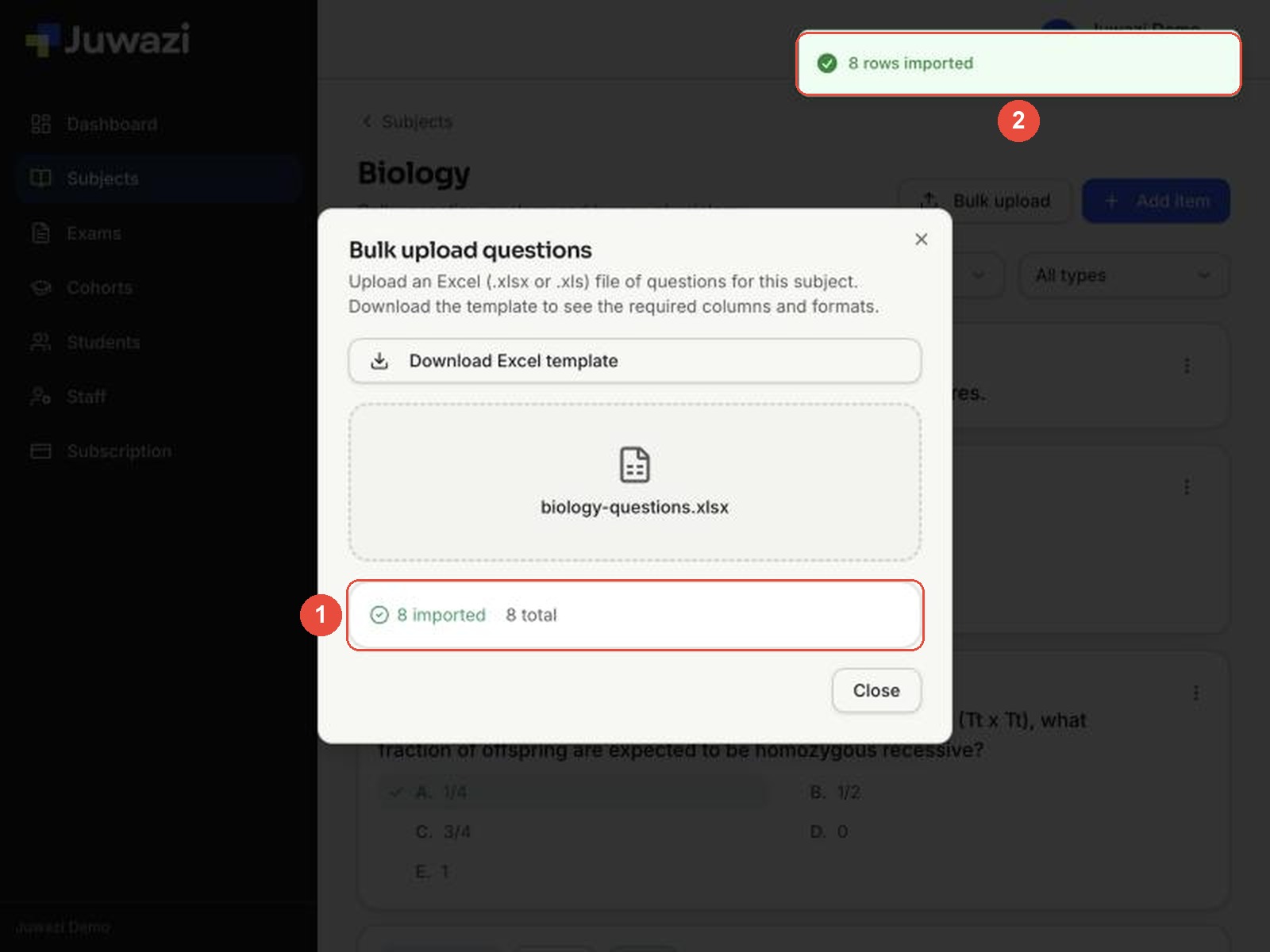
- Click Close. The new questions are now in the subject’s item bank, marked Active and ready for exams.

Check a few questions after each upload: make sure the right option is ticked and the marks are correct. Fix any mistakes with ⋮ → Edit question (Guide 4).
Fixing errors#
Juwazi checks every row. Good rows are imported even when other rows fail, and each failed row is listed with its Excel row number and the reason.
In this test, a file with 5 rows had 4 deliberate mistakes:
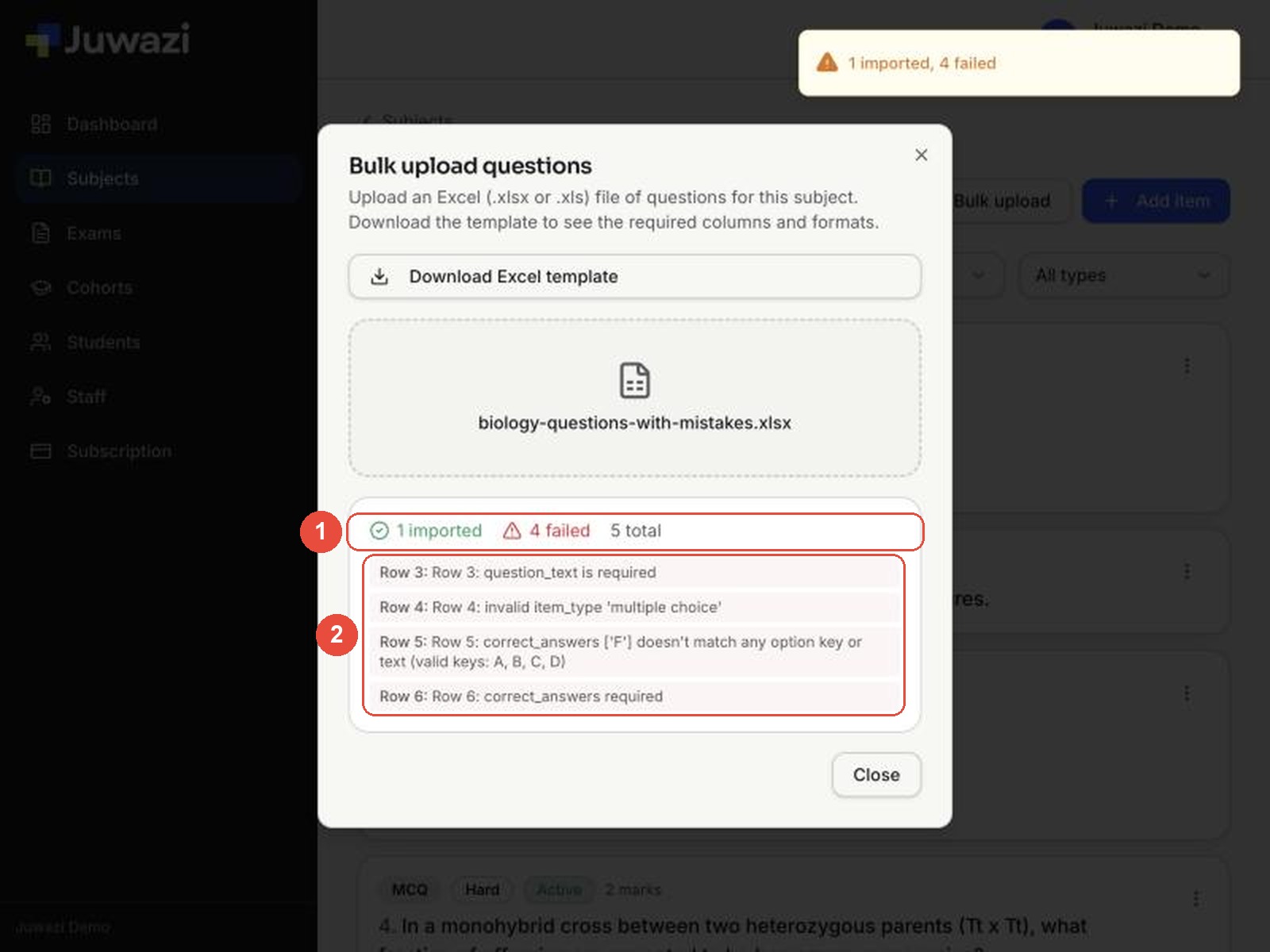
| Message | What’s wrong | How to fix it |
|---|---|---|
| question_text is required | The question cell is empty. | Type the question, or delete the empty row. |
| invalid item_type ‘multiple choice’ | The type isn’t one of the five allowed words. | Use exactly mcq_single, mcq_multi, true_false, numeric or short_answer. |
| correct_answers [‘F’] doesn’t match any option key or text (valid keys: A, B, C, D) | The answer points to an option that doesn’t exist. | Use the letter of a filled-in option. You can also type the option’s text exactly. |
| correct_answers required | No correct answer was given (here for a True/False question). | Fill in correct_answers. |
To fix a failed upload:
- Note the row numbers in the list. They match the row numbers in Excel.
- In your spreadsheet, delete the rows that were imported so they aren’t added twice.
- Correct the failed rows and upload the file again.
Important: the upload summary doesn’t mention duplicates, so take care not to upload the same rows twice.
Tips and what’s next#
- One subject per file. Questions go into the subject you uploaded from, so prepare a separate file for each subject.
- Upload in batches of 20–50 questions, and check each batch before the next.
- Use tags for topics or chapters (
genetics,term-1) so your bank stays organised as it grows. - Formulas and images: bulk upload takes plain text. Add formulas, tables or images afterwards with Edit question and the Rich text & maths editor (Guide 5).
- Share the template with teachers so they can prepare questions offline in the same format.
Next: Guide 7, Creating cohorts.