

More is coming for supervisors#
The Supervisor role is still being built. This guide covers what supervisors can do in Juwazi today. We’ll update it as new features arrive.
Supervisors will be the people who manage tests, not students. Once the role is complete, a supervisor will be able to:
- Review exams that teachers submit
- Approve exams so they can be given to classes, or reject them with feedback
- Watch tests while they run, keeping an eye on students’ progress and security alerts
Managing students (enrolling, moving or removing them) will stay with administrators.
For now, exam approval is done by an Administrator or Super Admin. See the Administrator guide.
What you see as a supervisor today#
Your administrator invites you as a Supervisor and assigns you to one or more cohorts (classes). You get an email with a temporary password and sign in at app.juwazi.com/login.
In this guide we’re Halima Yusuf, supervisor for SS2 Science – Class A.
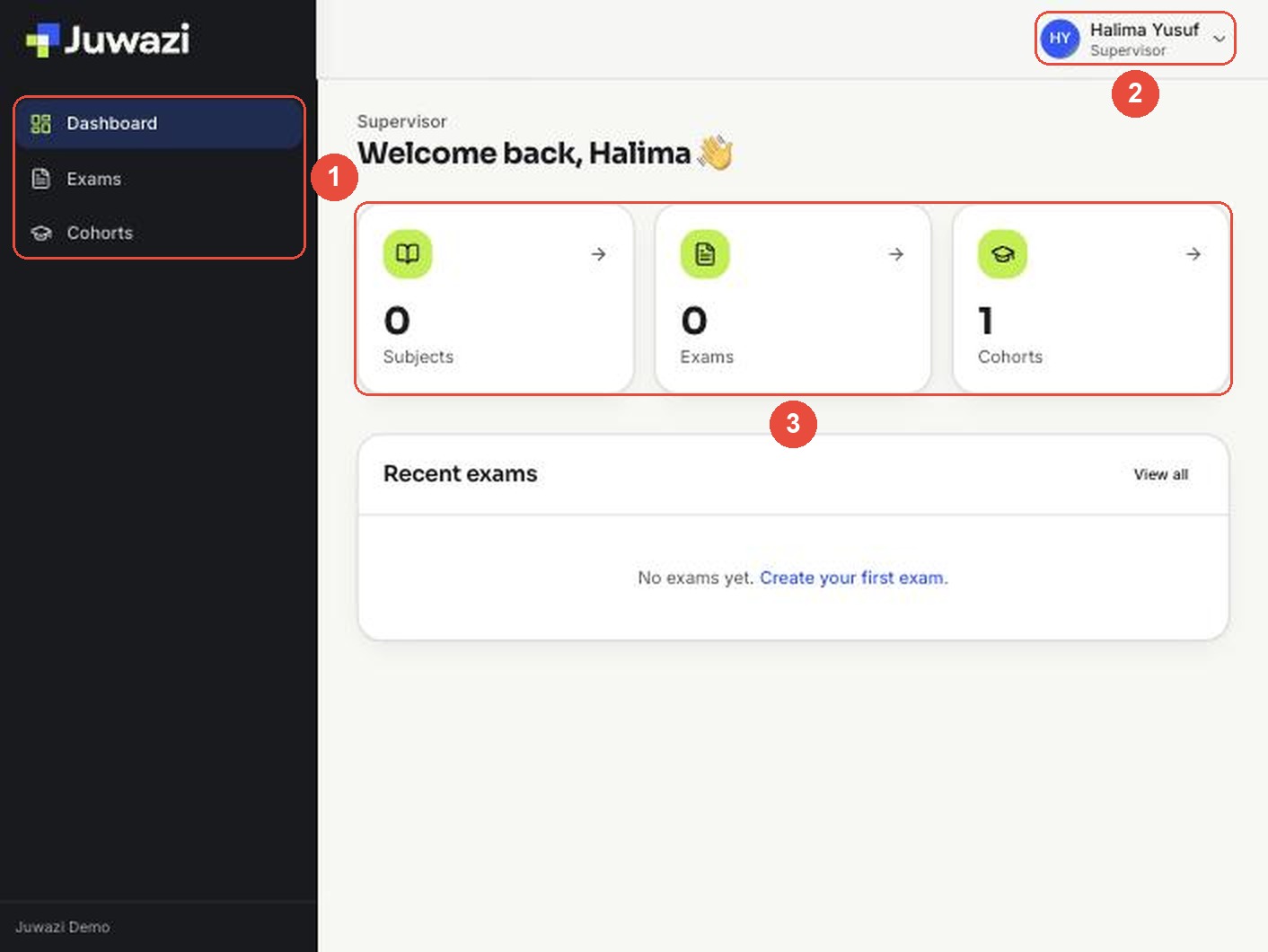
- Your menu: Dashboard, Exams and Cohorts.
- Your name and the label Supervisor at the top right.
- Your numbers: subjects, exams and cohorts assigned to you.
The Exams page isn’t ready yet#
If you open Exams at the moment, you’ll see an Insufficient permissions message (1) and an empty list (2), even when your class has exams. This is expected while the role is being finished. You don’t need to do anything.
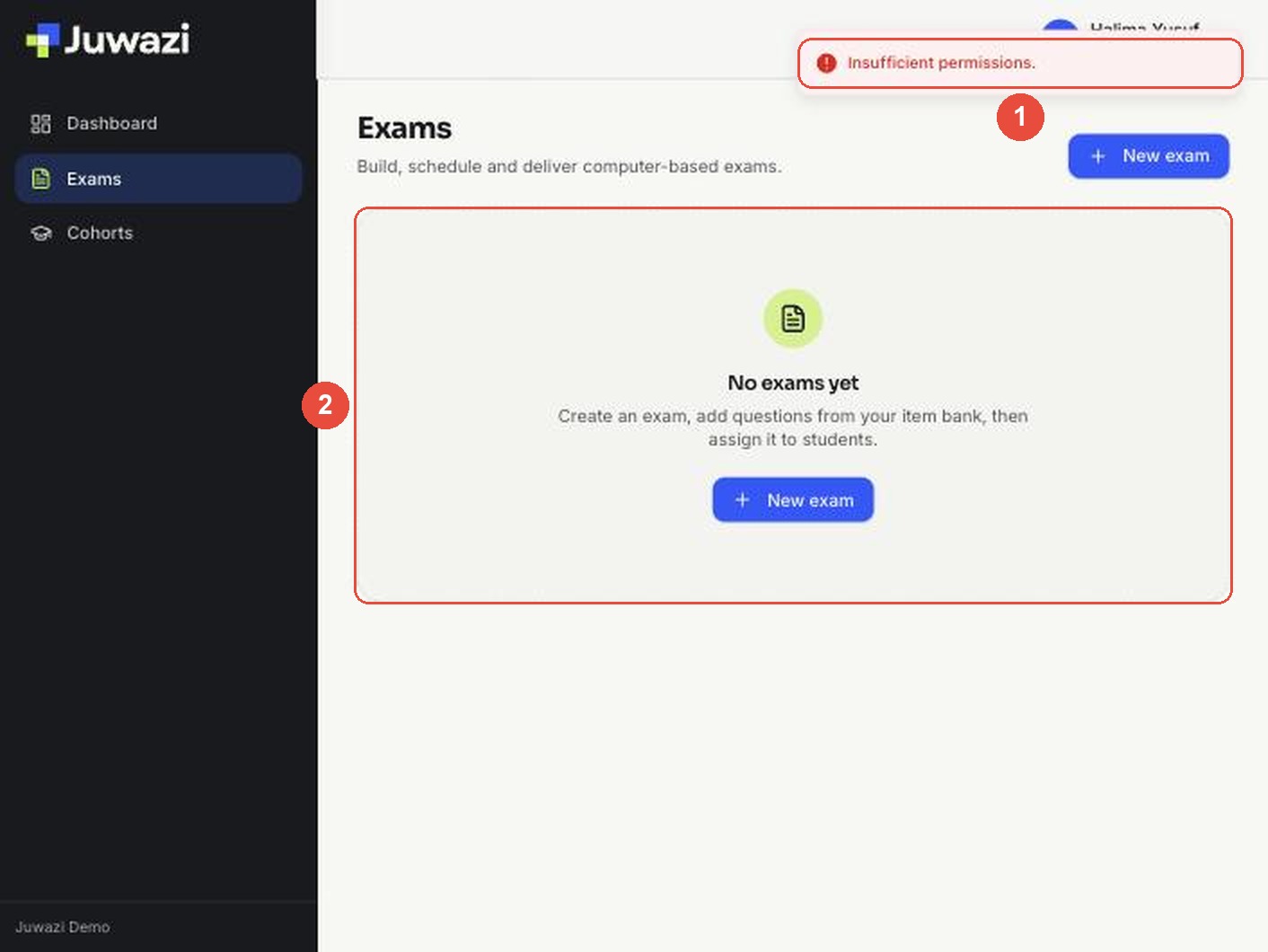
The New exam buttons on this page are for teachers. Supervisors won’t create exams.
Viewing your classes#
Click Cohorts to see the classes you supervise, then click one to open it. The class page is for viewing only:
- Two tabs: Members (the students) and Teachers (the staff assigned to the class, including you).
- The student list, with a search box to find a student by name or email.
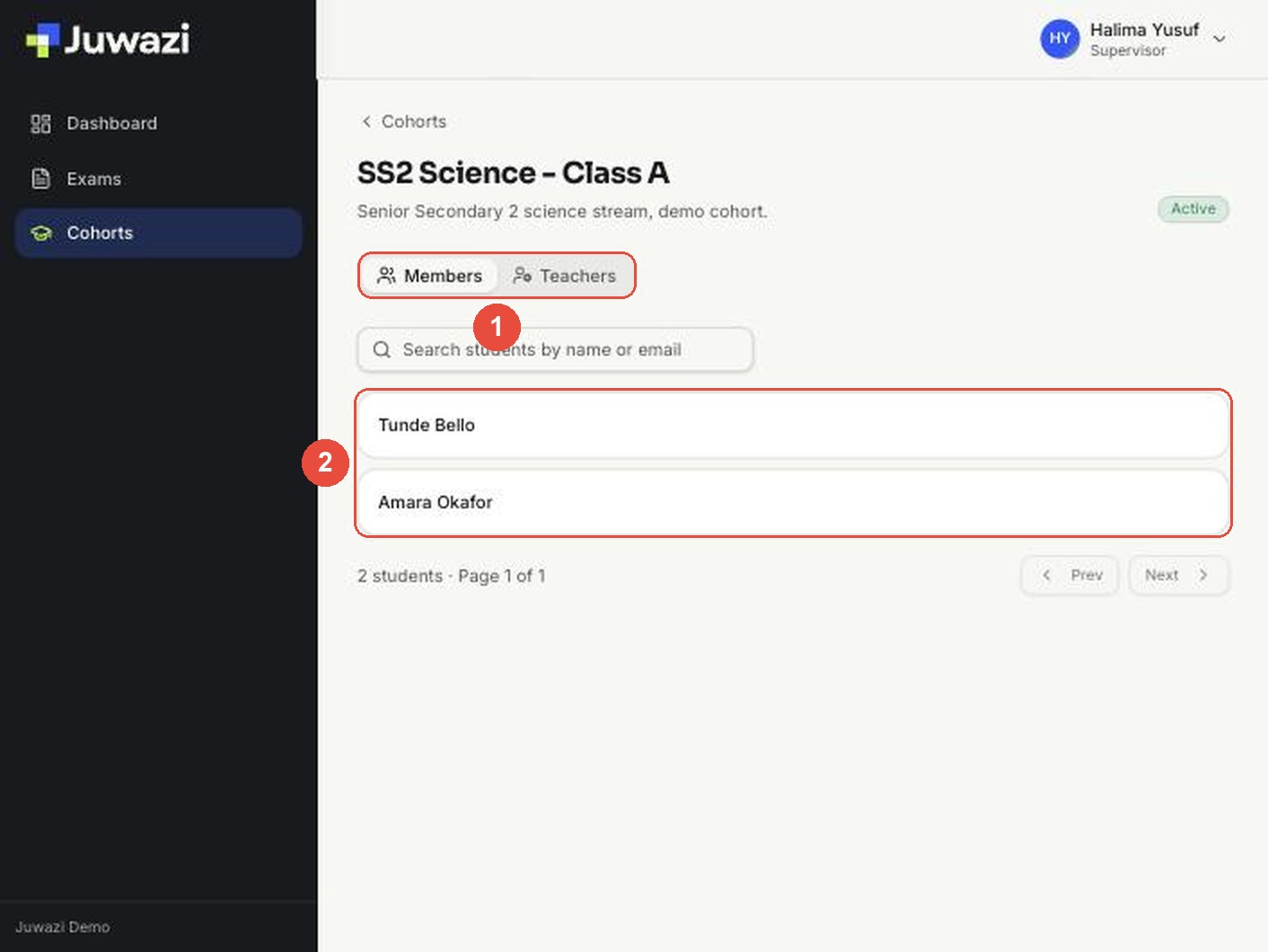
You can’t add, move or remove students. That’s done by administrators.
Current limitations and what to expect#
| Today | Coming |
|---|---|
| Dashboard, Exams and Cohorts in the menu | — |
| View your classes and their students | — |
| Exams page shows “Insufficient permissions” | See and review the exams for your classes |
| Exams are approved by Administrators | Approve or reject exams yourself |
| No live view of exams | Watch tests while they run |
Until these features arrive, ask your administrator for anything to do with exams.
This guide will be updated as the Supervisor role is completed. Check back for new steps and screenshots.